One additional way Servis.ai is fully customizable is through your Company Profile. Here, you can personalize Servis.ai by aligning it with your company’s branding.
User Permissions: Only Administrators can use this feature.
Navigate to Company Settings
Open the menu and go to Settings > Company > Company Settings.
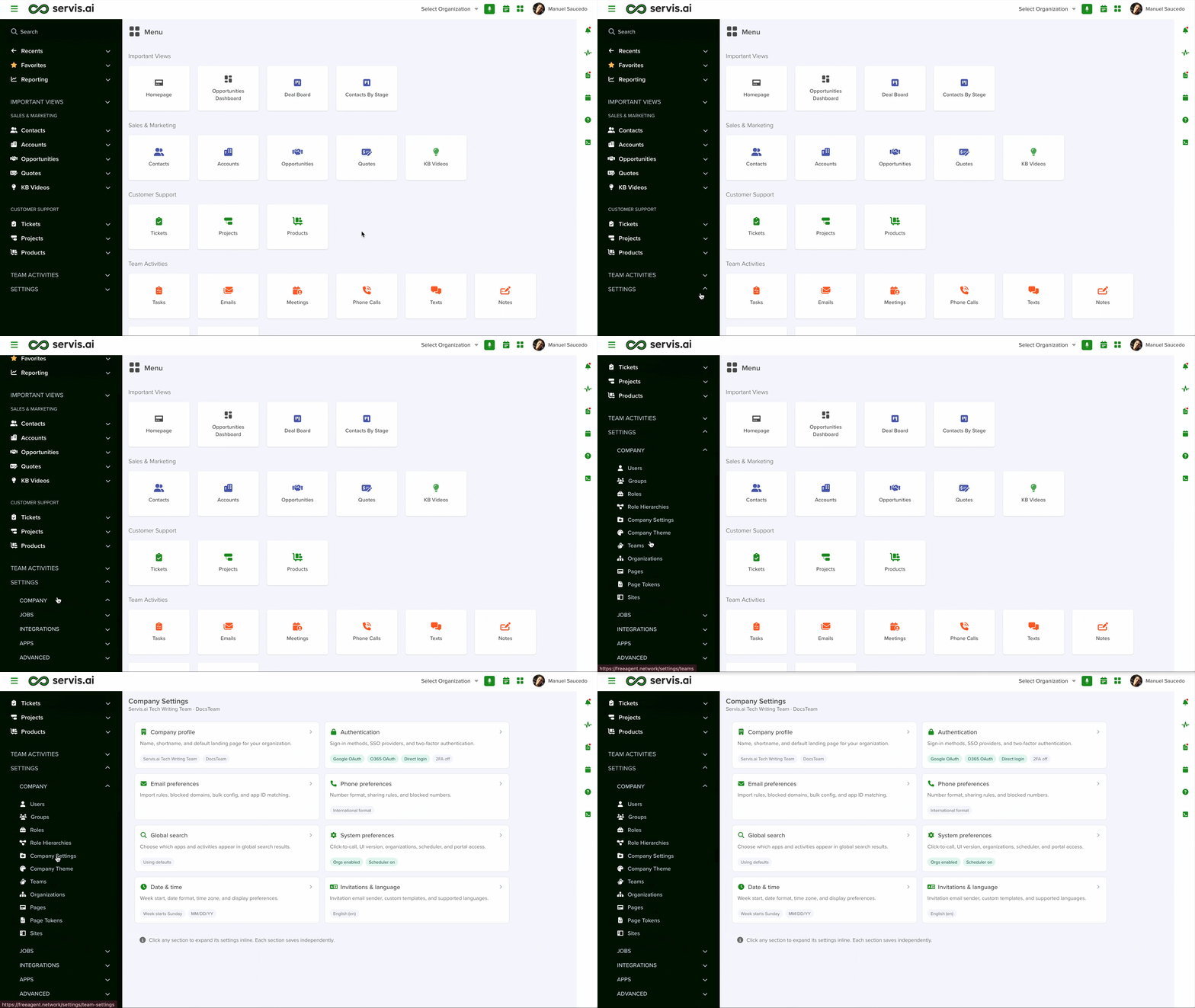
You can also use the search function to get there faster—simply start typing ‘Company Settings’.
Company Profile
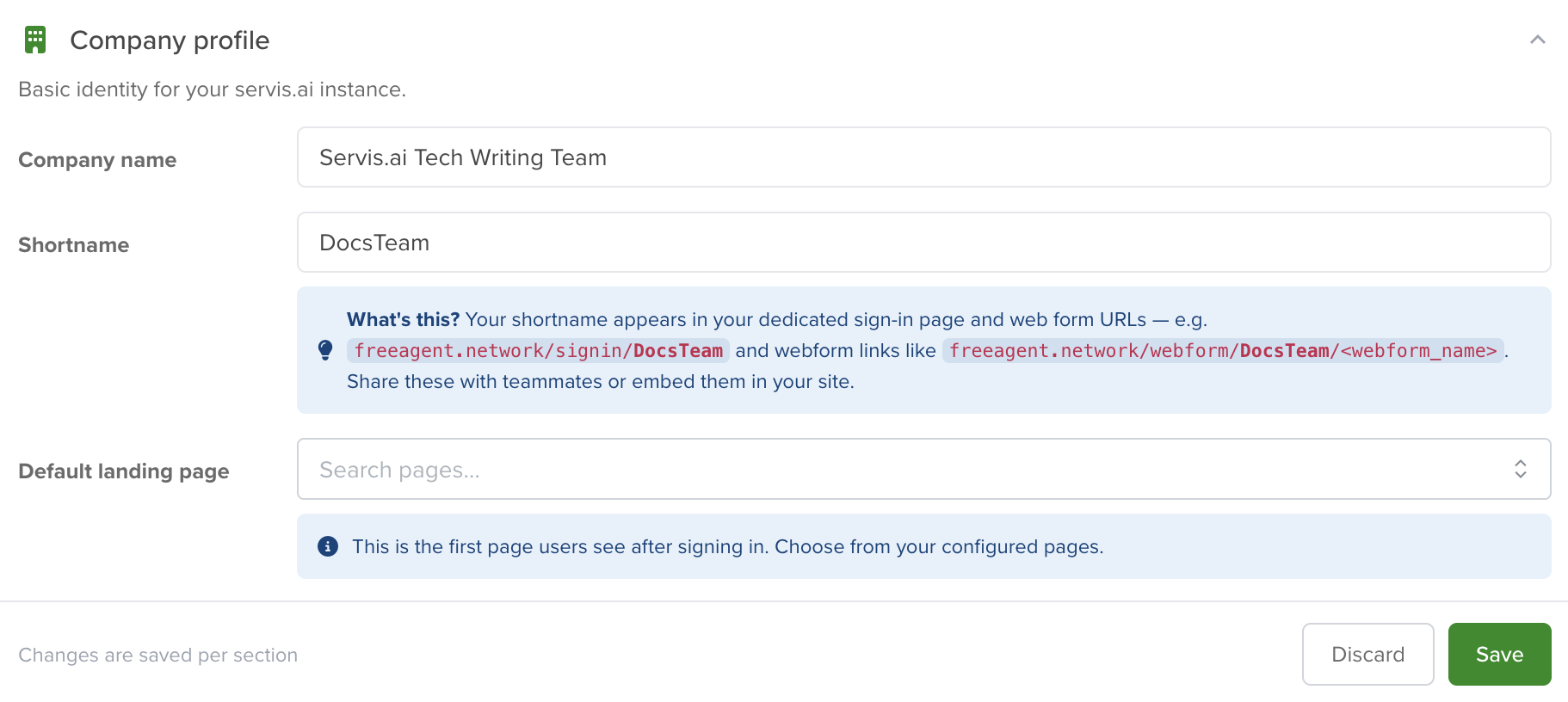
Company Name & Shortname
This field represents the name of your organization.
The field labeled ‘Shortname’ is used to shorten URLs for key pages throughout Servis.ai.
Default Landing Page
By default, the home screen for Servis.ai is the main application page. However, you can change it to a different location here. This setting will apply to all users.
Date Time Preferences
Setting up date and time preferences allows users to customize their system experience according to personal, regional, or organizational requirements. Adjusting settings such as the start of the week, date formats, time displays, and time zones ensures consistency, accuracy, and clarity across all records and schedules.
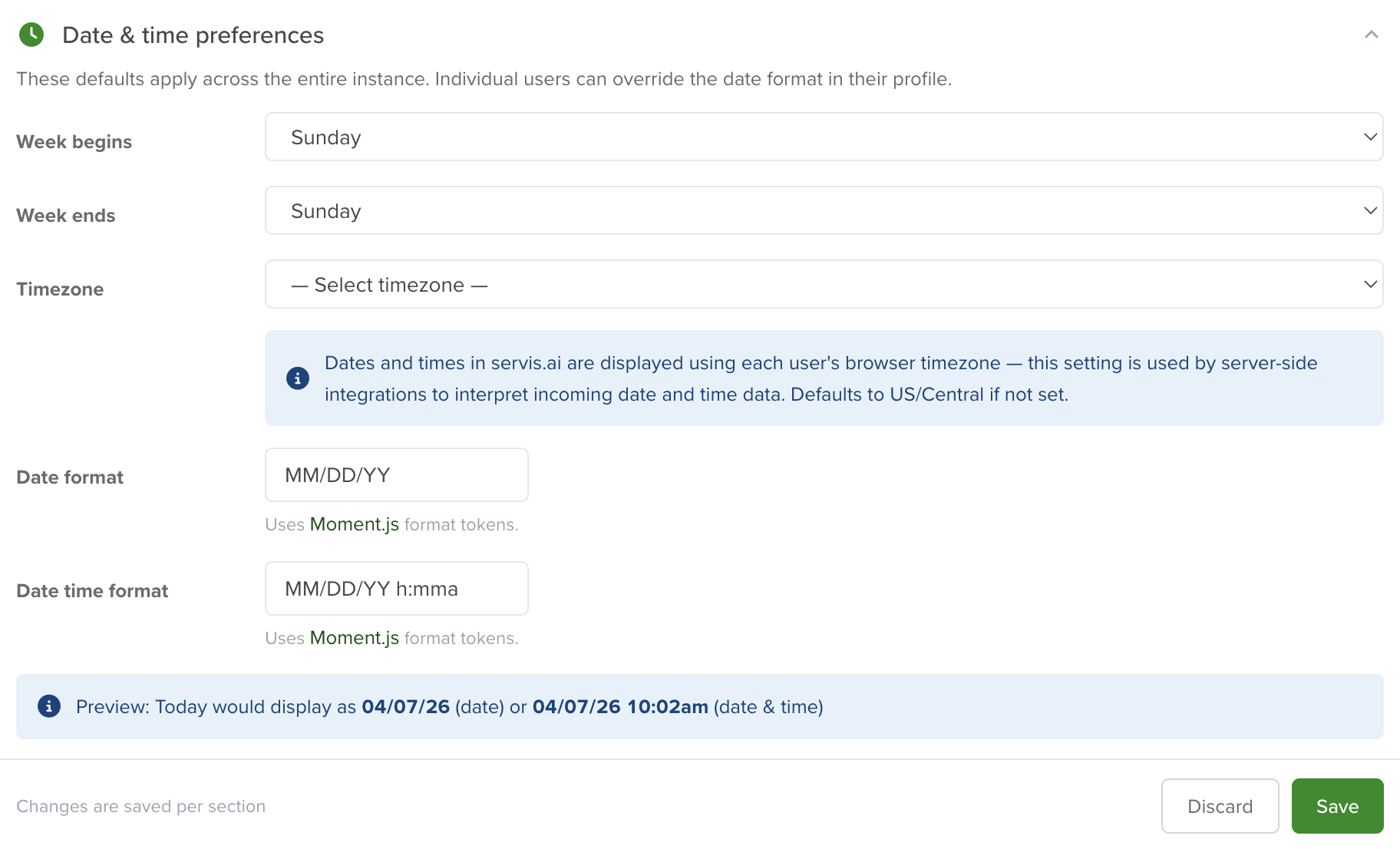
These configurations support a smooth workflow while accommodating different conventions and timekeeping standards. Read this article from our Knowledge Base to learn more!
Authentication
Servis.ai offers multiple authentication methods to provide both convenience and security. These options include signing in with Google accounts, Microsoft 365 OAuth, or using a direct username and password. Additionally, users can enable Two-Factor Authentication (2FA) for enhanced protection.
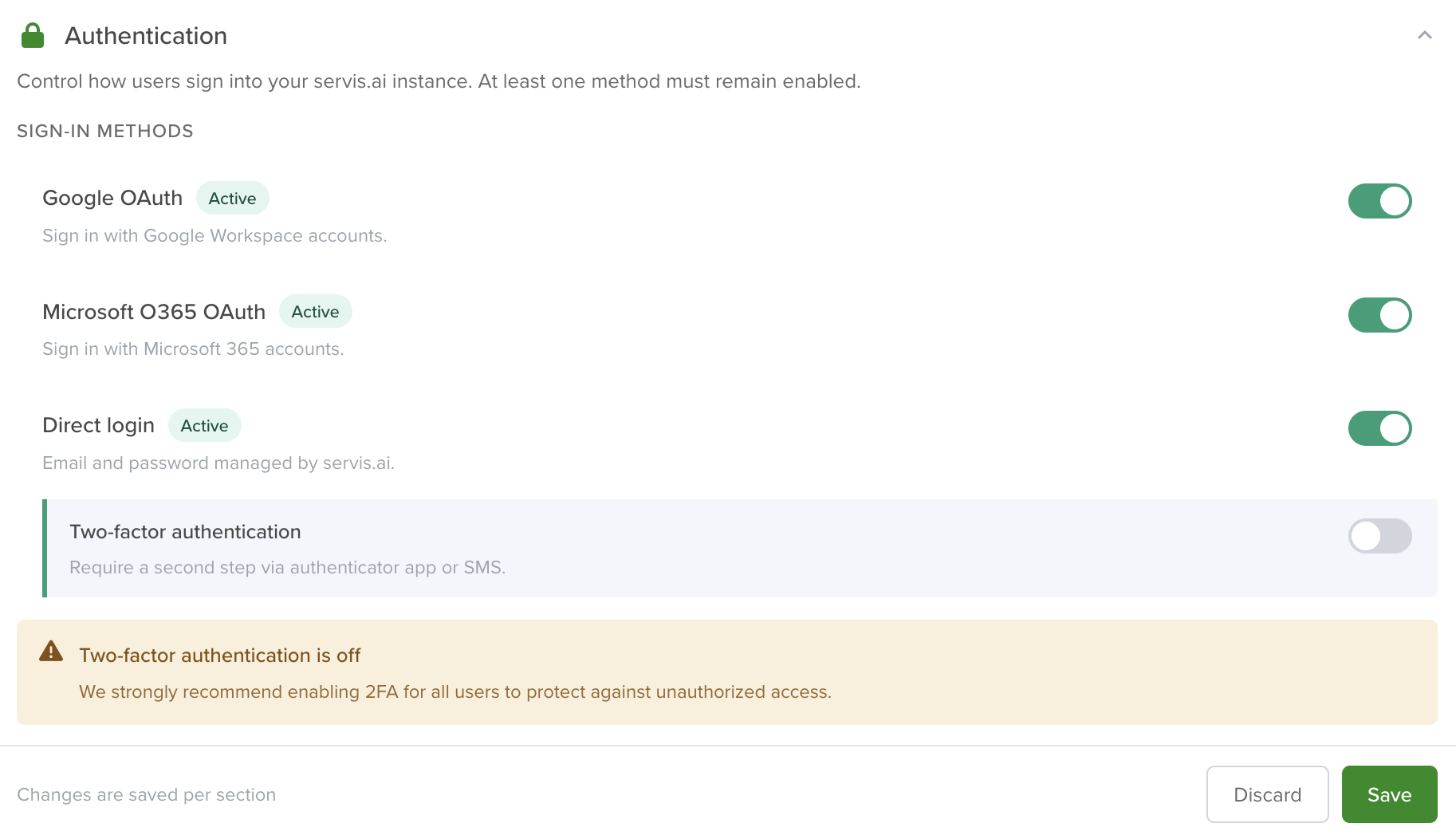
To activate 2FA, the Direct Login option must be enabled. This adds an extra layer of security by requiring a verification code sent to the user’s email.
Read this article from our Knowledge Base to learn more!
System Preferences
System Preferences in Servis.ai provide users with the flexibility to customize how the platform interacts with their device’s native applications, helping optimize workflow efficiency. Users can also access the most up-to-date interface enhancements, including refined layouts and improved navigation for a seamless experience.
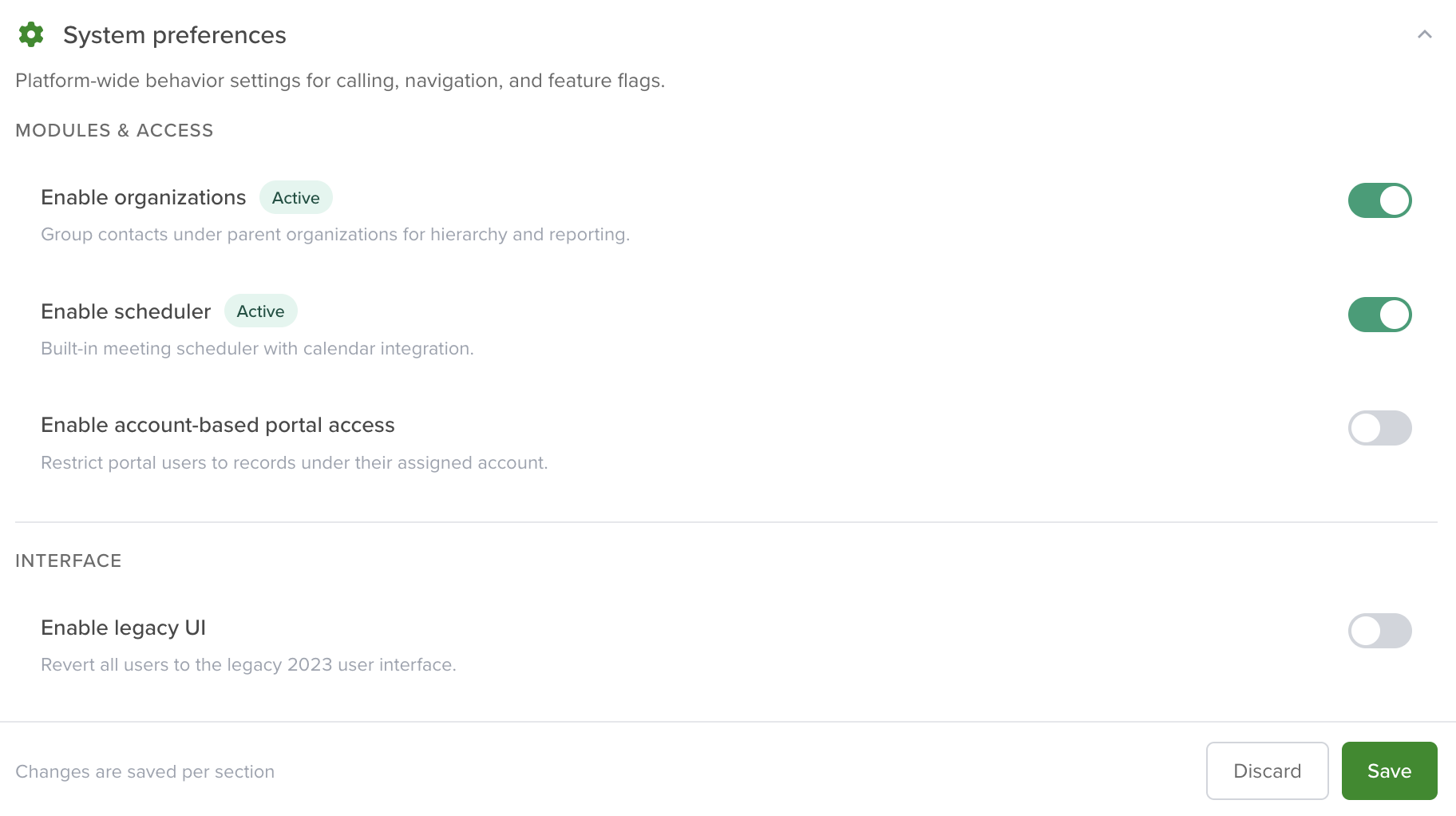
Read this article from our Knowledge Base to learn more!
Global Search Preferences
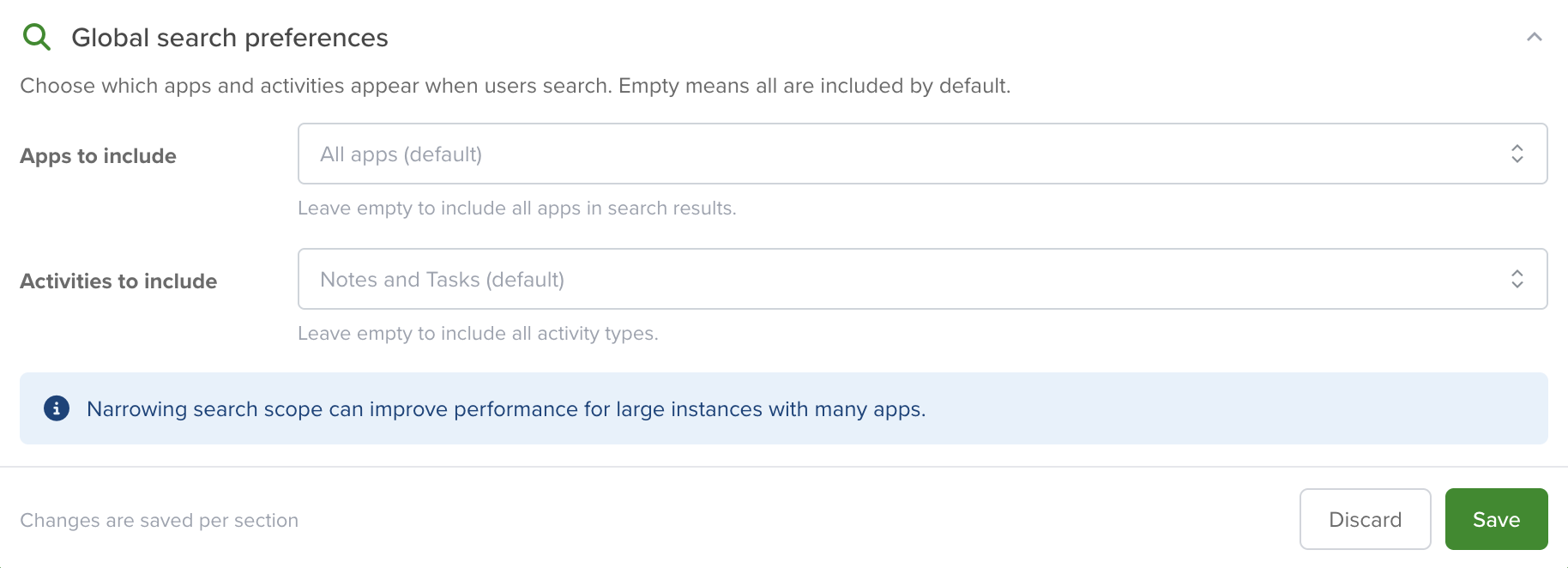
Email Preferences
The “Email Preferences” section allows users to configure various settings related to email functionality within the system.
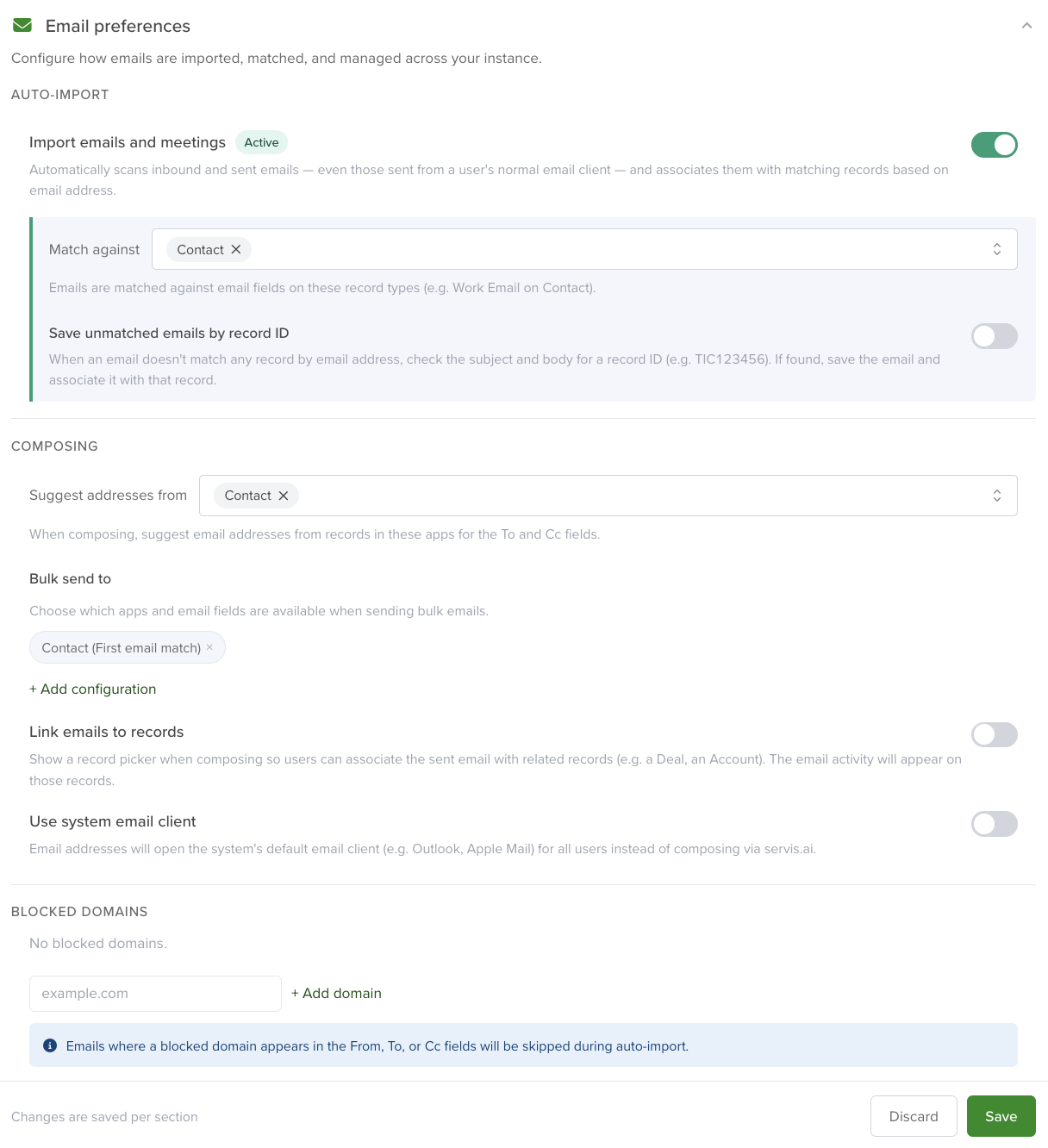
These settings control how emails and meetings are imported, how email addresses are suggested, domain blacklisting, bulk email configurations, and smart sharing options. Read this article from our Knowledge Base to learn more!
Phone Preferences
Servis.ai streamlines contact management with flexible phone number formatting options that align with regional and international standards, ensuring consistency and data accuracy.
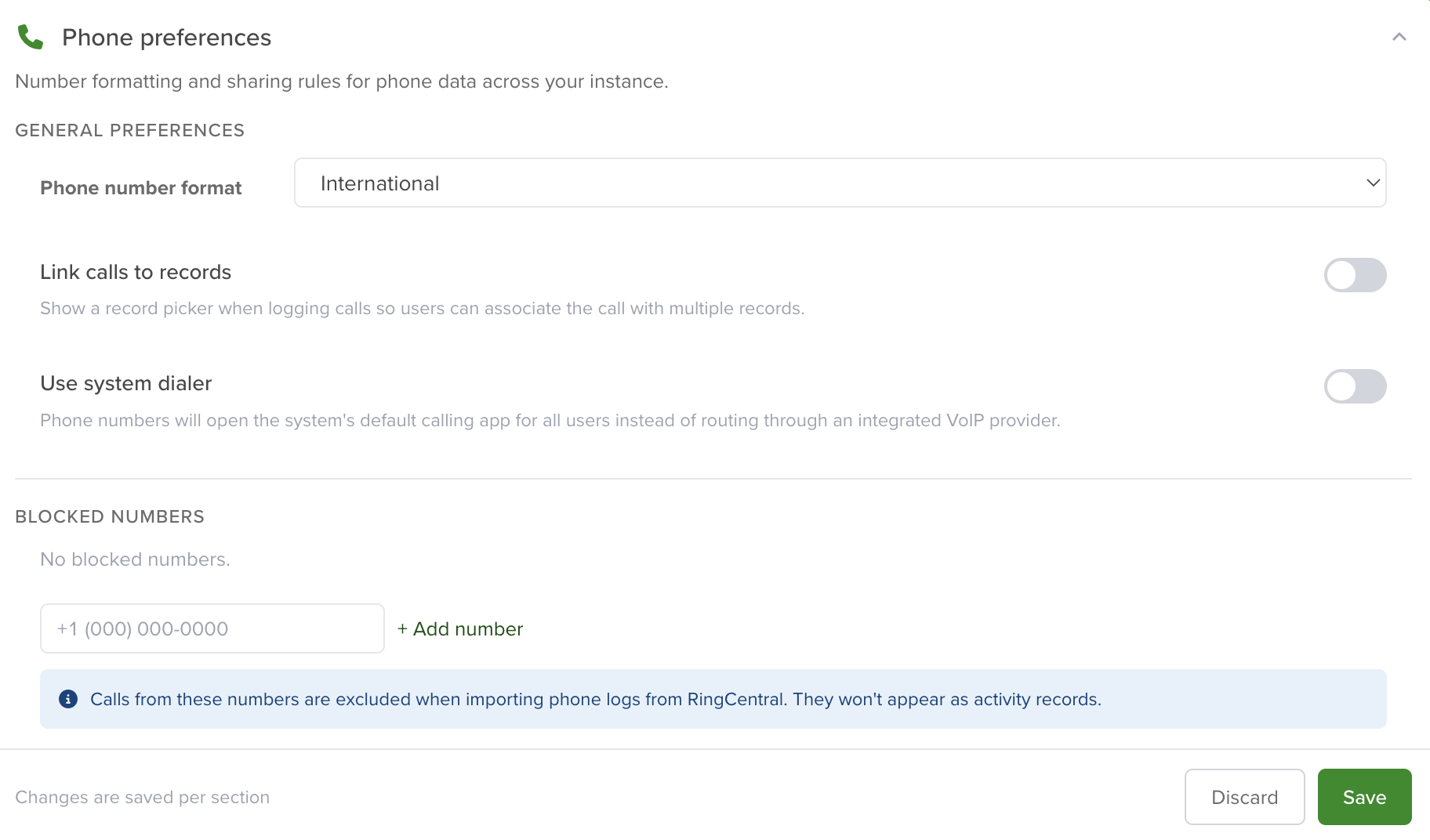
Additionally, its Smart Sharing feature allows users to link phone calls to multiple records across apps, enhancing communication history and record tracking. Read this article from our Knowledge Base to learn more!
Invitation & Language
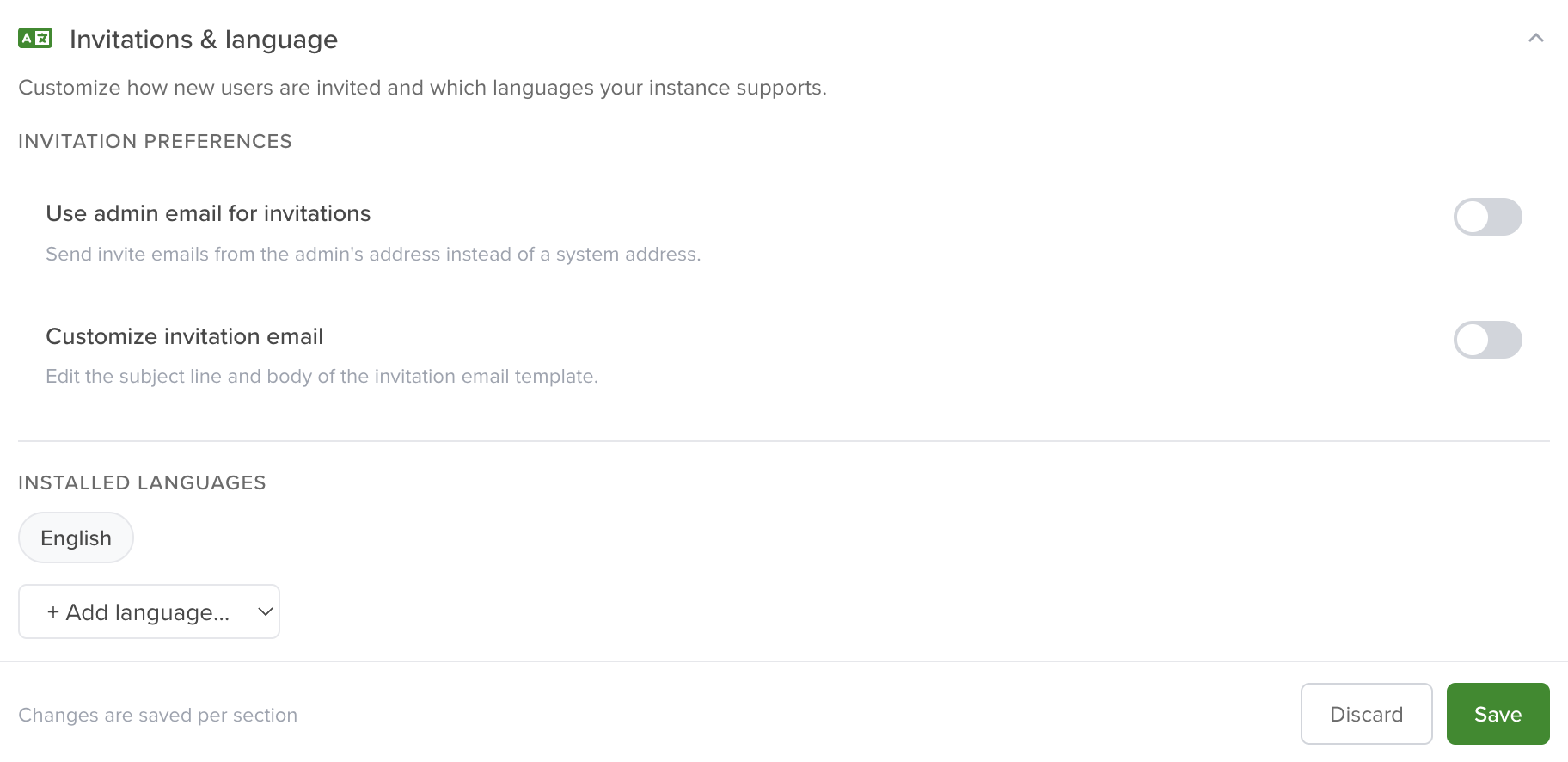
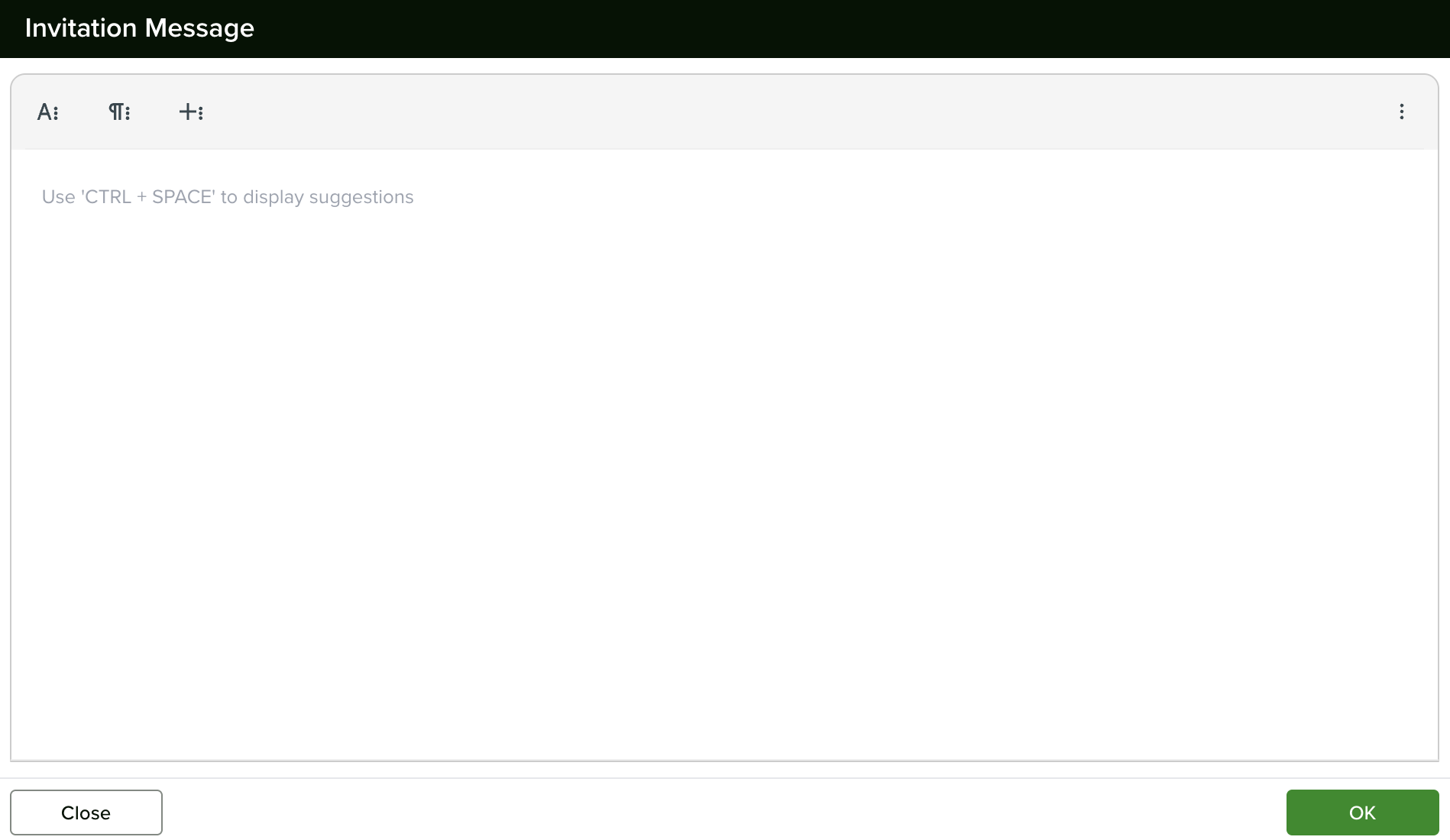
Note: The email signature set in Email & Meeting Preferences is automatically added to the bottom of your custom invitation email, so you do not need to include it manually.
Servis.ai allows organizations to support multiple languages, enabling each team member to choose their preferred language.
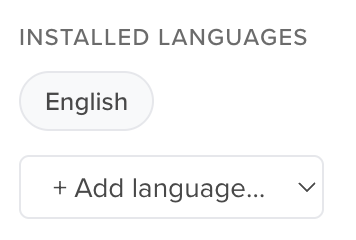
By offering multilingual options, businesses can provide a more comfortable and efficient experience for all employees. Read this article from our Knowledge Base to learn more!


