The “Email Preferences” section allows users to configure how email-related features behave within the system. These settings control how emails and meetings are imported, how email addresses are suggested, domain filtering, bulk email behavior, and smart sharing options.
User Permissions: Only Admins can configure these settings.

Enable Import for Emails and Meetings
- Automatically import emails and meetings from external sources into servis.ai.
- Select which record types (e.g., Contacts, Accounts, Meetings) will be associated with imported data.
- Multiple categories can be selected for better classification and tracking.

Enable App ID Matching
- Links imported emails and meetings to records using unique record IDs.
- If disabled, matching is based on standard criteria such as email addresses.
For example, if you include a record ID in an email’s subject or body, the system automatically attaches that email to the corresponding record’s Activity Timeline.
Note: Make sure your email account is paired. If it is not connected, the system cannot match and log emails.
Email Address Autocomplete for To and Cc Fields
- Automatically suggests email addresses when composing emails.
- Specify which record types (e.g., Contacts, Accounts) are used as the source for suggestions.
- Reduces manual input and speeds up email composition.

Blacklist Email Domains (Comma Separated)
- Specify domains that should be excluded from automatic email imports.
- Helps prevent unwanted emails (e.g., spam or internal domains) from being logged.
- Enter domains as comma-separated values.
Bulk Email Configuration
Learn how to send bulk emails in this article.
By default, the system is configured as follows:

App
Select which app displays the Email button in the List View.
Use “+ Add” to configure multiple apps.

Email Field
Select which email fields will be used when sending emails from records.

First Email Match
Automatically selects the first available email found in a record.
If the first field (e.g., Personal Email) is empty, the system moves to the next available field (e.g., Work Email).

Personal and Work Email
Only records with values in the selected email fields will receive emails.
Records without email data in those fields will be excluded from sending.
Depends on the Selected App
Email field options vary based on the selected app.
For example, in the Tickets App, the Customer Email field retrieves data from a related Contact.

If no email fields exist in the selected app, the dropdown will not display any options.
Enable Smart Sharing
Smart Sharing allows emails to be associated with multiple records across apps using the Share field.
Selected records will appear in their respective Activity Timelines.
By default, the Share field suggests records based on the currently active detail page.
Accounts Use Case
When sending an email from an Account, you can select related Contacts or records. This ensures visibility across both Account and Contact records.
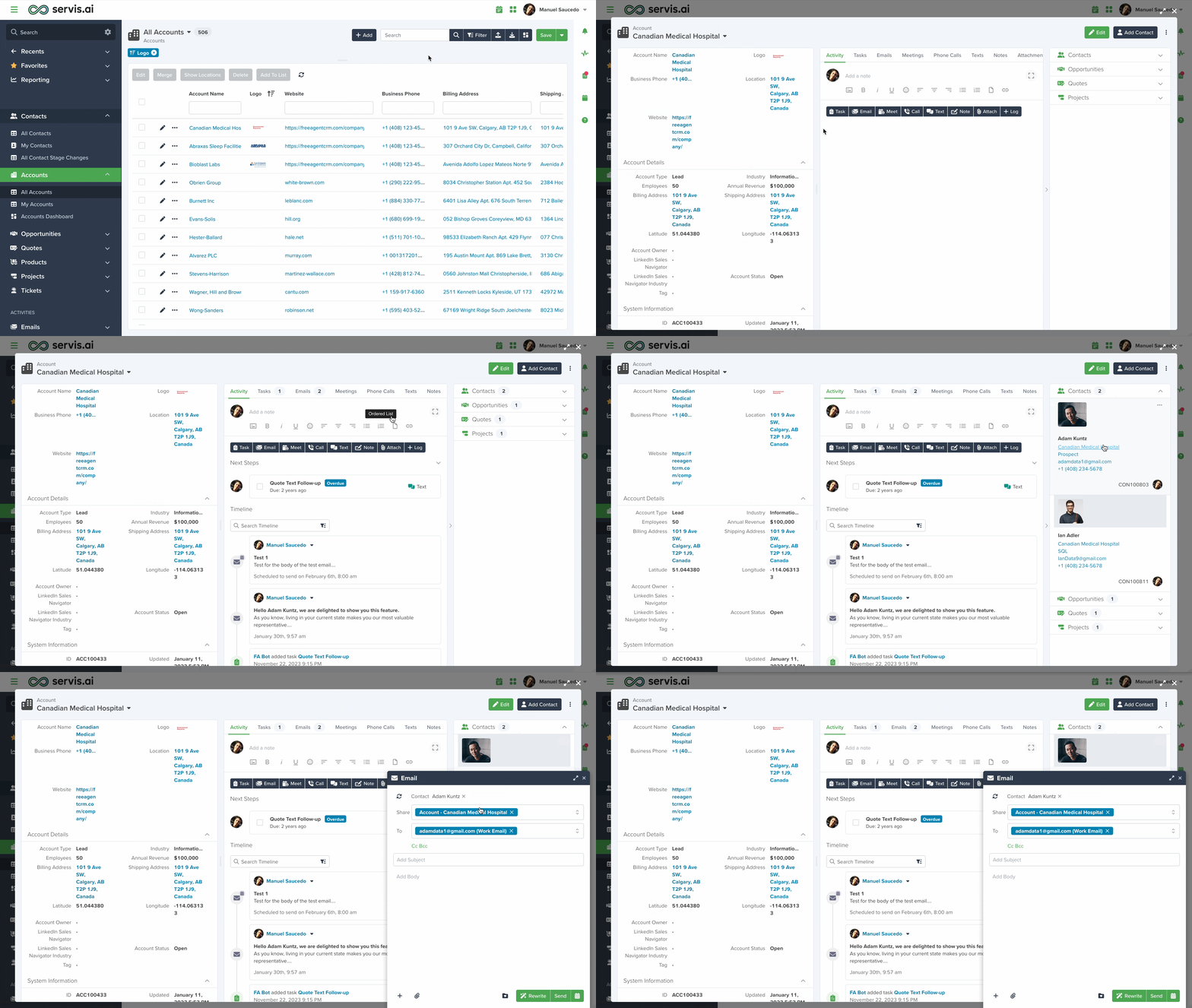
For example, sending an email to a Contact will populate the To field with their email. The Share field will display a structured reference such as “Account – Canadian Medical Hospital”.

You can expand visibility by adding more records in the Share field, creating a more comprehensive reference across the system.


