This feature lets you send the same email to multiple records within any app. You can configure which apps can use it and define which email fields are available.
Note: To use this feature, you must activate it from the Email Preferences section. Learn how to do it in this article.
Enabling Sending Bulk Email
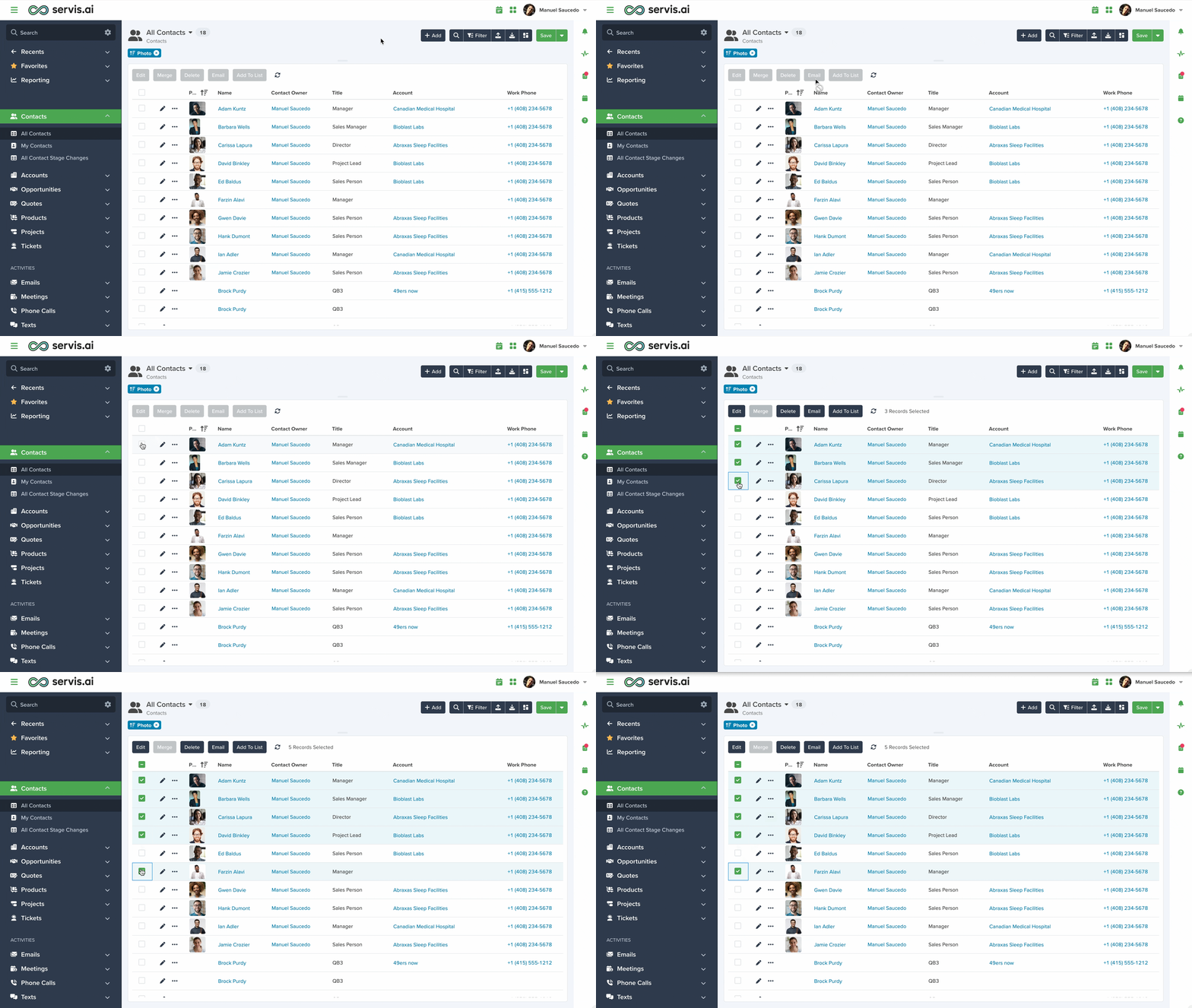
Note: You can send up to 50 emails per batch using the native feature. With SendGrid integration, you can send up to 1,000 emails.
After selecting the Contacts, click the Email button.

The Bulk Send Email modal will appear.

From the modal, you can enter the Subject, compose the email body, add attachments, and select a template.
In the To section, you will see email addresses from the selected records. Records without detectable email addresses will not appear.

You can also access formatting options from the Format Menu.

More Text
Clicking More Text opens the Text Formatting Menu.

From this menu, you can adjust Font Family, Font Size, Bold, Italic, Underline, Strikethrough, Text Color, Background Color, and Clear Formatting.
Strikethrough
The Strikethrough option adds a line through selected text.

More Paragraph
Clicking More Paragraph opens the Paragraph Formatting Menu.

This menu allows you to adjust alignment, line height, lists, indentation, and headings.
Increase Indent
Adjusts paragraph indentation.

Line Height
Adjusts spacing between lines.

Paragraph Format
Allows you to apply headings to the email body.

More Rich
Clicking More Rich opens the More Rich Menu.

From this menu, you can insert links, emoticons, horizontal lines, images, and files.
Insert Horizontal Lines
Adds a horizontal divider in your email.

More Misc
Clicking More Misc opens additional tools.

Includes options like Undo and Select All.
Undo
Reverts the last change.

Select All
Selects all text in the email.

Preview for First Recipient Window
This preview shows how your email will appear using the first selected recipient.
Merge tags and static values will be rendered here.

Sending Bulk Email With SendGrid
The standard limit is 50 emails per batch.
With SendGrid integration, you can send up to 1,000 emails per batch.
- Go to Settings > Integrations > SendGrid
- Enable SendGrid for Bulk Email
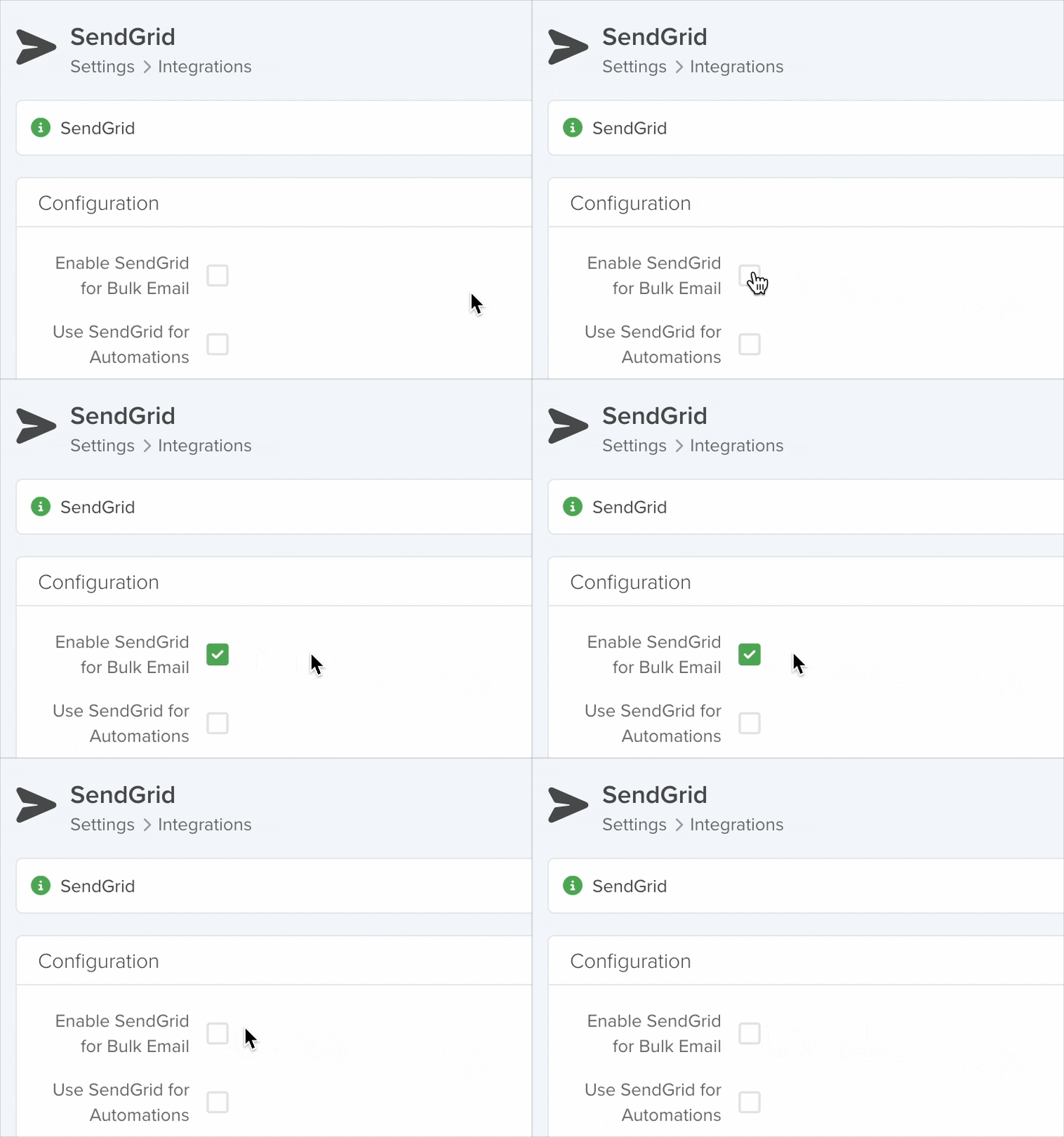
Once enabled, all emails (bulk and individual) will be processed through SendGrid.
Learn more about SendGrid here.


