SendGrid is a powerful email delivery service that enhances how emails are sent from servis.ai. By integrating SendGrid, you can send personalized email campaigns, automate bulk emails, and increase your sending limit from 50 to 1,000 emails per batch. This integration also provides Effectiveness Reports, giving you valuable insights into campaign performance.
Permissions: Only Administrators can create Integrations, Workflows, and App Actions.
SendGrid Set-Up
First, you’ll need to create or access your SendGrid account. From the sidebar menu, navigate to Settings > API Keys > Create API Key.
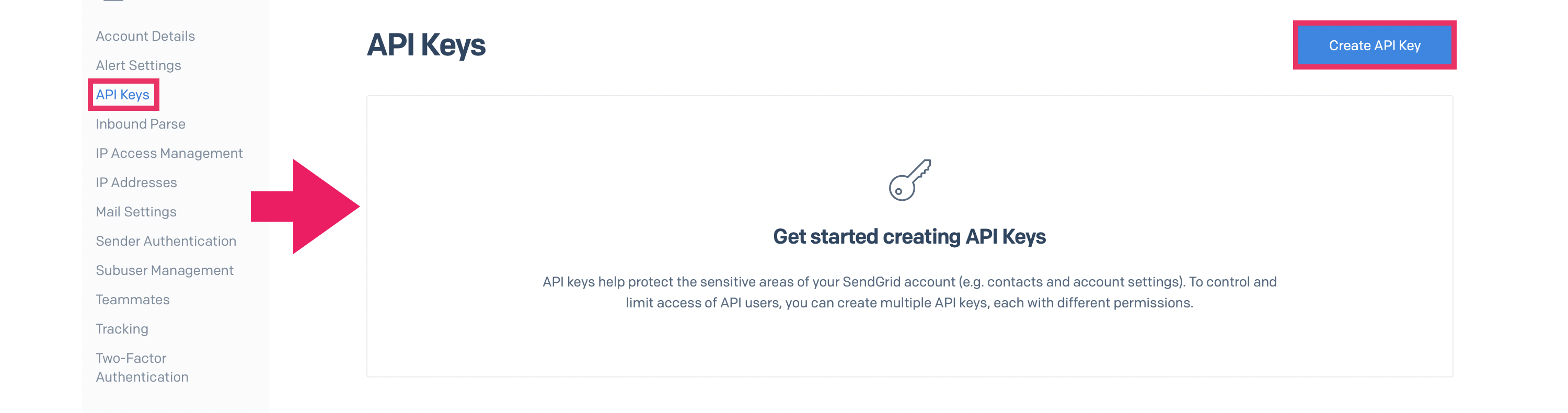
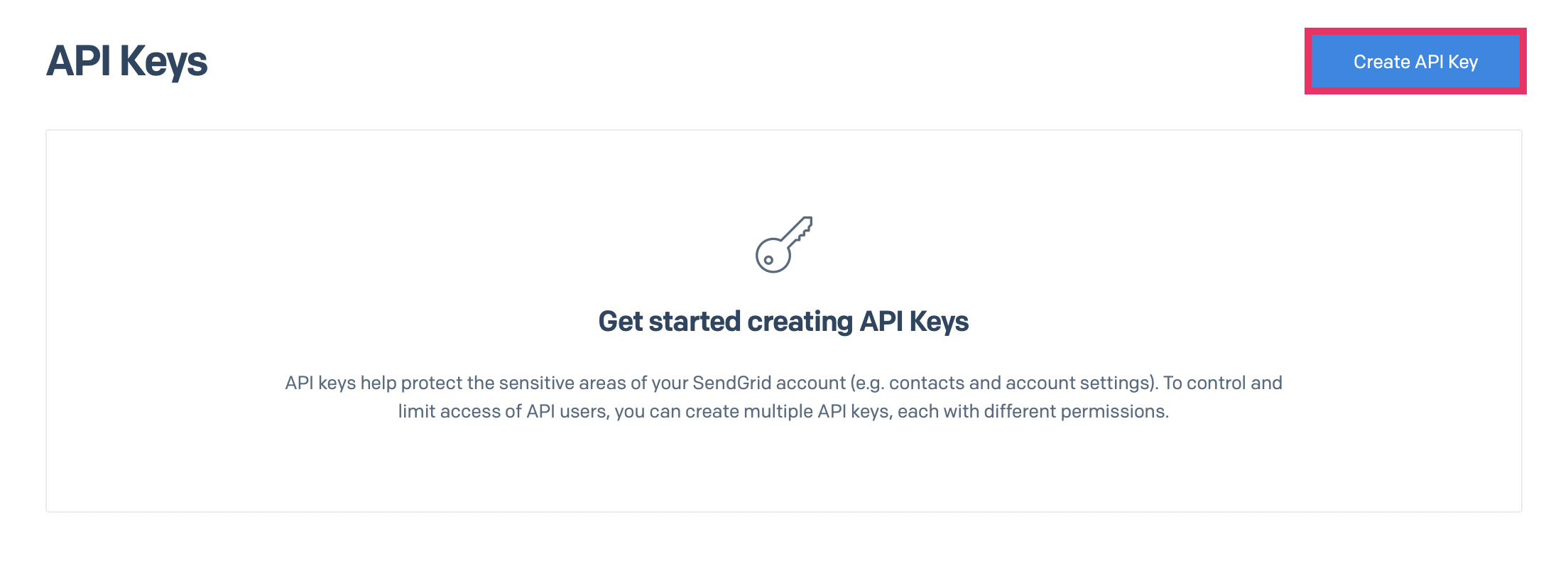
From here, name your API Key and choose your permissions. Click ‘Create & View’ when ready, and your key will auto-generate. Copy your key and save it if needed – you cannot retrieve this key once you navigate away from this page. (You can restart the process if you need a new key).
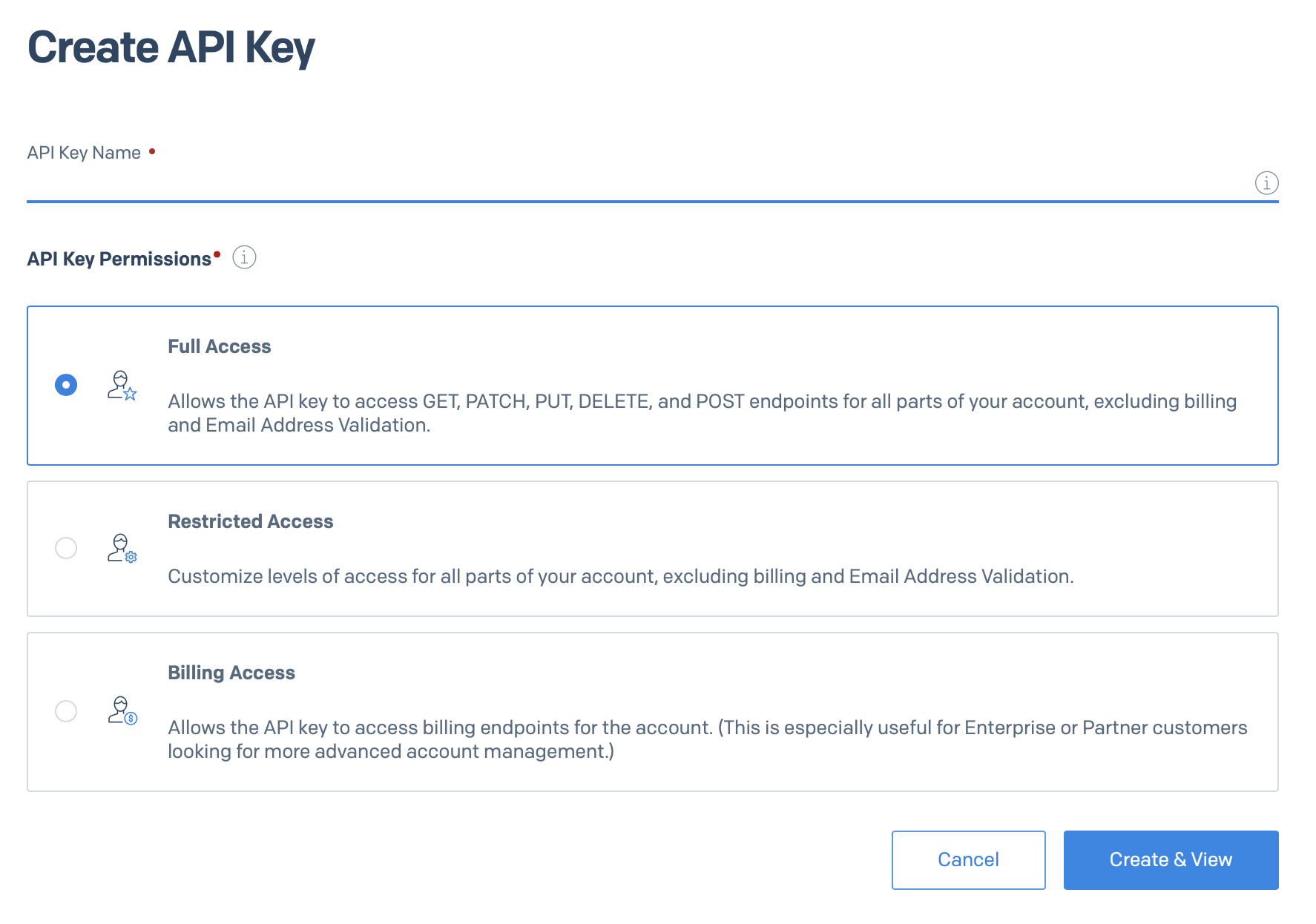
Now, from the sidebar menu, navigate to Settings > Sender Authentication
Before using SendGrid with servis.ai, you must complete the following in your SendGrid account:
- Domain Authentication (DNS): Authenticate your sending on the domain in SendGrid by adding the required CNMAE records to your DNS provider. This ensures your emails pass SPF/DKIM checks and are not flagged as spam. Servis.ai does not manage these DNS records–they must be configured directly in SendGrid’s Sender Authentication dashboard.
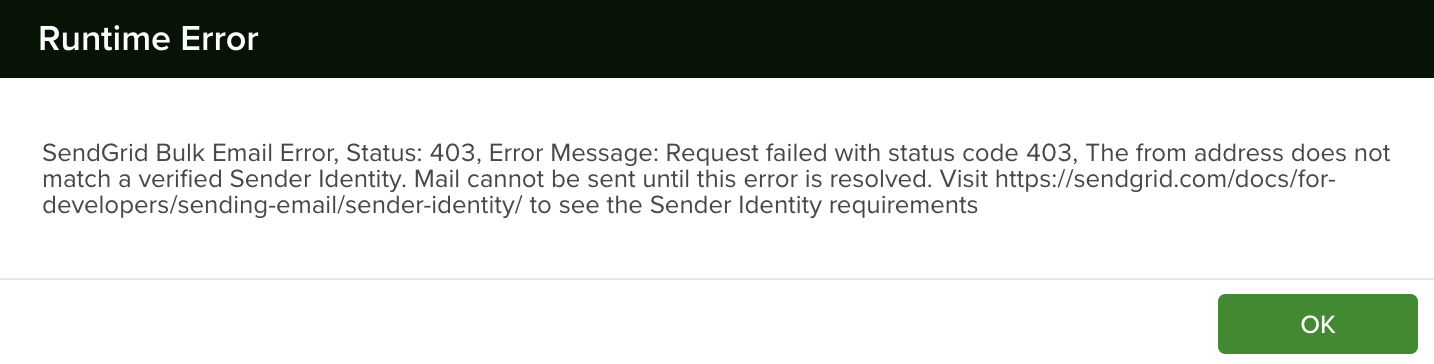
- Sender Identity: Verify the sender email address(es) you plan to use. The “From” address from campaigns must match a connected email account in servis.ai.
- Subscription Tracking: To include an unsubscribe link in your campaign emails, Subscription Tracking must be enabled in your SendGrid account (under Settings > Tracking > Subscription Tracking). If this is not enabled, your emails will not contain an unsubscribe footer. Learn more here.
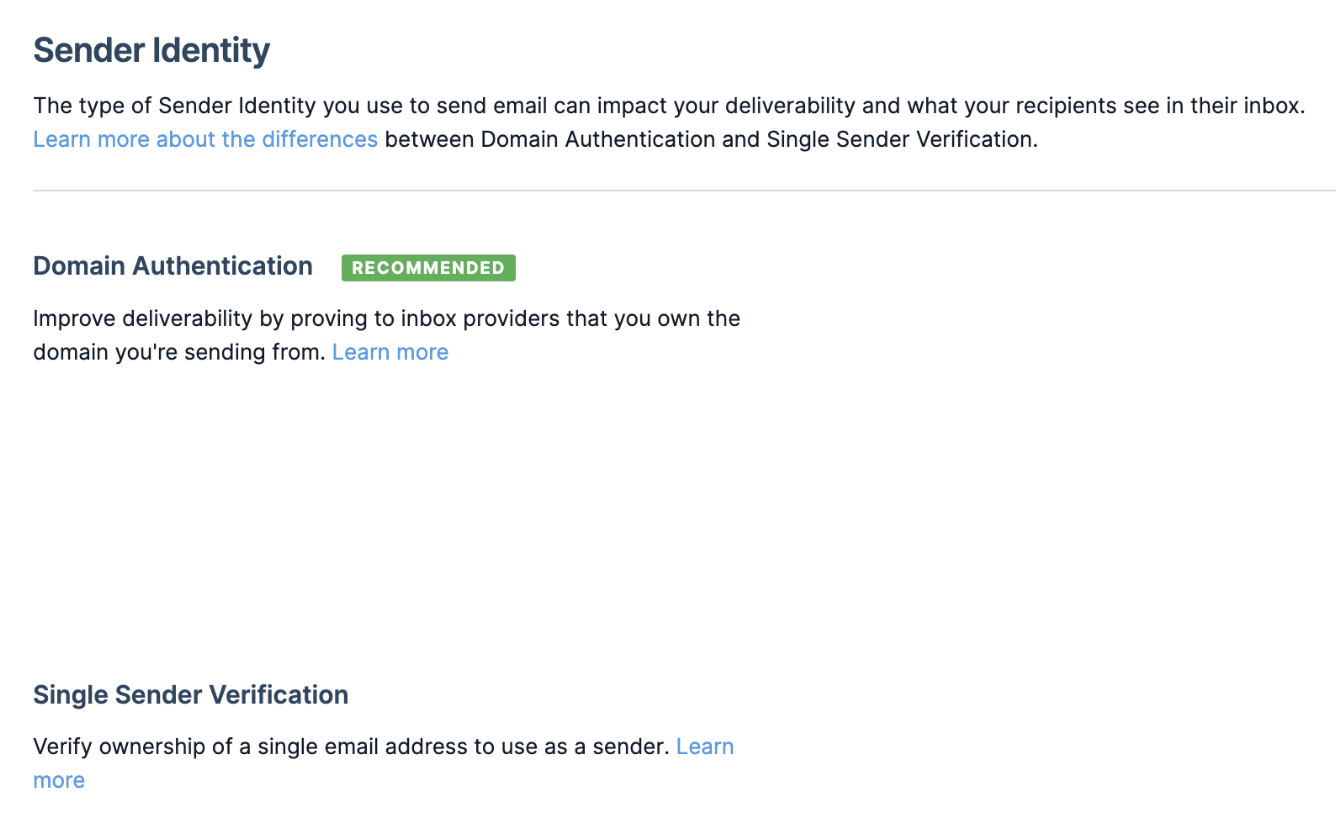
Note: If authentication has not been set up in any form, you will not be able to send emails from servis.ai.
SendGrid Email Tracking + Analytics Setup
In SendGrid, navigate to Settings > Tracking, and make sure that ‘Open Tracking’ and ‘Click Tracking’ are enabled.
- Opens
- Clicks
- Deliveries
- Unsubscribes
- Spam Reports
- Drops
Servis.ai Setup
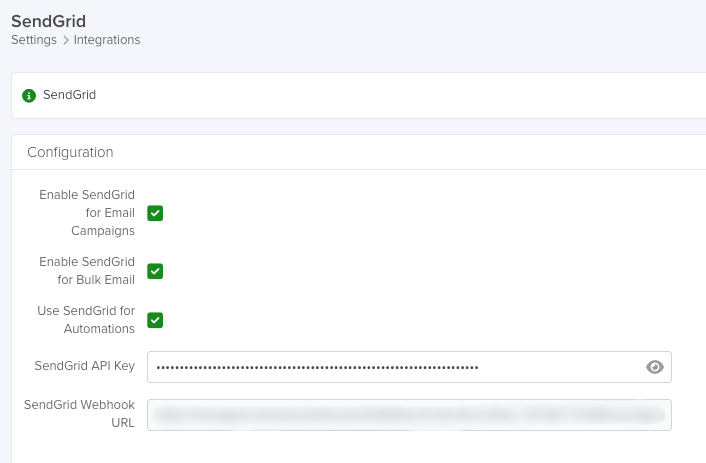
- Enter your SendGrid API Key.
- Enable the desired options:
- Enable SendGrid for Email Campaigns: Activates the Email Campaigns feature.
- Enable SendGrid for Bulk Email: Enables the Bulk Email action on supported apps.
- Use SendGrid for Automations: Routes automation. Triggered emails through SendGrid instead of your connected email provider.