The Generate Document action allows you to automatically create personalized documents using dynamic data from your records. By using a simple tag-based syntax within a pre-defined template, this action fills in key details—such as names, dates, or custom fields—directly into a .docx file. Once generated, the document is converted into a PDF and stored in your app, ready for download or sharing. It’s a powerful way to streamline document creation and produce customized files at scale.

How to Set Up the Generate Document Action
Name: Give your action a clear, recognizable name.
Step: Select a previous step in the automation that must be completed before this one runs.

Note: The dropdown only displays actions that are already fully configured.
Document Template: Select an existing template to use. To learn how to create one, refer to this guide.
For this example, we’ll use a basic template to demonstrate the process and expected result.
Document Name: Enter a name for the generated document. This is required, as it will be used for the final PDF file.
Document File Field: Select a field in your app that supports file uploads.
To locate it, go to Settings > Apps > [Selected App], then open the Form Fields tab.

Sort by field type—any field labeled File will appear as an available option.

Practical Example
In this example, we’ll use a simple .docx template and configure the automation to trigger from an app action.
If you’d like to learn more about app actions, check out this guide.
Here’s how the Trigger field should appear in your automation setup:

For this example, we’ll use a simple document with two fields: Name and Last Name.
This demonstrates how tags can automatically populate personalized information for each record—all from a single template.

To configure the App Action, set the Type to Automation, then select the automation you created.

It should appear like this on the record’s Detail Page:

Once configured, click the button to generate the document.
When complete, the generated file will appear in the field you selected earlier.
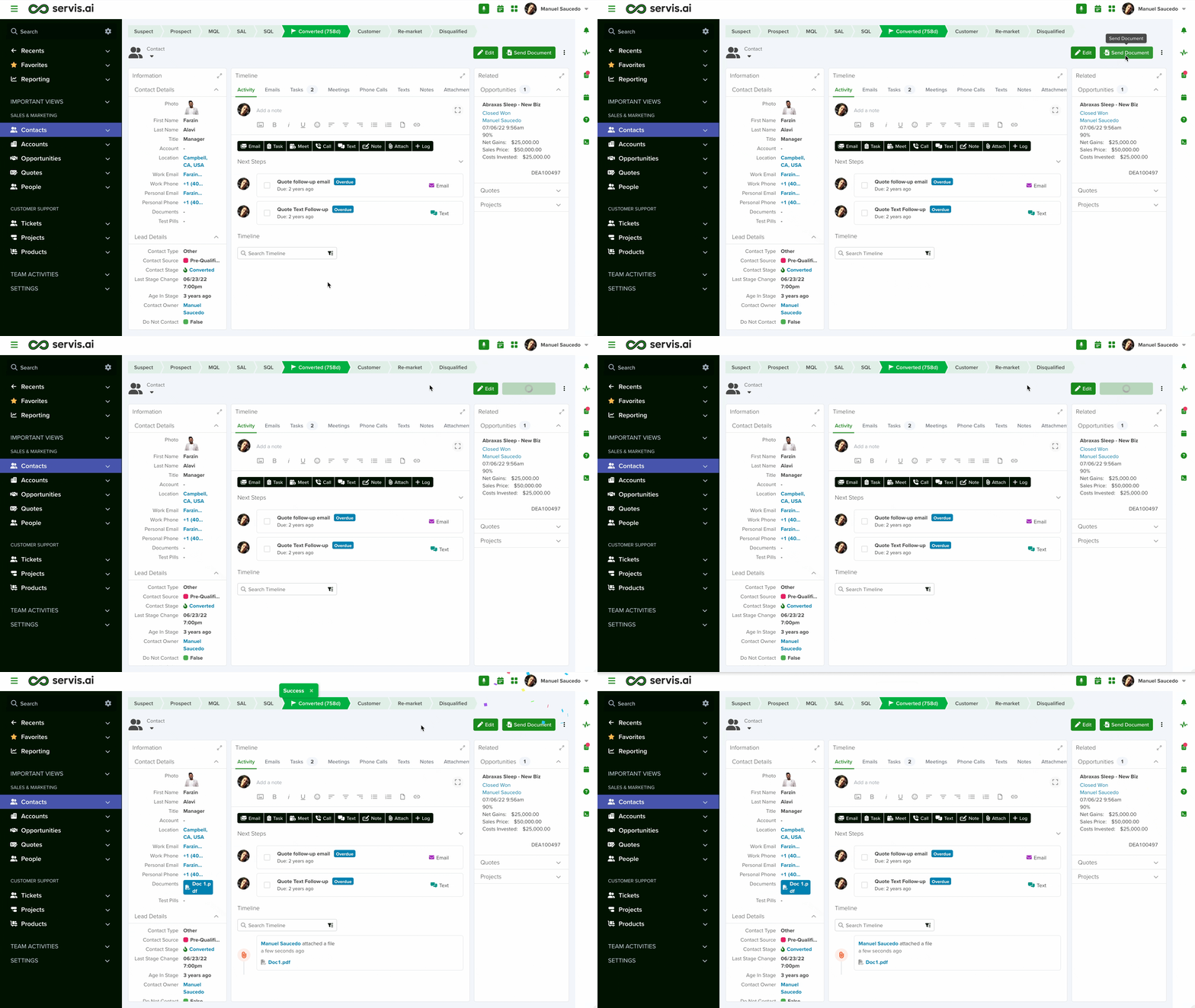
The tags in your template will automatically be replaced with data from the record that triggered the automation.
Learn more about automation actions: Read this article.


