You can learn how to create a new Form Field in this article.
The Email List field allows you to store multiple email addresses within a single field. To ensure accuracy, the system validates each entry against the standard email format (e.g., user@example.com).
If an email does not match this format, the field will be highlighted in red, and the invalid email will not be saved.
Navigating to Form Fields
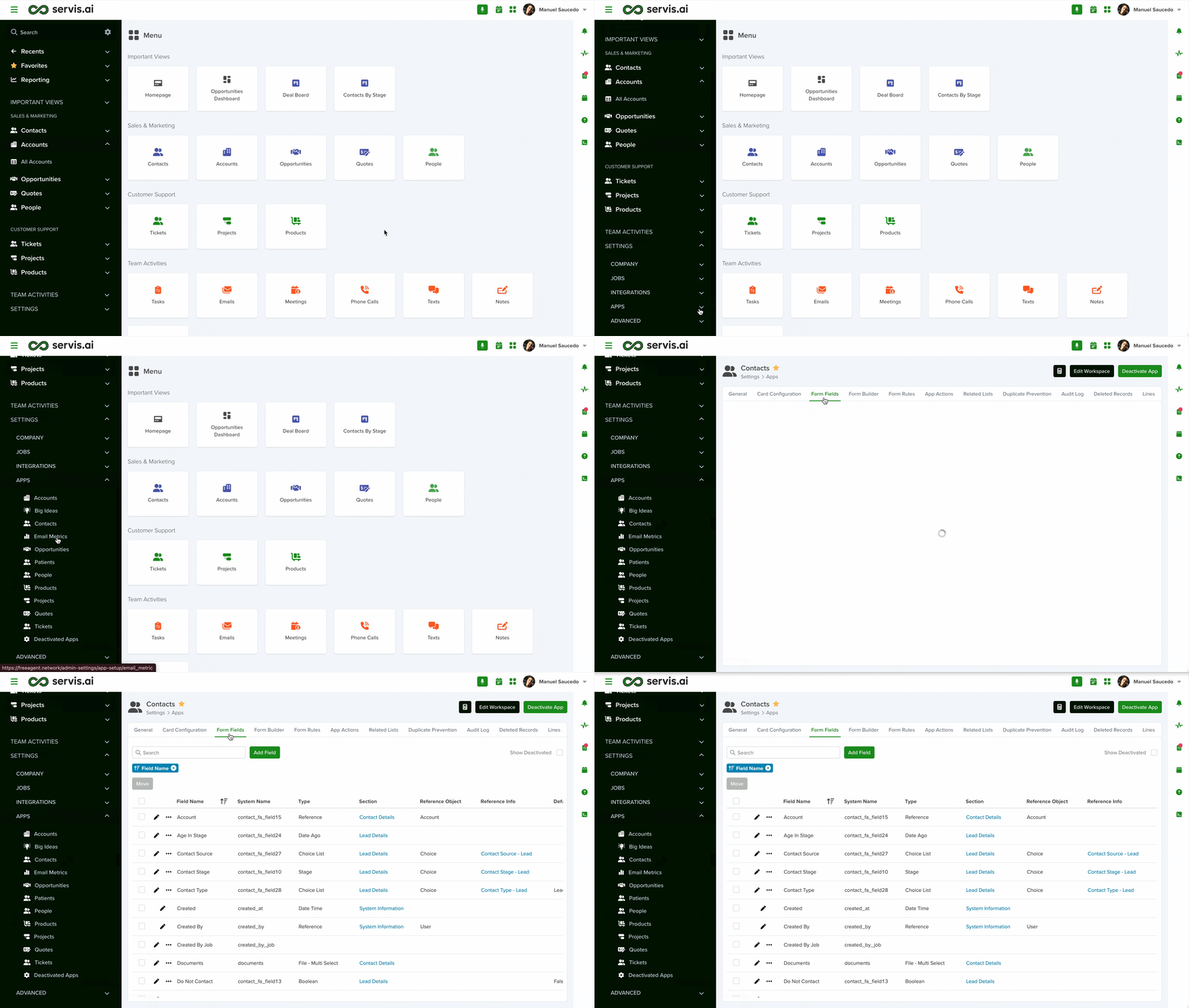
Go to Settings > Apps, select the app where you want to add the field, and open the ‘Form Fields’ tab.
Configuring an Email List Field
To set up an Email List field, follow these steps:
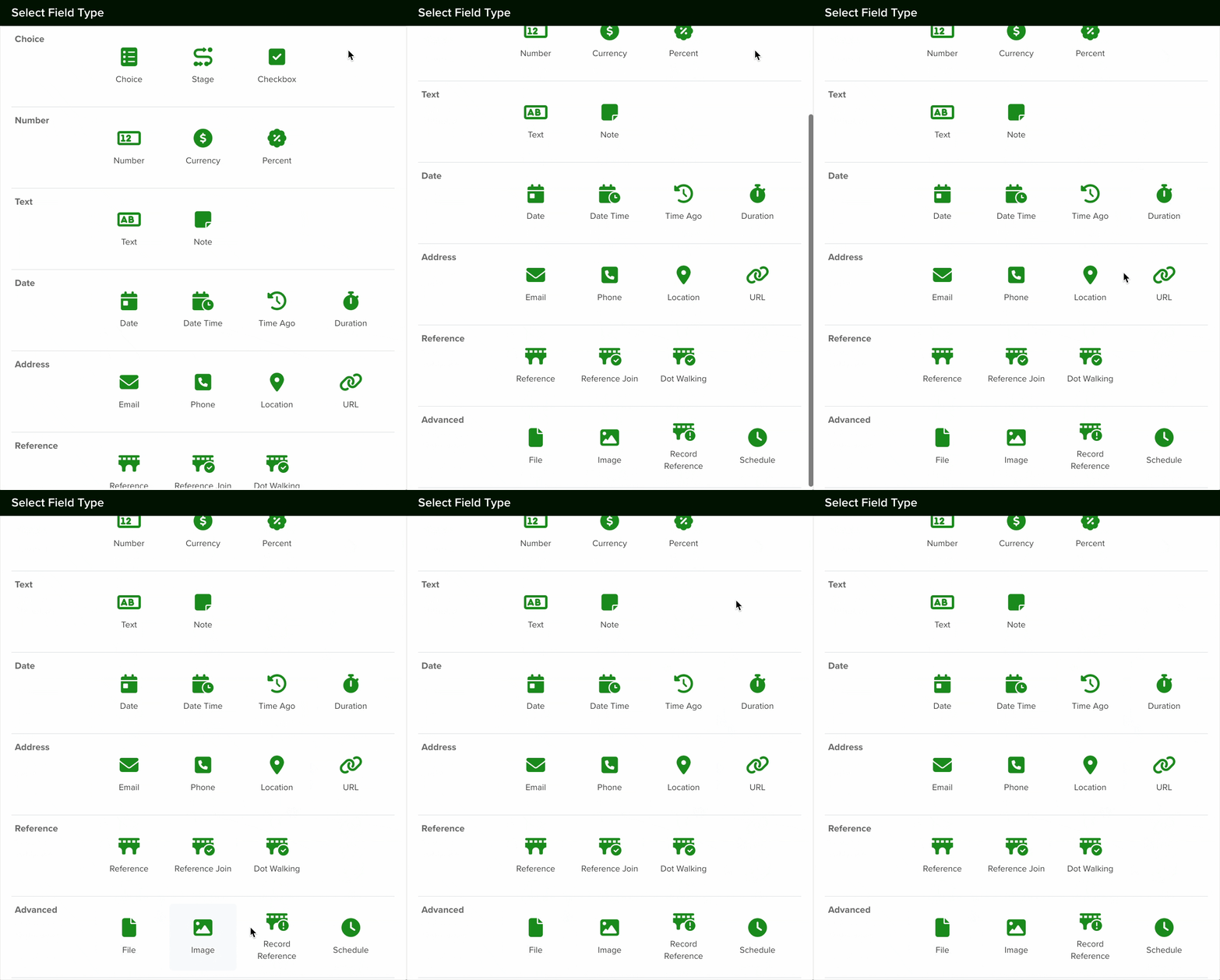
- Add a New Field: Click Add Field to open the field type selection window.

- Select Field Type: Choose the Email option from the list.

- Configure the Field: Complete the field setup as needed.

1. Name, Description, and Hint
Enter a name for the field. Adding a description and hint is optional and can help explain the field’s purpose.
2. Section
Select the section (from the Form Builder) where the field should appear.
3. Type
Set the type to “Email List” to allow multiple email addresses.

4. Default Value
Optionally set a default value. Users can override it when creating records.
5. Calculated
Enable the ‘Calculated’ option to populate the field automatically using custom logic.
6. Required
Enable ‘Required’ if users must enter a value when creating a record.
7. Lock After Create
Enable ‘Lock After Create’ to prevent edits after the record is saved.
Once configured, click Save.
Using the Email List Field
Separate each email address with a comma. Valid emails will appear in blue, while invalid entries will be highlighted in red.

Unique Fields
Email fields can be marked as unique, preventing duplicate entries. This helps avoid duplicate contacts.
To enable this, go to the “General” tab in your app settings and scroll to Unique Fields.

Note: New fields are added at the bottom of the form.
Learn how to import data into a unique field here.
To learn more about Unique Fields, read this article.
Changing a Field’s Type
Once a field is created, its type (e.g., text, number, date) cannot be changed. This ensures data consistency and prevents errors.
To use a different field type:
- Create a New Field: Add a field with the desired type from the Form Fields tab.
- Deactivate the Old Field: Once the transition is complete, deactivate or remove the original field to avoid confusion.


