Admins can edit the existing layouts for the detail page of each app to create a custom Workspace.
A Workspace can include any of the available widgets—such as Form, Activity Timeline, Related Lists, and Charts, among others. Refer to our library to explore all the out-of-the-box widgets available in servis.ai. Let’s get started!
User Permissions: Only Administrators and App Admins can use this feature.
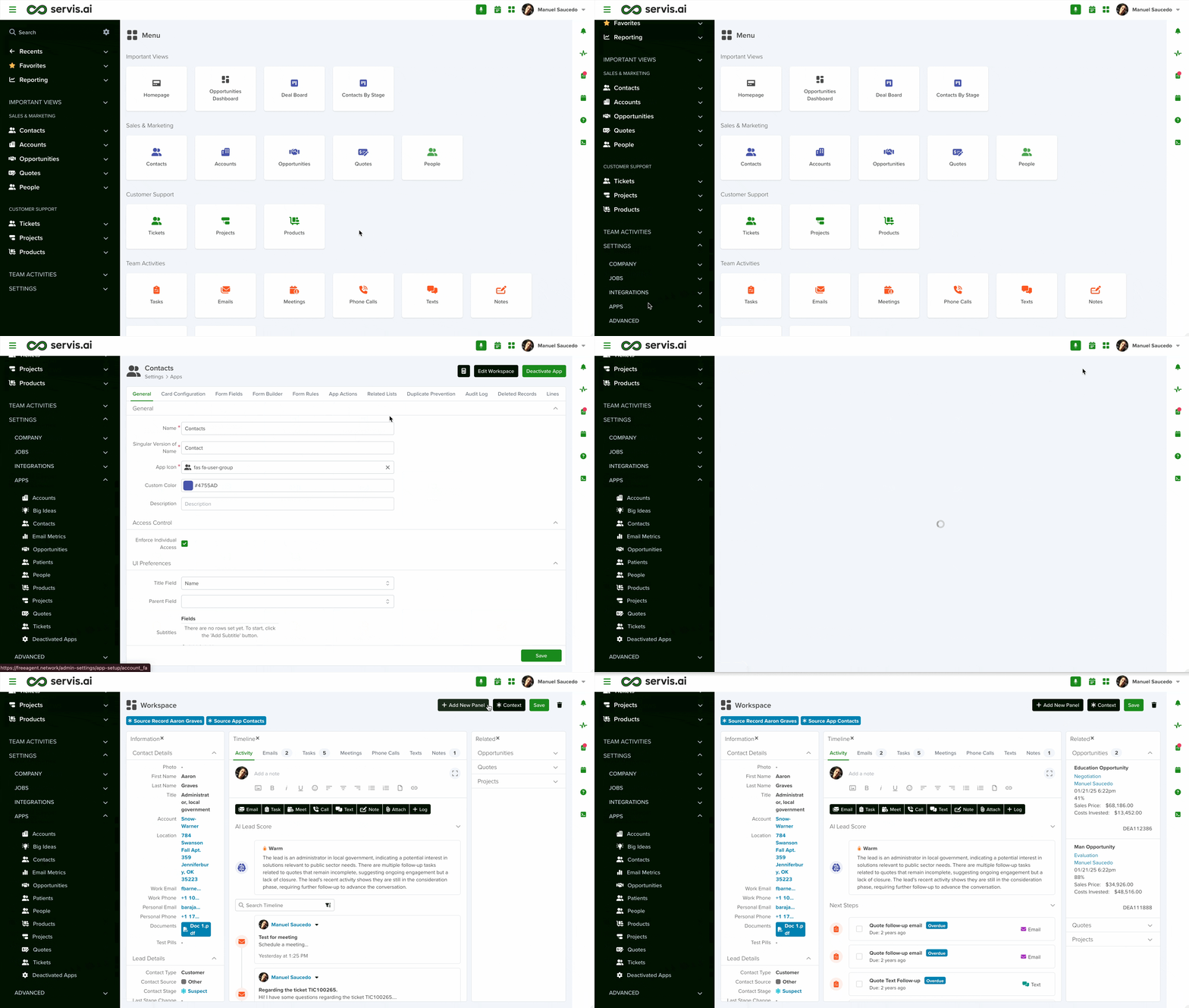
Navigate to Workspace
Open the menu and go to Settings > Apps, then select your desired app. Once inside the app, you’ll see an ‘Edit Workspace’ button in the top-right corner.
Create a New Workspace
Creating a new workspace is a simple three-step process.
Step 1 – Add New Panel

Set up your Workspace by organizing panels to fit your needs:
- Add Panels: Click the ‘Add New Panel’ button in the upper-right corner. Each panel will hold a widget.
- Rearrange Panels: Drag and drop panels to customize the layout.
- Layout Options: Choose between split-screen, tabs, or a combined view.
- Resize Panels: Adjust panel sizes to fit your workflow.
Note: To move panels, click and hold the panel title, then drag it to the desired location.
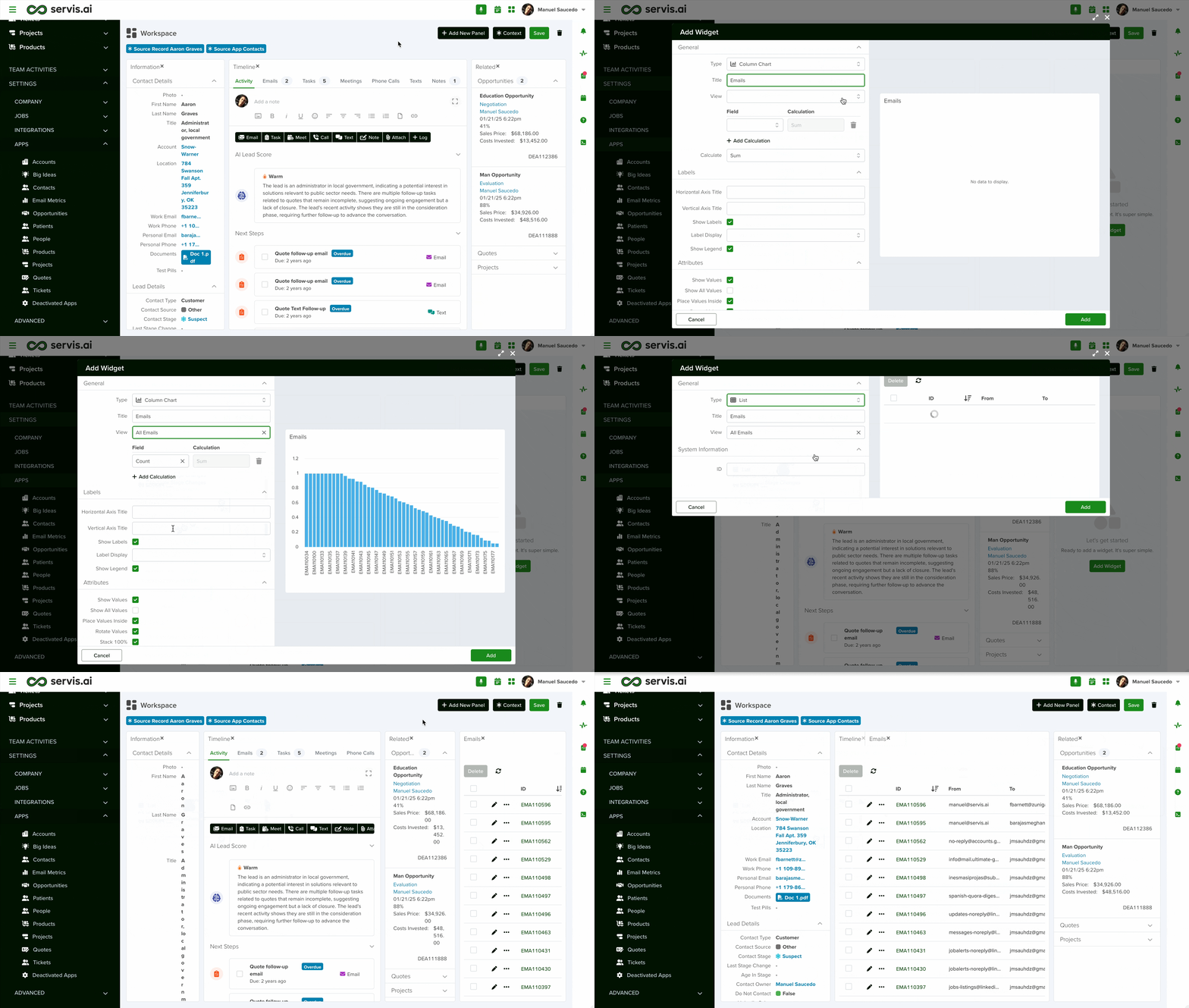
Step 2 – Add a Widget
After adding a panel, select a widget. The required setup varies depending on the widget type, but most require the following fields:
| FIELD | DESCRIPTION |
| Type | Attachments, Meeting, Phone Call, Note, etc. |
| Title | Name displayed on the detail page. |
| Frame ID | A unique identifier for the widget (no spaces allowed). |
| Integration | Select an integration if the widget interacts with one. |
For a complete list of available widgets, see our Widget Library.
Step 3 – Save
After adding all required widgets to your Workspace:
- To save your setup: Click ‘Save’ to apply changes. Your updated Workspace will be immediately available.
- To discard changes: Leave the page. If prompted with the ‘Unsaved Changes’ message, click ‘Don’t Save’.



