Overview
Before proceeding, we recommend reviewing our guide on importing your data into servis.ai.
Imports are a critical part of managing your data in servis.ai.
When an import fails, multiple factors may be involved. This guide will help you identify common issues and how to resolve them.
If You Are Importing New Records
1. Download the Failed File
Downloading the failed file helps you understand the issue from the system’s perspective.
Understanding Import Errors
When errors occur during import, affected rows will fail while the rest continue processing. An Error Description column will be added to identify issues for each row.
After the import completes, you can download a CSV of failed rows by clicking the Failed count.
The system records up to 1,000 errors. If this threshold is reached, the import will stop. The failed file will include both failed and unprocessed rows.
There is no file size limit; however, imports that run longer than 24 hours will time out. As a guideline, ~100,000 records are typically processed in about 3 hours.
Error Description Meanings
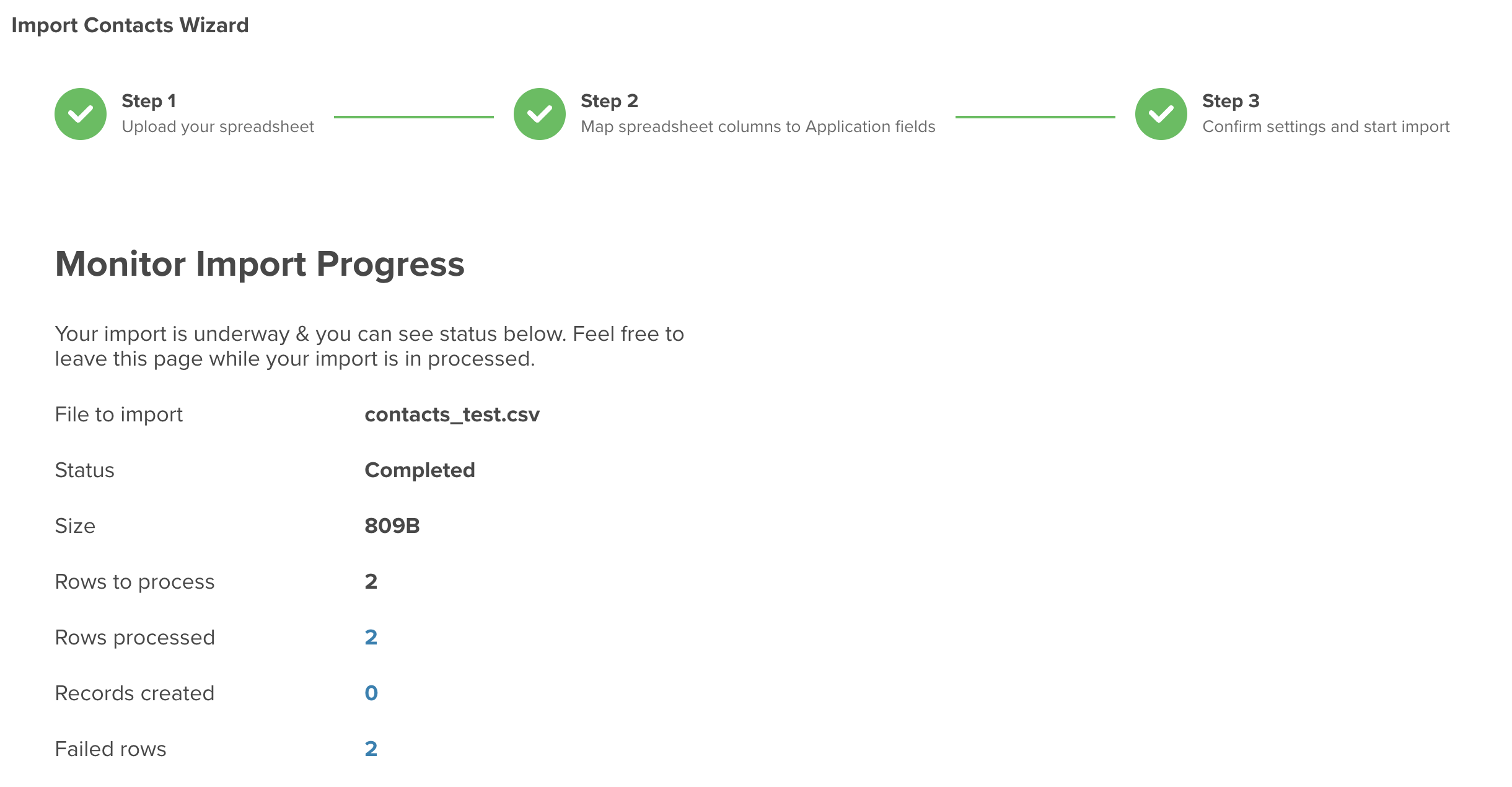
“Skipped” — The row was not processed because the error threshold was reached.
“The reference value could not be found.” — The value does not exist in a Choice List or reference field. Ensure exact matches (case-sensitive) or create the missing value in servis.ai first.
“This is not a valid number” — The field requires a numeric value (integer or decimal).
“This is not a valid number: null” — Occurs when attempting to import into calculated fields.
“This is not a valid date” — Use the format YYYY-MM-DD (e.g., 2020-06-04).
“This is not a valid email address” — Ensure proper email formatting (e.g., includes @ and domain).
“This is not a valid phone number” — Avoid including extensions directly; store them separately.
“This value violates unique field” — Duplicate value detected in a field marked as unique.
2. Validate Your Data
Ensure all data is clean, properly formatted, and relevant. Remove blank rows and columns.
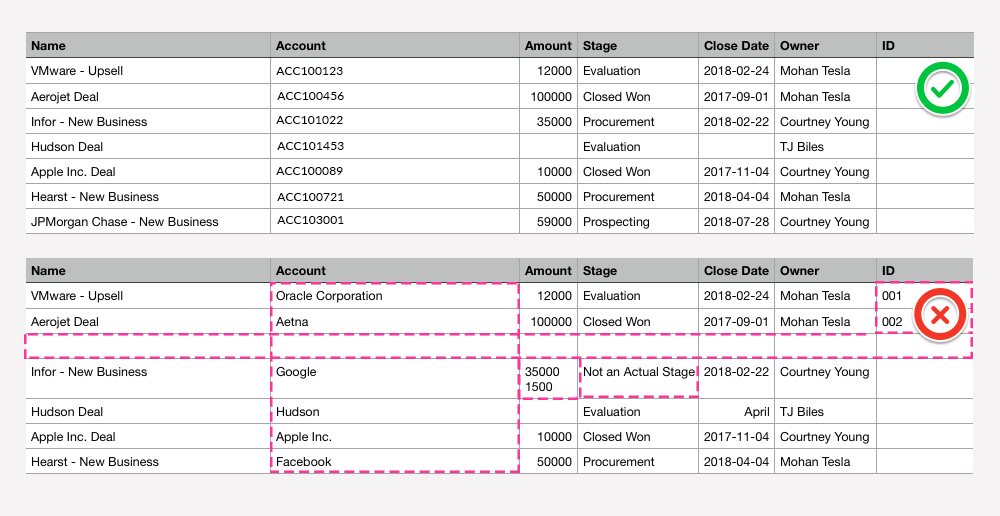
3. Follow the Correct Import Sequence
Due to relationships between apps, imports should follow this order:
- Accounts
- Contacts
- Opportunities
This ensures proper referencing between records.
4. Review Unique Fields
Unique fields prevent duplication. You can also use them for updates instead of system IDs.
| App | Recommended Unique Field |
|---|---|
| Contacts | Work Email |
| Accounts | Name |
| Opportunities | Name |
5. Ensure Correct Date Formats
| Format | Description |
|---|---|
| YYYY-MM-DD | Date only |
| YYYY-MM-DD HH:MM:SS | Date and time (24-hour format) |
| 00:00 | Midnight (ISO standard) |
6. Match Column Headers Exactly
Column names must match field names exactly, including capitalization.
7. Check Field Mapping
Any field mapped as “Do Not Import” will prevent proper data import. Review and correct all mappings.
If You Are Updating Existing Records
Follow the same process, but ensure that each row includes a valid ID or unique identifier.
Best Practice: Only include fields you want to update.
Example: To update Contact Owner, include only the Contact ID and Owner field.
When importing notes or tasks, include reference fields so they appear correctly in timelines.
Special Considerations
- Match column names to field names exactly
- Remove empty columns
- Ensure primary columns are populated
- Verify all dropdown values exist (case-sensitive)
- Avoid creating fields during import
- Replace & symbols with “and” when possible
- Importer updates records when IDs match; otherwise, creates new ones
- Missing headers will cause failure
- Calculated fields require a post-import update to recalculate
- Avoid using apostrophes where possible


