The Stop If action is used to halt an entire automation when specific conditions are met. It always works alongside a previous action, evaluating whether defined conditions are satisfied each time that action runs.
If the conditions are met, the automation stops completely—regardless of whether the evaluated record is the triggering record or another related record.

Difference Between “Stop If” and “End” Actions
- End Action:
- Operates only on the triggering record—the record that started the automation.
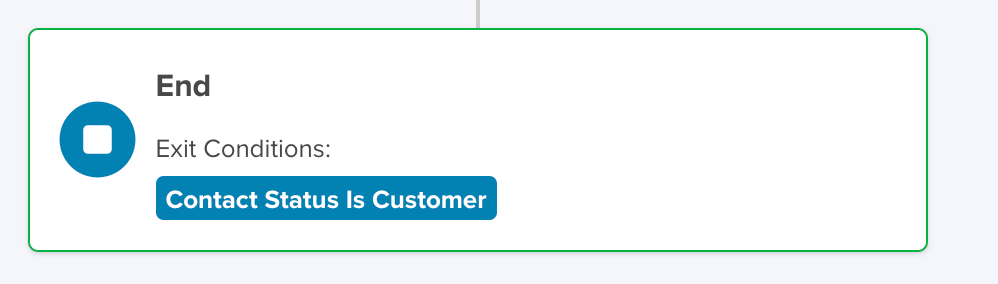
- Automatically acts as the final step in every automation.
- Can run without conditions and simply completes the automation after all steps finish.
- If conditions are added, it evaluates them across prior steps—but only in relation to the triggering record.
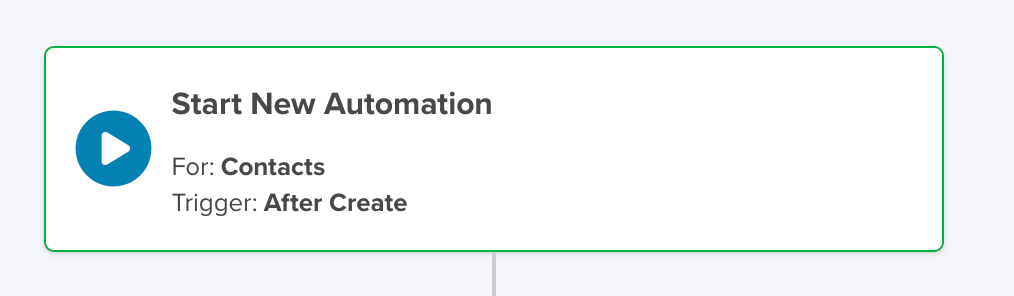
For example, the triggering record is the one created or modified according to the automation’s initial configuration.
- Stop If Action:
- Evaluates conditions based on a specific previous step (not all steps).
- Can evaluate records other than the triggering record.
How to Set Up the Stop If Action
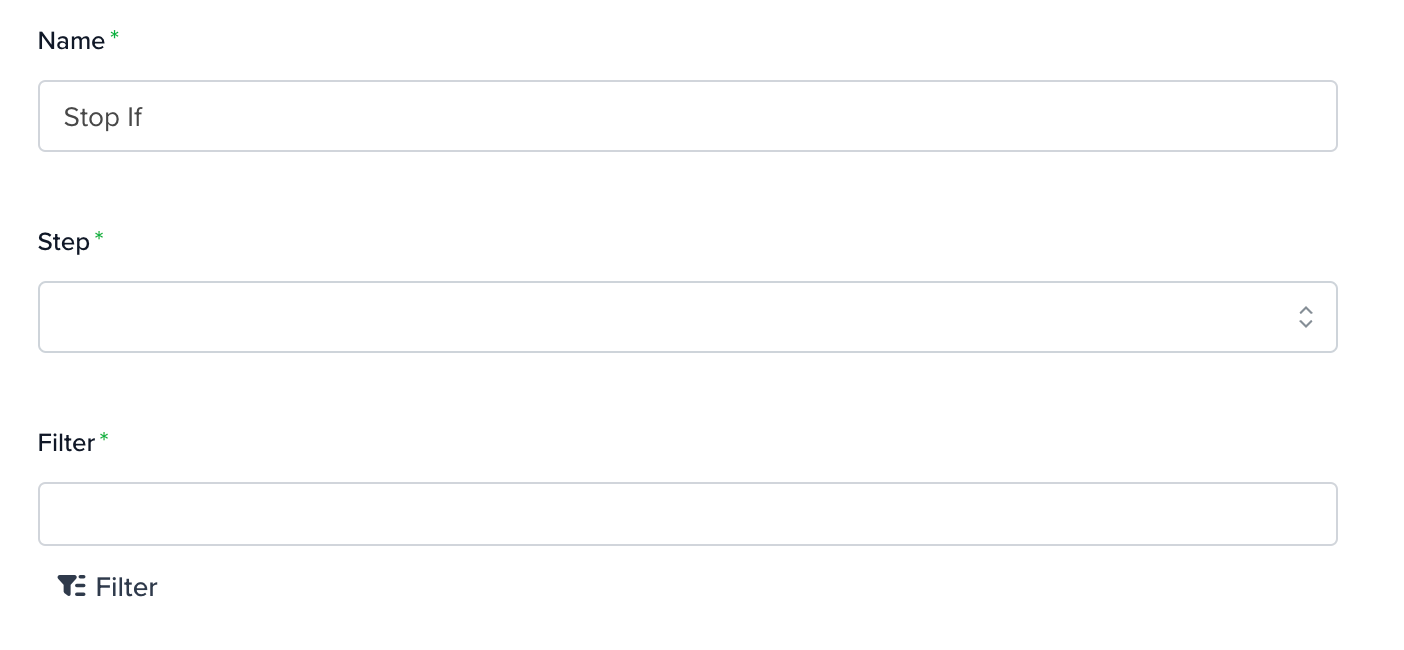
- Name (Required): Give the action a clear and descriptive name.
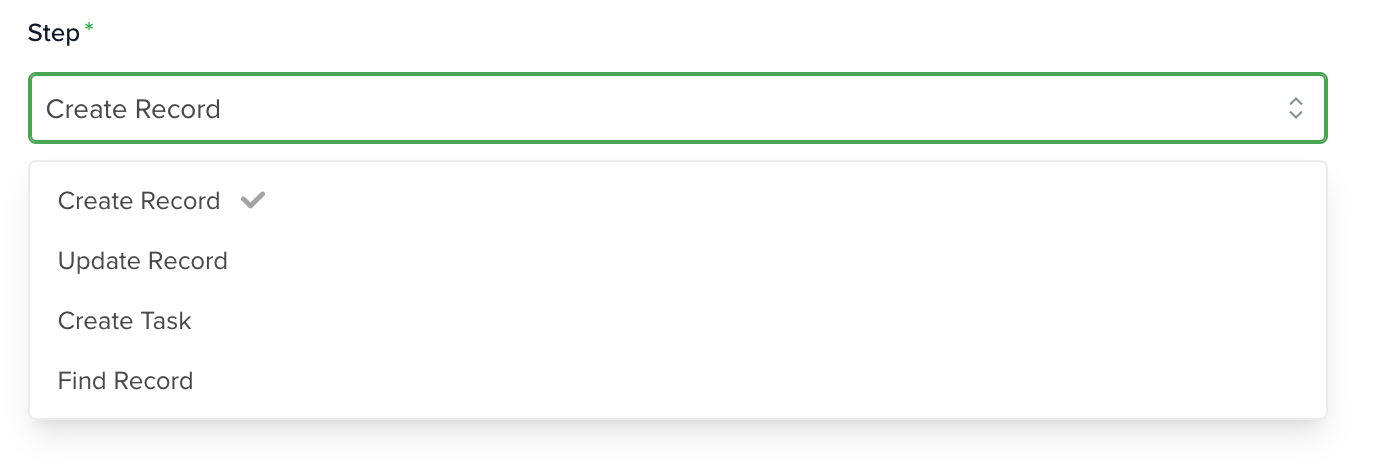
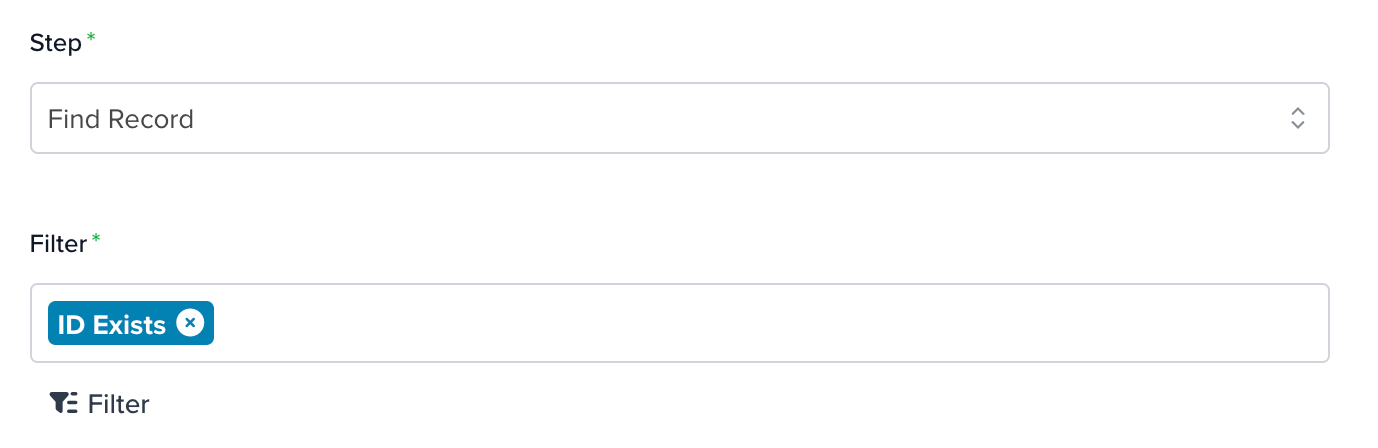
- Step: Select the previous action to evaluate. This can be Create Record, Update Record, Find Record, or Create Task. These must already be configured in the workflow.
- Filters: Define the conditions that determine whether the automation should stop.
For example, if the selected step is Find Record, you can configure conditions based on the retrieved data—such as “ID Exists”. If the condition is true, the automation stops immediately.
Learn more about automation actions: Read this article.


