This guide explains how to automate sending a text message using a pre-existing template in servis.ai. To set it up, you’ll need to name the action, choose a sender, and define the recipient’s phone number. You can pull these details from your app’s fields or enter them manually using static values. You can also include a text template to streamline your message content. This setup ensures consistent and efficient communication within your automation workflows.
How to Set Up the Send Text Action
Name: Enter a name for your action so you can easily identify it.
Text Template (Optional): Select a previously created template to use in this action.
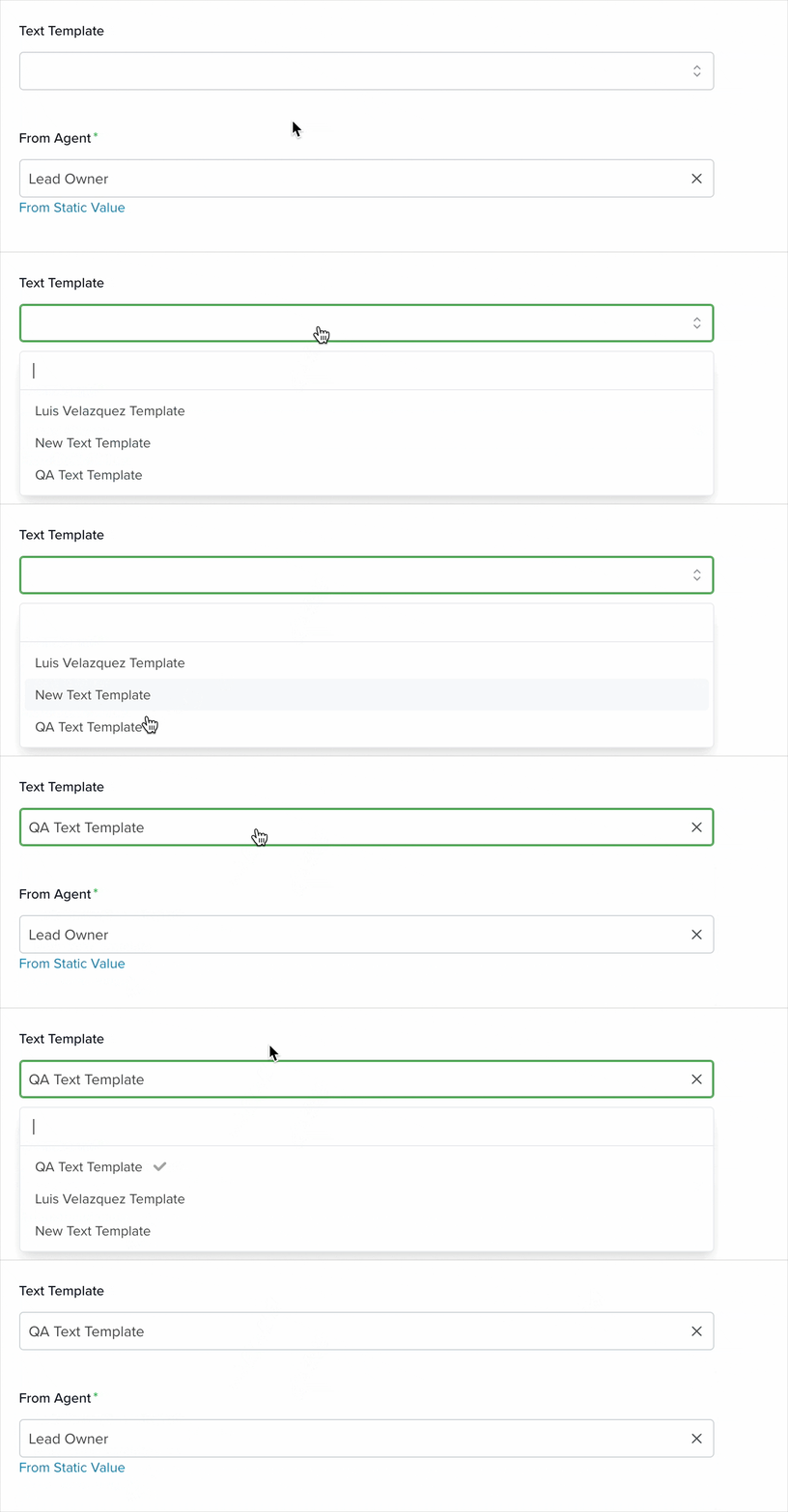
From Agent: Choose which user will appear as the sender. You can configure this in two ways:
- From [Selected App]: Select a field from the chosen app that contains a user.
- From Static Value: Choose any user from your servis.ai instance.
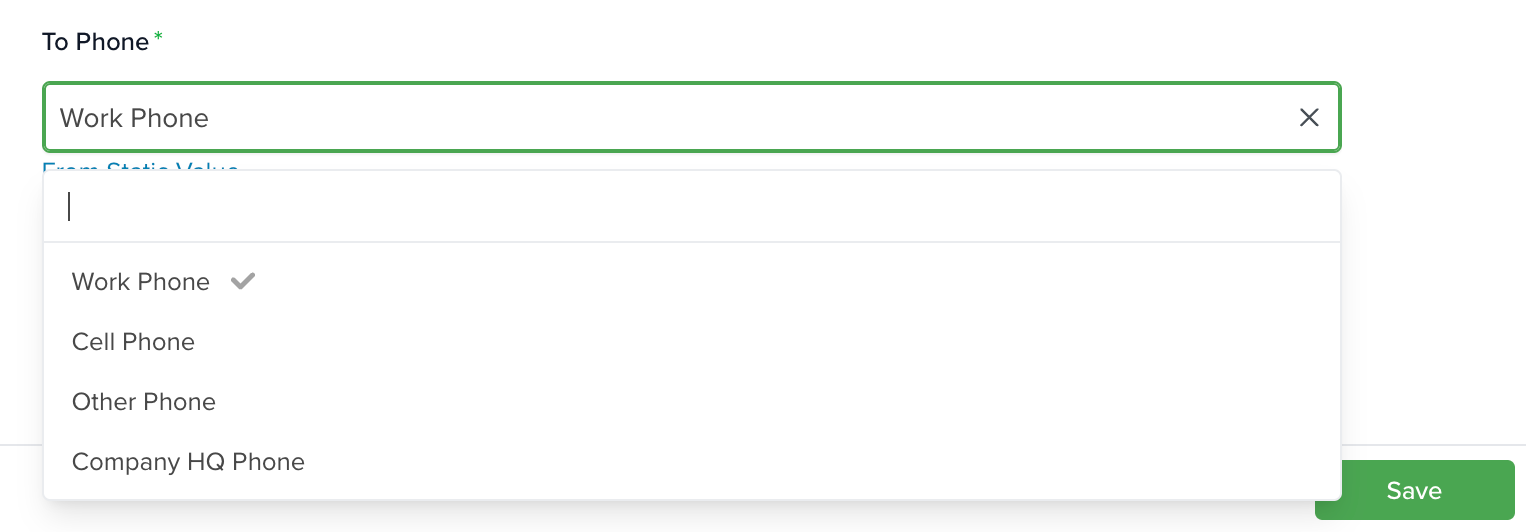
To Phone: Select where the message will be sent. This works similarly to the From Agent field and includes two options:
- From [Selected App]: Choose a phone field (e.g., Work Phone, Personal Phone) from the selected app.
- From Static Value: Enter a specific phone number manually.
Learn more about automation actions: Read this article.


