As your servis.ai workspace grows, so do the connections between your apps. A Contact might be linked to Deals, Deals might reference Accounts, and Accounts might tie back to Projects. Seeing the full picture can be difficult when you’re working with a long list of apps and fields.
The Schema Viewer is an interactive visual map that lays out all your apps and their relationships in one diagram. Instead of clicking through each app to understand what connects to what, you get an eagle’s-eye view of your entire workspace on a single screen.
Edition Qualifier: The Schema Viewer is available in all servis.ai Editions but is accessible only to users with the Administrator role.
What Is the Schema Viewer?
The Schema Viewer is a visual graph of all the apps in your workspace and the reference field connections between them. A reference field is a field you configure on an app that points to records in another app — for example, a “Contact” field on a Deal that links each deal to a specific contact.
Each app appears as a labeled box (a “node”), and each reference connection appears as an arrow (an “edge”). The arrow points from the app that holds the reference field to the app it refers to. If both Deals and Accounts reference Contacts, you’ll see arrows from each pointing to the Contacts node.
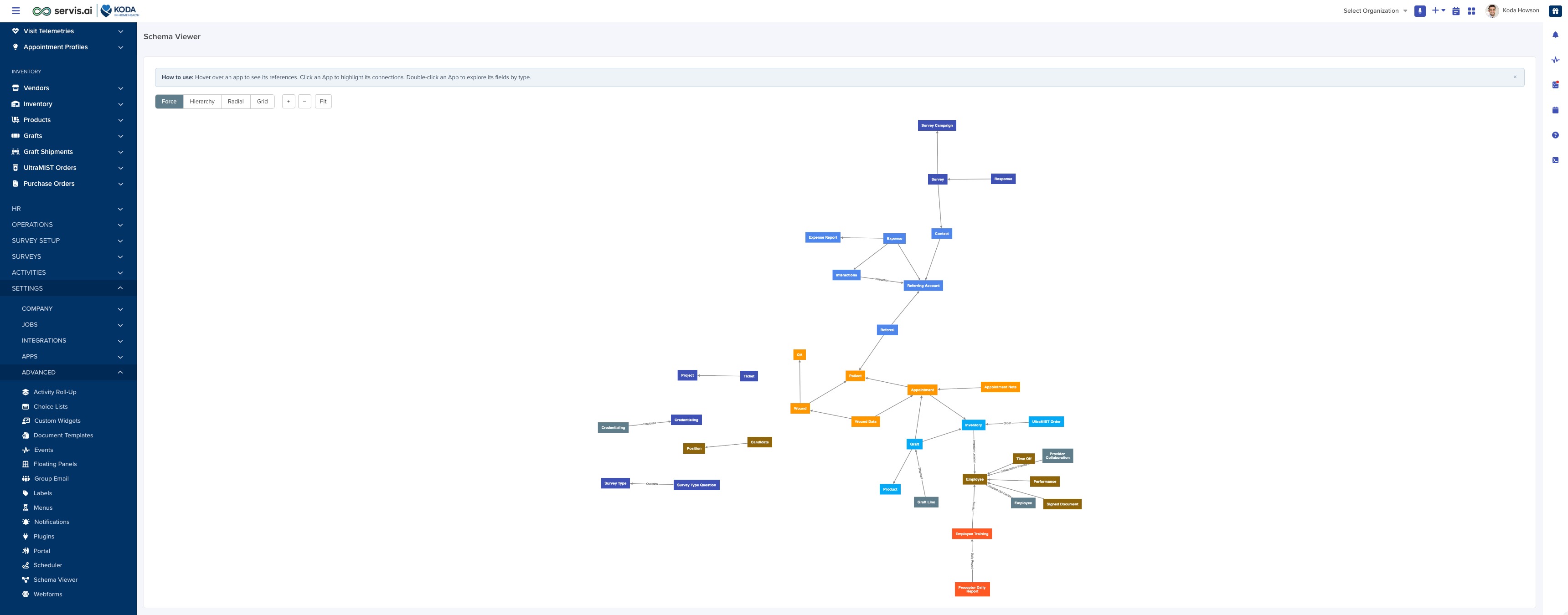
Note: The Schema Viewer only includes transactional apps — the ones where you actively manage records. It does not include settings apps or activity apps.
Navigating to the Schema Viewer
To open the Schema Viewer, go to Settings > Advanced > Schema Viewer. The page displays a loading indicator while it builds your diagram, which usually takes a few seconds.
The first time you open the page, a blue help banner appears at the top with a reminder of the core interactions (hover, click, double-click). Dismiss it with the x button when you’re comfortable — it won’t reappear.
Understanding the Diagram
App Nodes
Each box represents one app. The box shows the app’s name and uses the color you assigned to that app in servis.ai.
Connection Arrows
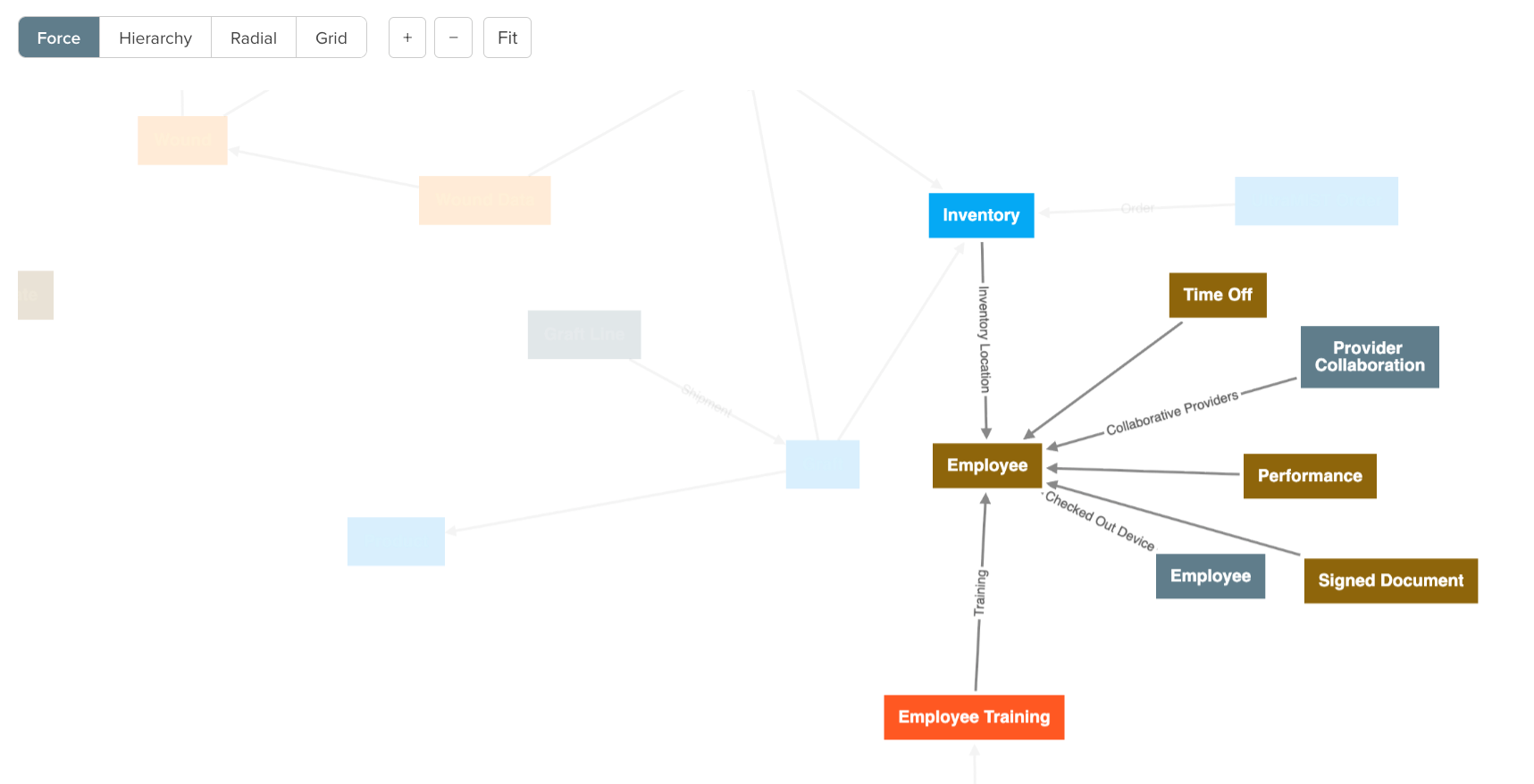
Arrows connect apps that have reference relationships, pointing from the app that contains the reference field to the app being referenced. When a related list has a name that differs from either app, that label appears alongside the arrow. If the related list name matches either app name, no label is shown — the relationship is already clear.
Why Some Apps May Not Appear
The Schema Viewer only shows apps that have at least one reference field connection to another app. Apps with no reference fields, deactivated apps, and hidden apps are excluded to keep the diagram clean.
Navigating the Diagram
The Schema Viewer is fully interactive.
- Pan: Click and drag any empty area to move around.
- Zoom: Use the + and − buttons at the top of the diagram, or scroll with your mouse. Click Fit to automatically size the diagram to the visible area.
- Highlight connections: Click any app node to keep it and its direct connections bright while dimming everything else. Click any empty space to clear the highlight.
- Hover for a summary: Hover over a node to see a tooltip with two lists — References (apps this app points to) and Referenced by (apps that point to this app). Connection labels appear where they add context.
Exploring App Details
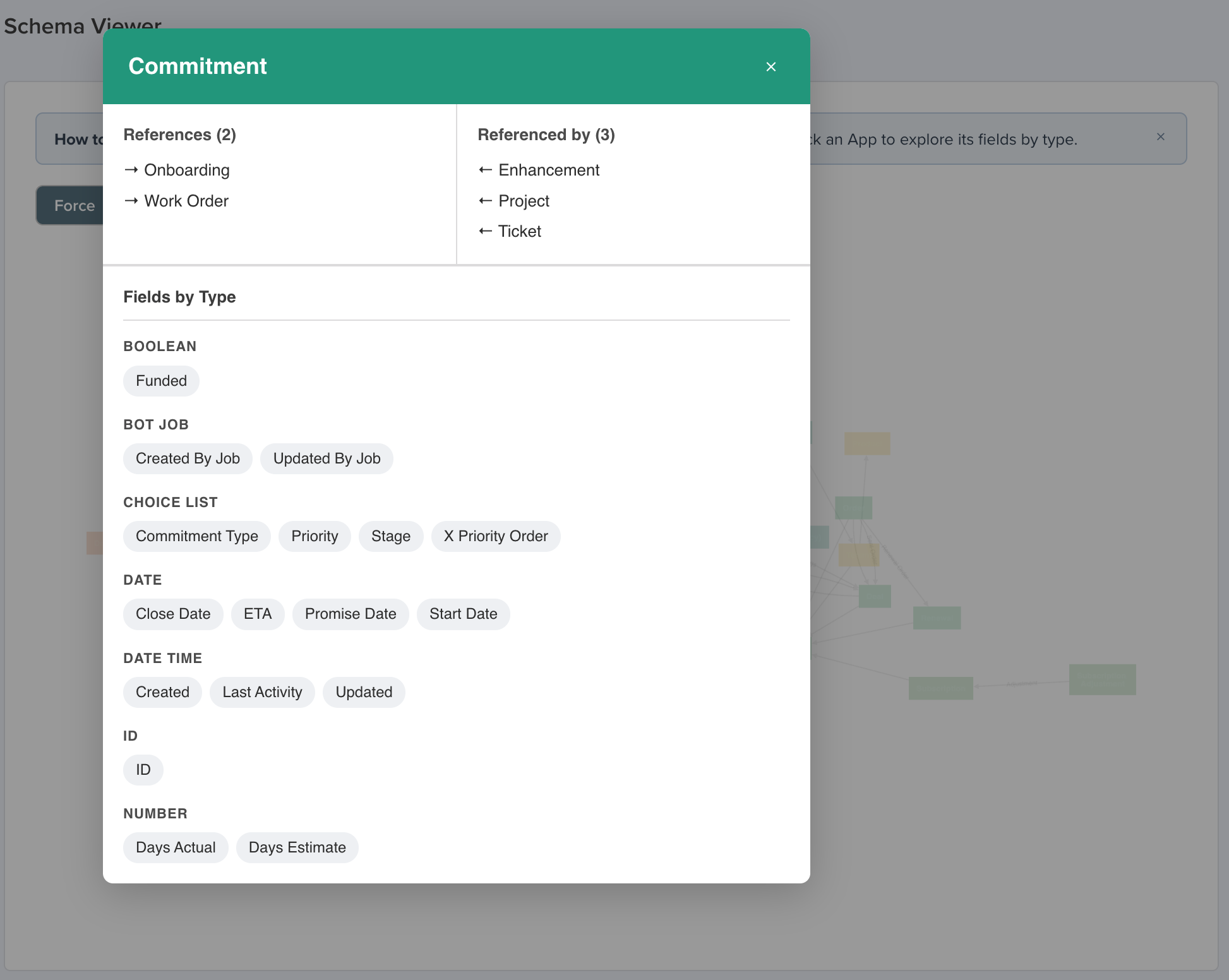
Double-click a node to open a details panel with three sections:
- Header: The app’s name on a background that matches its assigned color, with a close button in the upper-right.
- Connections: Two columns — References (apps this app points to) and Referenced by (apps that point to this app), each with a count.
- Fields by Type: Every visible field on the app, grouped by type (Text, Number, Date, Reference, Email, etc.), with each field shown as a tag under its type heading.
Changing the Layout
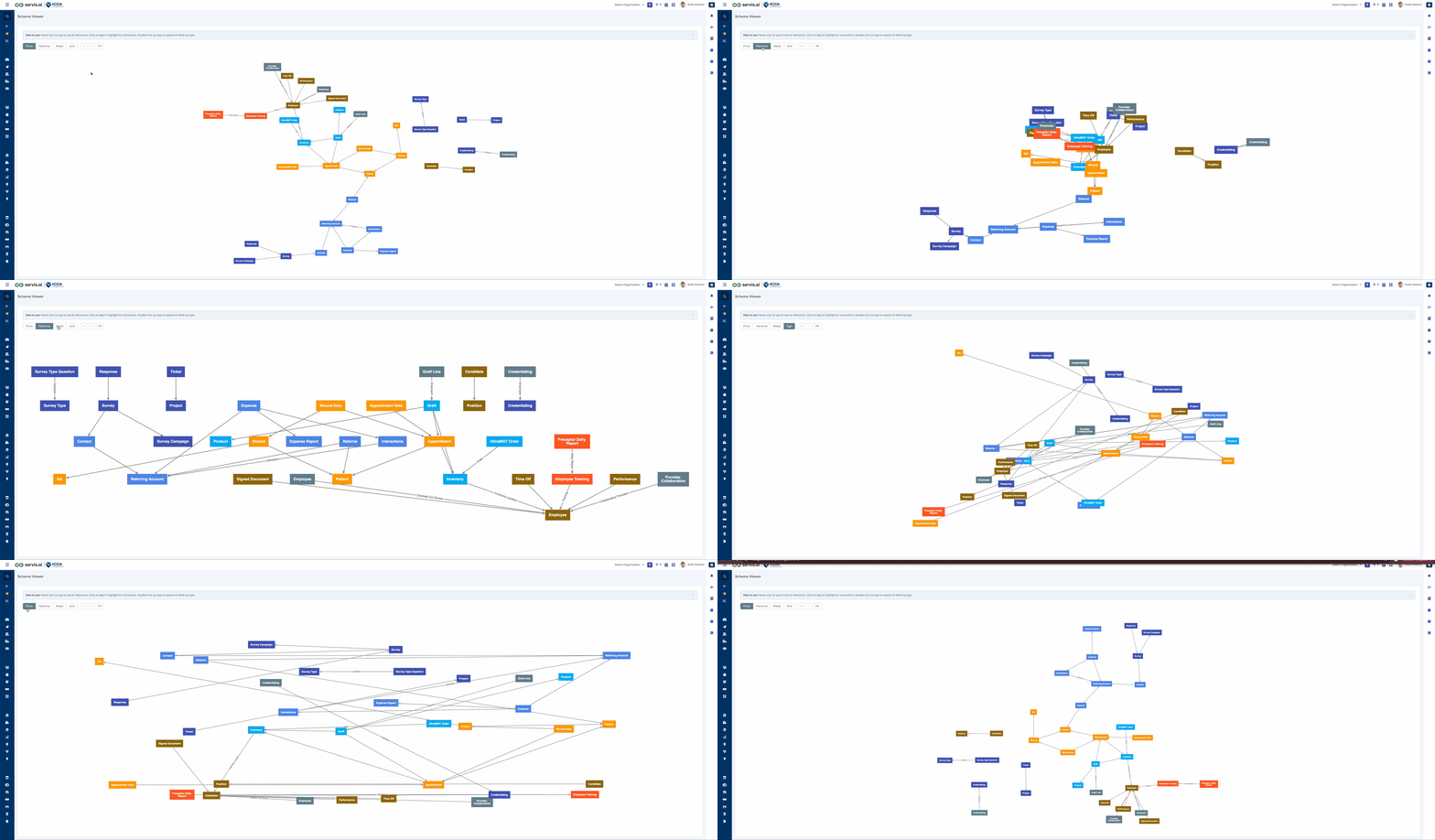
The Schema Viewer offers four layouts, selectable from the segmented control at the top of the page. Switching layouts smoothly animates the diagram and refits it to the visible area.
- Force (default): Simulates physical forces so connected apps cluster and unconnected ones spread apart. A natural starting point for most workspaces. Because the simulation starts from a random initial placement, the exact arrangement varies from one render to the next — the connections are the same, but the positions will shift. Switch to Grid or Hierarchy if you need a stable layout (for example, when comparing screenshots over time).
- Hierarchy: A top-to-bottom tree. Apps that reference others sit above the apps they reference. Useful for seeing parent-to-child data flow.
- Radial: Places highly-connected apps near the center and less-connected apps in outer rings. Best for spotting “hub” apps.
- Grid: Evenly-spaced rows and columns. A clean overview when positioning doesn’t need to convey relationships.
Use Cases
- Onboarding a new team member. Point them to the Schema Viewer for a self-guided tour of your app relationships instead of explaining each connection verbally.
- Planning a new app or field. See existing connections before adding a new one to decide where it fits — or whether an existing connection already does the job.
- Auditing your workspace. Switch to Radial to spot apps with unusually many connections, then double-click to review their reference fields for outdated or redundant links.
- Troubleshooting automation logic. If an automation isn’t behaving as expected, verify the apps you expect to be connected actually have a reference-field link.
- Communicating with a consultant. A screenshot of your schema is faster than a verbal description when getting outside help.
Best Practices
- Start with Force, then switch as needed. Force gives the natural overview, Radial surfaces your hubs, and Hierarchy clarifies parent-child flow.
- Highlight before you drill in. Single-click to isolate an app and its connections before double-clicking to inspect its fields.
- Zoom into dense clusters. Labels and arrows are easier to follow when you’re zoomed in on a tight group of apps.
- Trust the freshness. The diagram is regenerated each time you open the page, so it always reflects the current state of your workspace.
FAQ
Why don’t I see the Schema Viewer in my Settings menu? The Schema Viewer requires Administrator access. Ask your administrator to grant access or to walk you through the schema on their screen.
Why is an app missing from the diagram? The app likely has no reference fields connecting it to another transactional app. Apps that only connect to settings or activity apps, or that are deactivated or hidden, also won’t appear.
Can I edit apps or fields from the Schema Viewer? No. The Schema Viewer is read-only. Make changes in the relevant app’s settings as you normally would; the next time you open the Schema Viewer, it will reflect them.
Does the Schema Viewer include all my apps? It includes transactional apps only — not activity or settings apps. This keeps the diagram focused.
What do the arrow labels mean? Labels show the related list name when it differs from either connected app’s name. When the names match, the label is omitted.
Will the diagram update when I add or remove a reference field? Yes. The diagram rebuilds on each page load.


