This view type allows users to summarize, group, and aggregate records in a table format using row grouping, pivoted columns, and calculated values.
It behaves similarly to spreadsheet-style pivot tables and is configurable directly from the Filter, Sort & more panel.
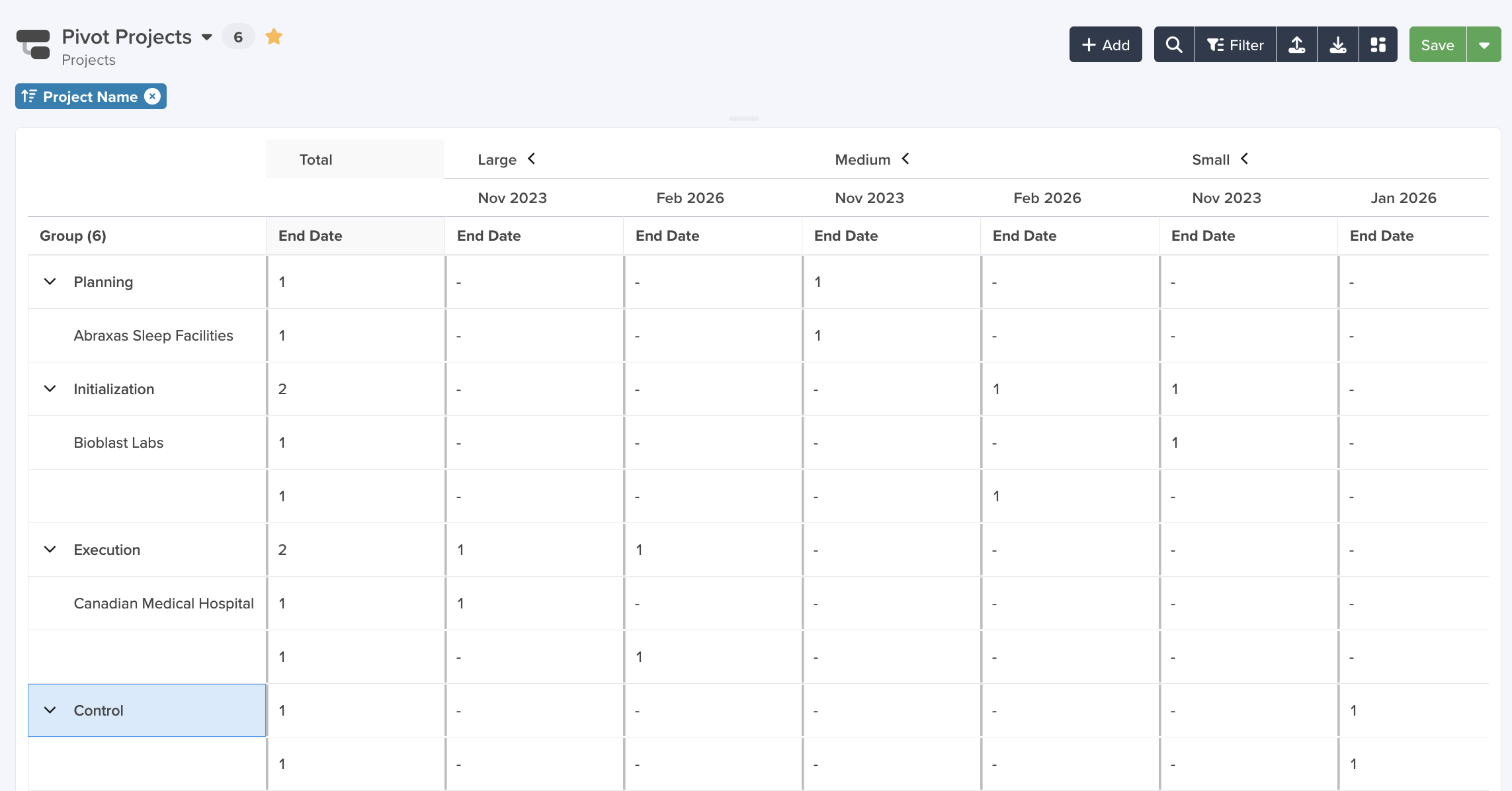
Navigate to the Pivot Table Tab
To access the Pivot Table tab, navigate to an existing App view and select the Filter button in the top right hand side of the page.

The Filter, Sort & More window will appear. Select the Pivot Table tab in the top right hand side of the window.

Configure the Pivot Table
From the Pivot Table tab select Configuration.
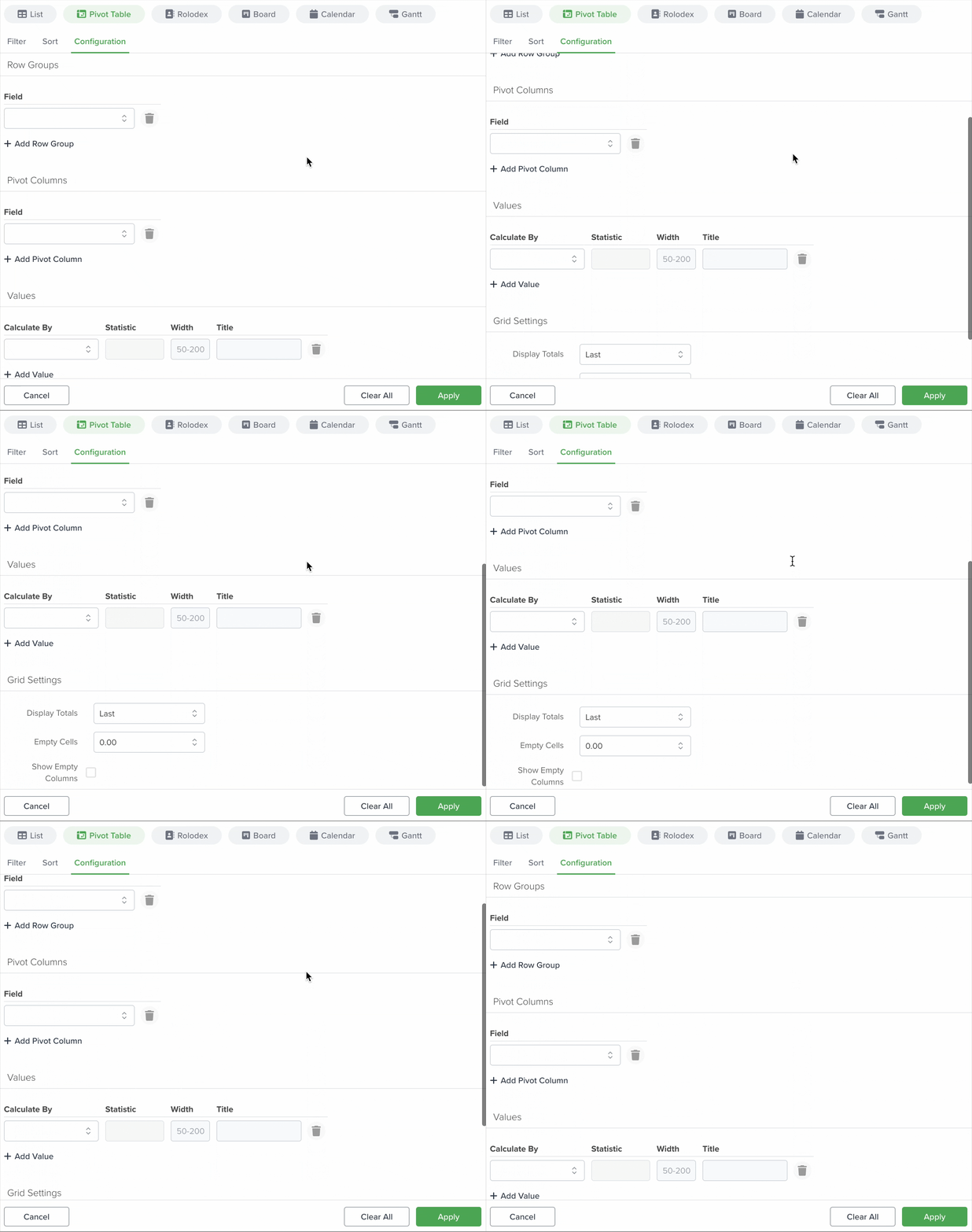 The Pivot Table configuration is oganized into four building blocks:
- Row Groups: Vertical grouping.
- Pivot Columns: Horizontal grouping.
- Values: Agregated metrics.
- Grid Settings: Display options for totals and empty values.
Row Groups
Row groups control how records are grouped down the left side of the table. By selecting a field for the row group you can show the records with values on those fields.
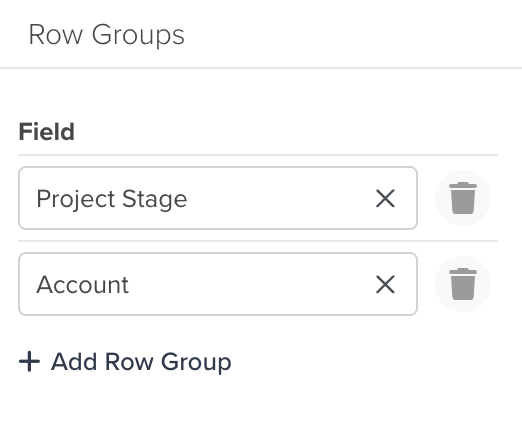
- Supports nested grouping (hierarchical).
- Up to 5 row group fields.
- Groups can be expanded/colapsed.
Pivot Columns
Pivot Columns control how datas split into across columns, side-by-side.

- Up to 3 pivot column fields.
- Supports date-based groupings (month, year, etc.).
Date and time-grouping
When using DateTime fields in grouping, you can group by:

- Daily
- Weekly
- Monthly
- Quarterly
- Yearly
Values
Values are the calculated metrics shown inside the grid. Each value representsnd aggregation, for example: total amount, count of records, average score, etc.

For each value, you can configure:
- Calculate By: The field you want to apply any aggregation method (depending on the field).
- Statistic: Depending on the selected field is how your data will be processed.
- Width: The max numbner of values that can be displayed (the default value is 150 if left blank).
- Title: A custom title for the selected field (if left blank the system will display the field name instead).
Supported Aggregations (by field type)
[Table]
You can add multiple Values, which lets you show multiple metrics for the same pivot (for example Count + Sum + Average).
Grid Settings
Grid Settings control how the pivot table totals, blanks and timelines.
Totals
Totals can be configured to appear:
- At the start
- At the end
- Hidden
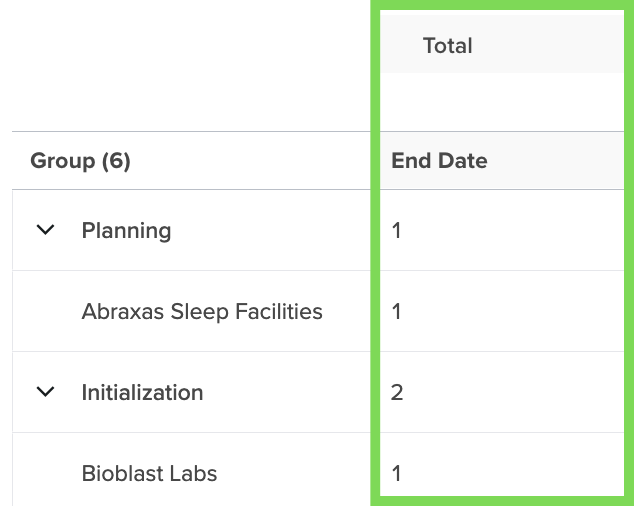
Totals are calculated based on the selected aggregation(s).
Empty Values
You can control how empty values display:
- Blank

- Dash (-)
- Number (0)



Empty Time Buckets
When grouping by date ranges, you can expand the timeline to show periods with no data.
Example: If records exist only on 5 days in a month you can limit the view to showonly those 5 days instead of the whole month.
Note: Large datasets, multiple group levels and reference field grouping can increase load time.



