Linking your Email address with servis.ai allows you to send and receive emails within servis.ai and see all the details right in the Activity timeline. If you pair with Google or Office 365 you will also have access to your Calendar.
If Email Tracking is enabled, we will gather useful analytics for all the emails you send from servis.ai. To learn more about Email Tracking, please visit the following tutorial:
Email Tracking
User Permissions: All users in servis.ai can pair their email addresses.
Navigate to Pair Email
Open the Preferences menu by clicking on your username in the top right corner of the screen. This will open your profile menu. Click on ‘Preferences’. Then navigate to the ‘Pair Email’ tab.
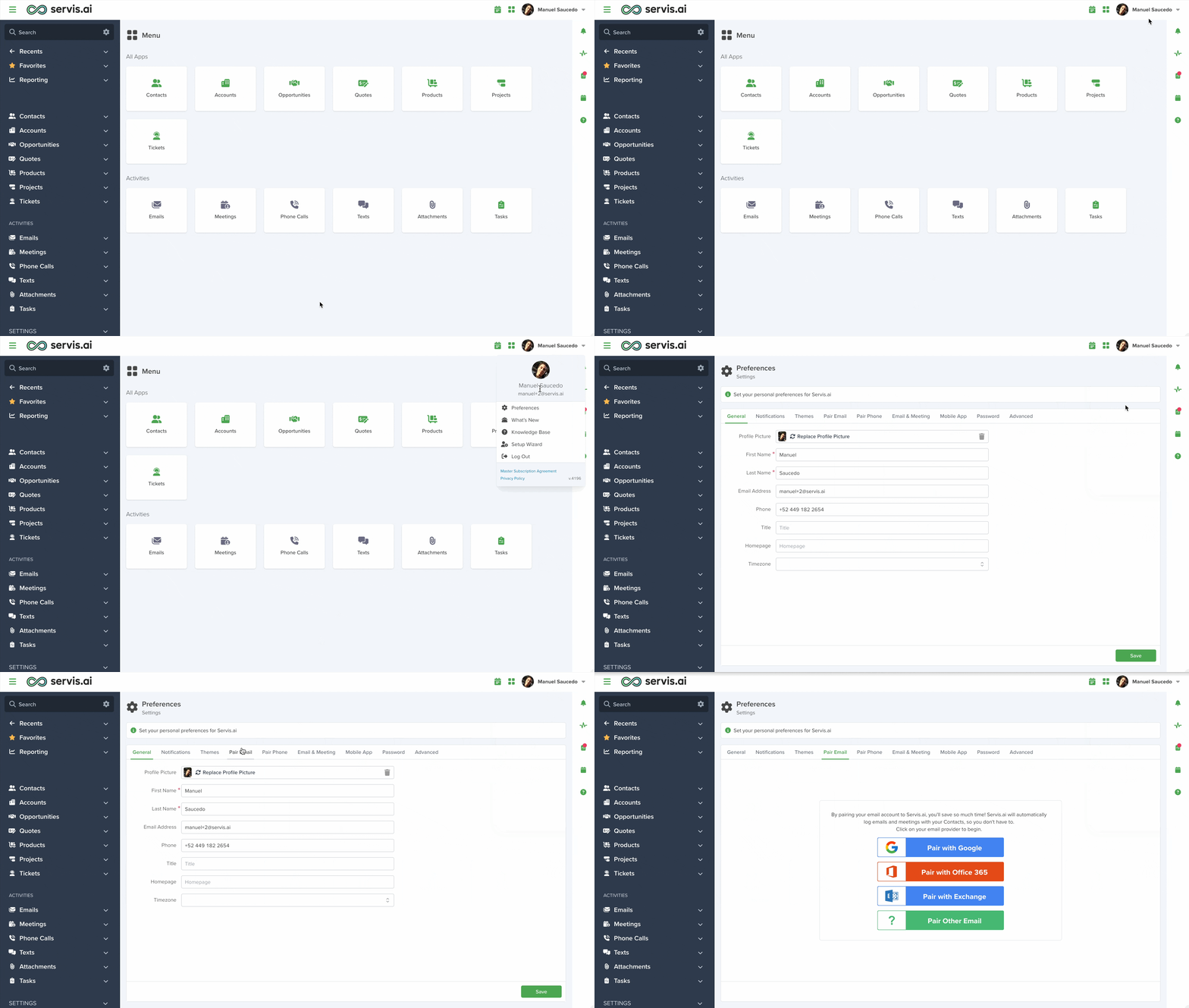
Pairing Options
You can connect your email using one of these options:
- Gmail
- Office 365
- Exchange
- IMAP (Other Email)
To choose the right one, simply pick the option that matches how you usually access your email.

Pairing with Google
You’ll be directed to the Gmail sign-in page.
- Enter the email address you want to link to servis.ai and provide your password.
- Review the list of permissions required for the connection.
- Click “Allow” to complete the process and link your Gmail account to servis.ai.
Pairing with Office 365
Click “Pair with Office 365” to start the Microsoft sign-in process.
- Enter the email address you want to link to servis.ai, then sign in with your password.
- You’ll be shown a list of permissions required to connect your account.
- If you agree, click “Yes.”
You can update these permissions anytime through your Outlook account settings.
Pairing with Exchange
Click on ‘Pair with Exchange’; this will open up a modal window, where you will need to input your email address, your username, your password, and finally the Email Server URL. Once you have entered all the required information click the ‘Connect’ button.

IMPORTANT NOTE! Please note that servis.ai doesn’t provide support for the Exchange versions that are no longer supported by Microsoft. You can learn more about them in Microsoft’s Exchange Server supportability matrix.
Pairing Other Email (IMAP)
Click on ‘Pair Other Email’; this will display the IMAP Account Settings form.

In the Personal Information section:
- Enter your email address, username*, and password.
- In most cases, your username is the same as your email address.
In the Server Information section:
- Enter your incoming and outgoing mail server details.
- Ports are set by default, but you can change them by selecting “Override Default Port.”
Below, you’ll find common server settings. If you’re unsure about your email details, check your email settings or reach out to your IT team.
Yahoo Mail
Incoming Mail (IMAP) Server         Outgoing Mail (SMTP) Server

Server - imap.mail.yahoo.com        Server - smtp.mail.yahoo.com
Port - 993                          Port - 465 or 587
Requires SSL - Yes                  Requires SSL - Yes
                                    Requires authentication - Yes
Outlook.com
IMAP Server (Incoming Messages)      SMTP Server (Outgoing Messages)
Server - imap-mail.outlook.com       Server - smtp-mail.outlook.com
Port - 993                           Port - 587
Click “Connect” to save your account settings.
Important:
For secure communication with IMAP servers, TLS 1.3 is required.
If your server uses an older version, the connection will not be secure.
Successful Email Pairing
You will know that your email was paired correctly when you see the image below, showing the status as ‘Connected’ with the pairing option of your choice.

Permissions
Outlook
| Permission | Scopes (same family) | What it does in servis.ai |
|---|---|---|
| Email (claim) | openid, profile, offline_access |
Puts the user’s email in the token so servis.ai can link the signed-in identity to the right mailbox. |
| Basic profile | openid, email, offline_access |
Reads name and user ID at sign-in to show the correct identity in UI and audit logs. |
| Keep me signed in (refresh) | openid, email, profile |
Grants refresh tokens so servis.ai can keep syncing mail/calendar/contacts without re-auth prompts. |
Sign in & read my profile (User.Read) |
User.ReadBasic.All, User.Read.All, User.ReadWrite |
Signs the user in and pulls basic profile/org info for account linking and display. |
Read my mail (Mail.Read) |
Mail.ReadWrite, Mail.Read.Shared, Mail.ReadWrite.Shared, Mail.Send |
Reads the mailbox to show threads on timelines and auto-link messages; shared variants cover delegated folders. |
Read & write my mail (Mail.ReadWrite) |
Mail.Read, Mail.Read.Shared, Mail.ReadWrite.Shared |
Creates/updates/deletes drafts or moves messages from servis.ai; does not send by itself. |
Send mail as me (Mail.Send) |
Mail.Read, Mail.ReadWrite |
Sends one-off, bulk, or automated emails from the user’s mailbox (e.g., from a Ticket or Automation). |
Read my contacts (Contacts.Read) |
Contacts.ReadWrite, Contacts.Read.Shared, Contacts.ReadWrite.Shared |
Imports Outlook contacts to suggest recipients, enrich records, and de-duplicate. |
Read & write my contacts (Contacts.ReadWrite) |
Contacts.Read, Contacts.Read.Shared, Contacts.ReadWrite.Shared |
Adds/updates/deletes Outlook contacts from people apps (e.g., create a contact from an email). |
Read shared contacts (Contacts.Read.Shared) |
Contacts.Read, Contacts.ReadWrite.Shared |
Reads contacts in shared/delegated folders for team address books. |
Read & write shared contacts (Contacts.ReadWrite.Shared) |
Contacts.ReadWrite, Contacts.Read.Shared |
Manages contacts in shared/delegated folders (team-managed lists). |
Read my calendars (Calendars.Read) |
Calendars.ReadWrite, Calendars.Read.Shared, Calendars.ReadWrite.Shared |
Reads calendars to show availability, attach meetings to records, and list upcoming events. |
Read & write my calendars (Calendars.ReadWrite) |
Calendars.Read, Calendars.Read.Shared, Calendars.ReadWrite.Shared |
Creates/updates/deletes events from record pages (e.g., schedule follow-ups). |
Read shared calendars (Calendars.Read.Shared) |
Calendars.Read, Calendars.ReadWrite.Shared |
Reads events in calendars shared with/delegated to the user for team visibility. |
Read & write shared calendars (Calendars.ReadWrite.Shared) |
Calendars.ReadWrite, Calendars.Read.Shared |
Creates/updates/deletes events in calendars shared with/delegated to the user (team scheduling). |
Create/manage my online meetings (OnlineMeetings.ReadWrite) |
OnlineMeetings.ReadWrite.All (app-only) |
Creates Teams meeting links when scheduling from records or automations as the signed-in user. App-only access to others’ meetings requires tenant policy. |
| Permission | Scopes (same family) | What it does in servis.ai |
|---|---|---|
| Sign in with Google (OIDC) | email, profile |
Signs the user into servis.ai with Google and returns an ID token to bind the Google identity to the correct user. |
| Email claim | openid, profile, https://www.googleapis.com/auth/userinfo.email |
Supplies the user’s email and email_verified so servis.ai can link the Google login to a mailbox and show the right sender identity. |
| Basic profile | openid, email, https://www.googleapis.com/auth/userinfo.profile |
Reads display name and avatar for UI, mentions, and audit trails. |
| Keep me signed in (refresh token)* | — | Lets servis.ai keep syncing mail/calendar/contacts after consent using refresh tokens. |
| Read my Gmail | https://www.googleapis.com/auth/gmail.modify, https://www.googleapis.com/auth/gmail.metadata |
Reads messages/threads to show email on timelines, enable search, and auto-associate emails to records (no changes). |
| Read & write my Gmail (no hard delete) | https://www.googleapis.com/auth/gmail.readonly, https://www.googleapis.com/auth/gmail.labels, https://www.googleapis.com/auth/gmail.compose |
Applies labels, marks read/unread, moves/organizes, and updates drafts when sending from records. |
| Send mail as me | https://www.googleapis.com/auth/gmail.compose |
Sends one-off, bulk, or automated emails using the user’s Gmail identity. |
| Drafts & send | https://www.googleapis.com/auth/gmail.send, https://www.googleapis.com/auth/gmail.modify |
Creates/updates/deletes drafts and then sends (e.g., “Send later” from a record). |
| Header/metadata-only sync | https://www.googleapis.com/auth/gmail.readonly |
Faster header-level sync (labels, history, headers) to speed up indexing & association without bodies/attachments. |
| Labels management | https://www.googleapis.com/auth/gmail.modify |
Creates/updates/deletes Gmail labels (e.g., “Servis.ai – Linked”) for organization. |
| (Admin-only) Gmail settings | https://www.googleapis.com/auth/gmail.settings.sharing |
Rarely needed. Manage basic mailbox settings; sharing settings are admin-only via domain-wide delegation. |
| Read my contacts | https://www.googleapis.com/auth/contacts, https://www.googleapis.com/auth/contacts.other.readonly |
Pulls Google Contacts to suggest recipients, enrich people records, and de-duplicate. |
| Read & write my contacts | https://www.googleapis.com/auth/contacts.readonly |
Creates/updates/deletes Google contacts from threads or records (e.g., save a contact from an inbound email). |
| Read “Other contacts” | https://www.googleapis.com/auth/contacts.readonly |
Surfaces suggestions from Gmail’s “Other contacts” (auto-collected addresses) when composing. |
| Read my org directory (optional) | — | For Workspace domains, looks up coworkers for CC/assignee suggestions and shared email visibility. |
| Read my calendars (events only) | https://www.googleapis.com/auth/calendar.readonly |
Shows upcoming meetings on timelines and checks availability when emailing. |
| Read & write my events | https://www.googleapis.com/auth/calendar |
Creates/reschedules/cancels events from records and adds Google Meet conference data. |
| Read my calendars (cal + events) | https://www.googleapis.com/auth/calendar.settings.readonly |
Broader read of calendars + events (also calendar list) to let users pick target calendars in UI. |
| Free/busy only (least-privilege) | https://www.googleapis.com/auth/calendar.events.freebusy |
Shows availability without reading event details—good for lightweight scheduling. |
| Calendar settings (read) | — | Reads time zone/locale so servis.ai schedules and formats emails/meetings correctly. |
| Create/manage Meet spaces (optional) | https://www.googleapis.com/auth/meetings.space.readonly, https://www.googleapis.com/auth/drive.meet.readonly, https://www.googleapis.com/auth/drive.readonly |
If using the Meet REST API, creates Meet spaces and (optionally) reads artifacts (recordings/transcripts) for richer activity logs. Most basic scheduling just uses Calendar conference data. |
Troubleshooting
Note: If you change your email password with your email provider, this will automatically unpair your email in servis.ai. Simply repeat the pairing steps after you change your password.
If you are having trouble pairing your email address with Exchange or IMAP, refer to these tutorials for further information:



