The Merge Records feature lets you combine two duplicate or related records into a single surviving record. All associated activities, attachments, notes, emails, meetings, tasks, and related records are automatically reassigned to the surviving record. The duplicate record is removed from view.
This guide covers every aspect of merging records: selecting the two records, choosing which one survives, resolving field conflicts, previewing the result, and understanding what changes and what remains unchanged after the merge.
Edition Qualifier: The Merge Records feature is available in all servis.ai Editions. Access requires the Merge Records permission. If you do not see the Merge option in the toolbar, contact your administrator to confirm your role includes this permission.
How to Merge Two Records
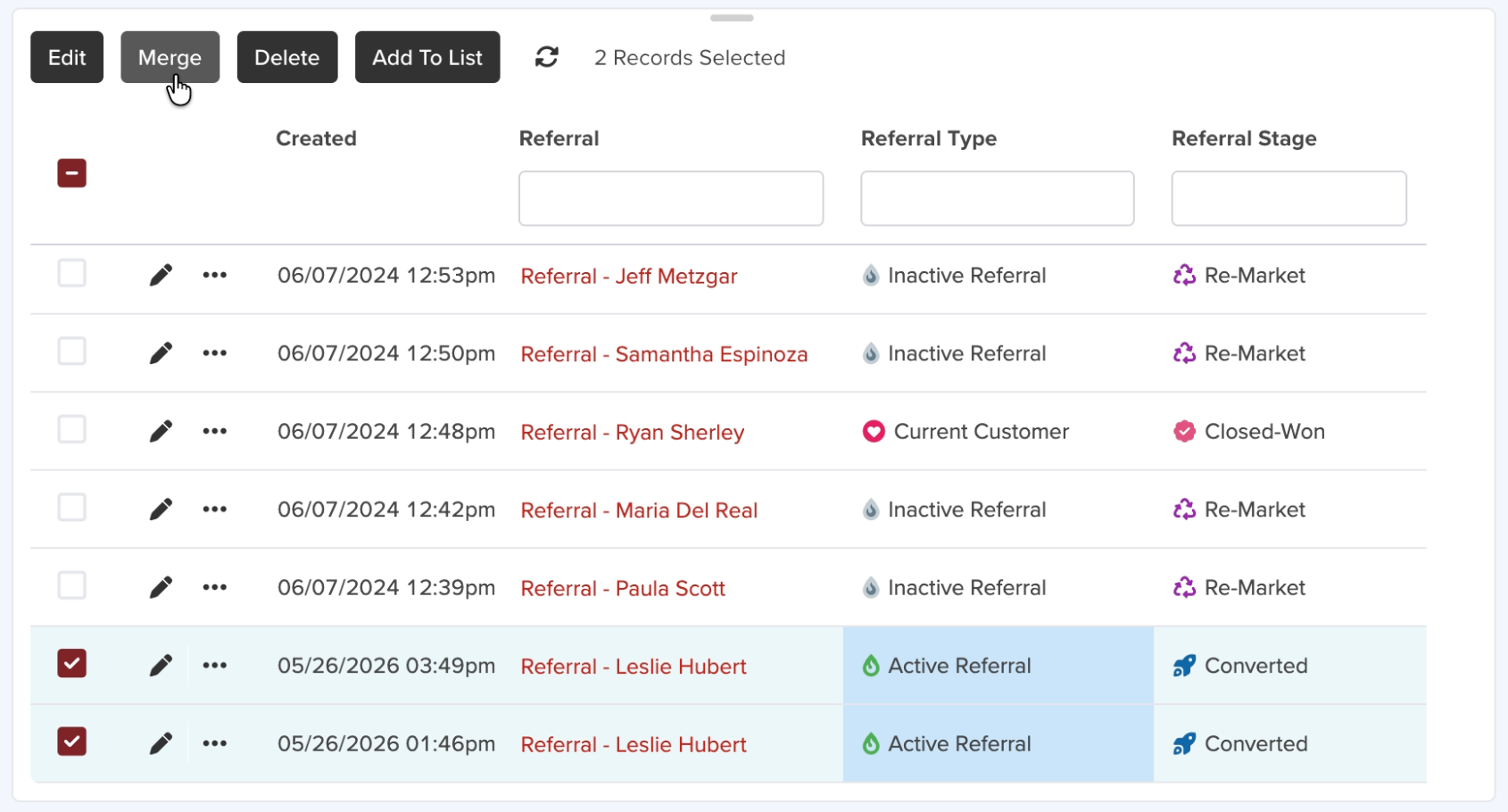
To merge two records, open the list view for the entity you want to merge (e.g., Contacts, Referrals, Deals).
- Select exactly two records using the checkboxes on the left of each row.
- Click the Merge button in the toolbar that appears at the top of the list.
- The Merge Records modal will open.
The Merge Records Modal
The Merge Records modal is where you choose which record survives, resolve any field conflicts, and preview the result before committing.
Choosing the Surviving Record
The modal displays both records as cards at the top. The surviving record (marked Keep) is the record that will remain after the merge. The other record will be deleted.
- The older record (by creation date) is selected as the default survivor.
- Each card shows key field values along with who created the record and when.
- To change the surviving record, click the other card. The radio button will move to your selection.
Resolving Conflicts
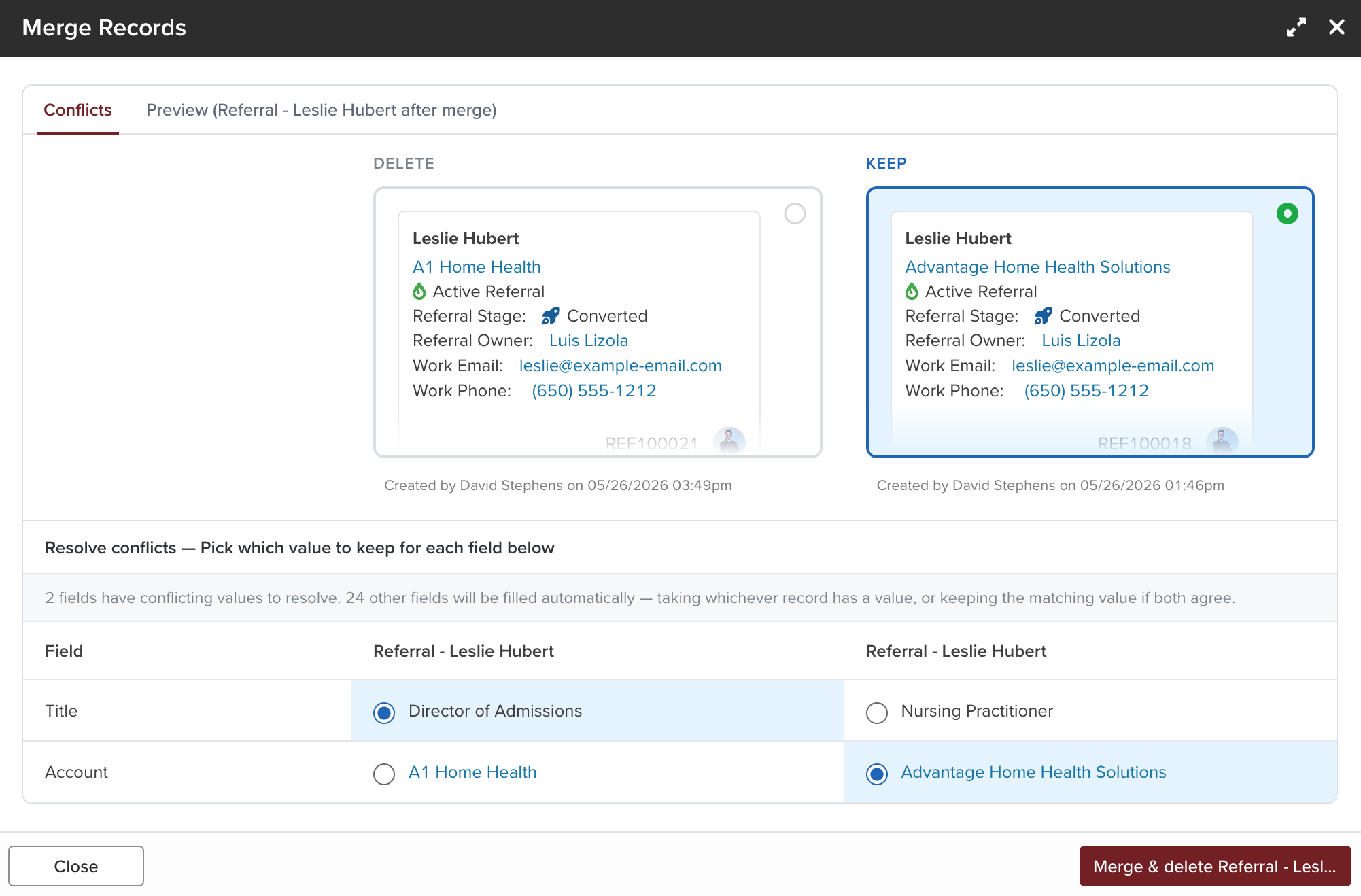
If the two records have different values for the same field, those fields are listed in the Conflicts table below the cards. For each conflicting field, you must choose which value to keep:
- Single-value fields (text, date, reference, etc.): select one value using the radio button. Only one value can be kept.
- Multi-value fields (multi-select, tags, etc.): use checkboxes. You can keep one value, the other, or both — the values will be merged and deduplicated.
A summary above the table shows how many fields have conflicts and how many will be filled automatically. Fields with no conflict are resolved automatically — the system takes whichever record has a value, or keeps the matching value if both agree.
No Conflicts
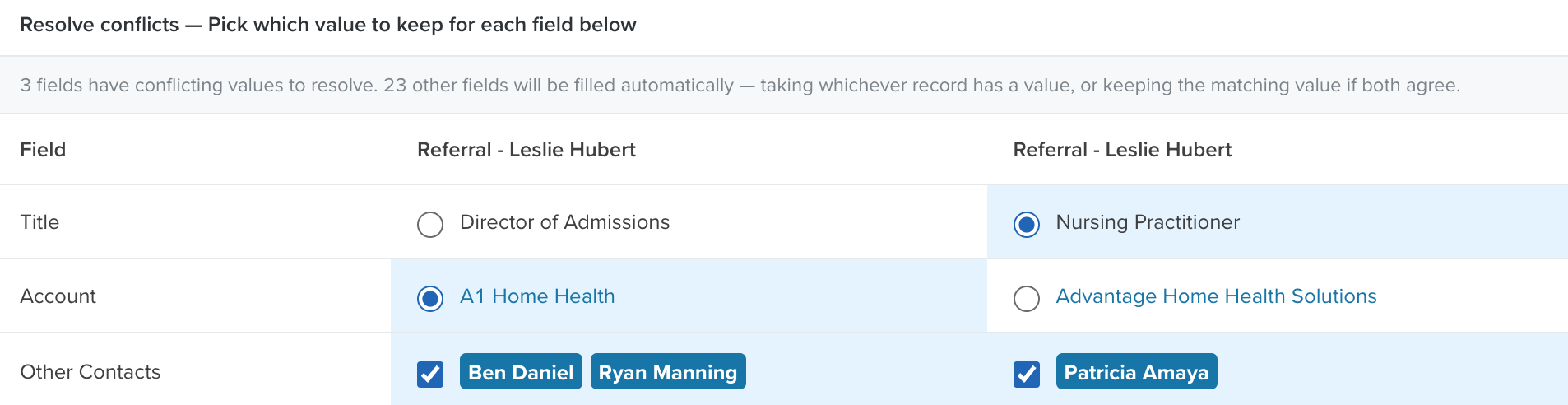
If both records have identical or non-overlapping values across all fields, the Conflicts tab will show a “No conflicts to resolve” message. You still need to choose which record to keep using the cards at the top.
Previewing the Merged Record
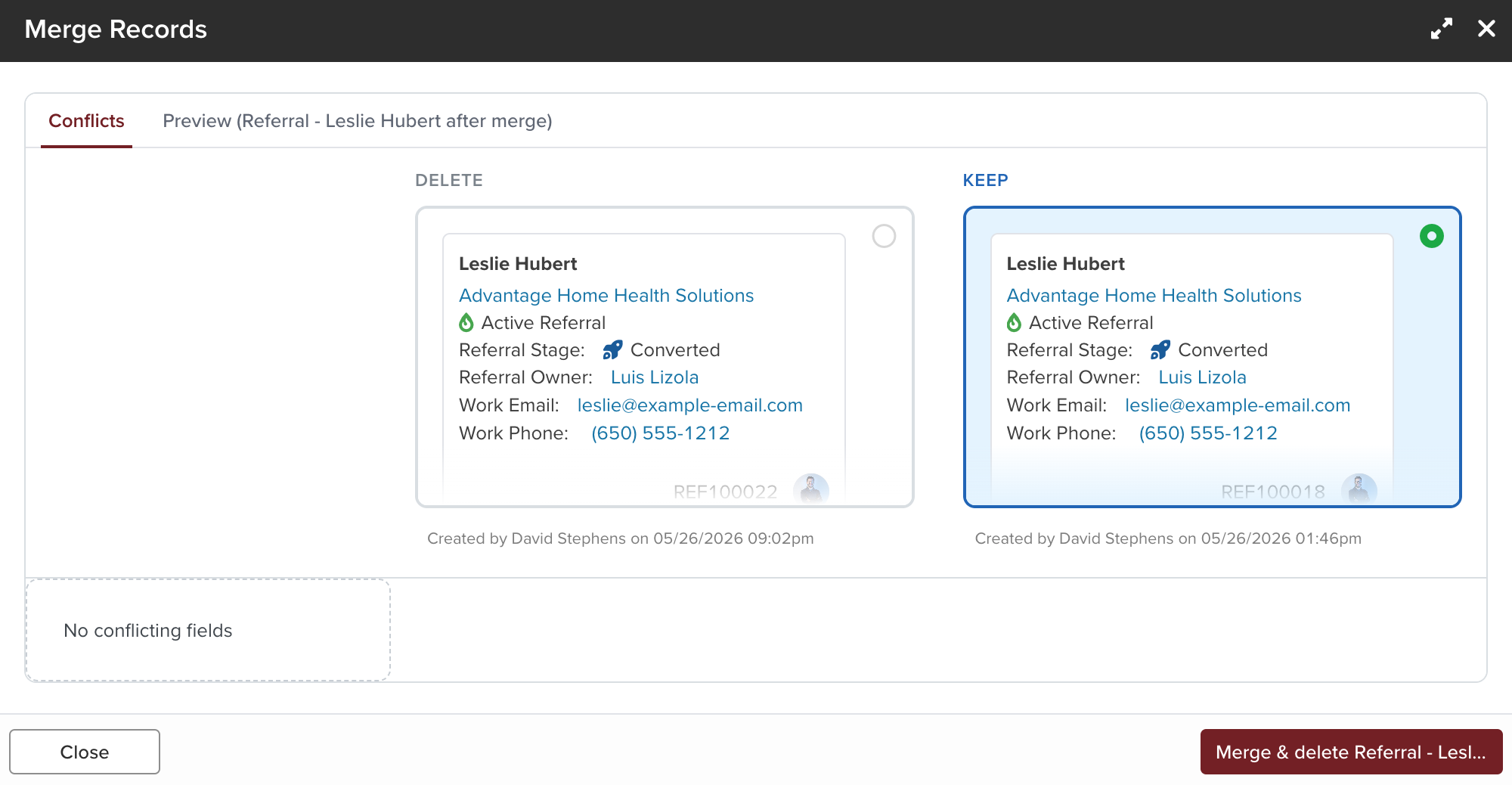
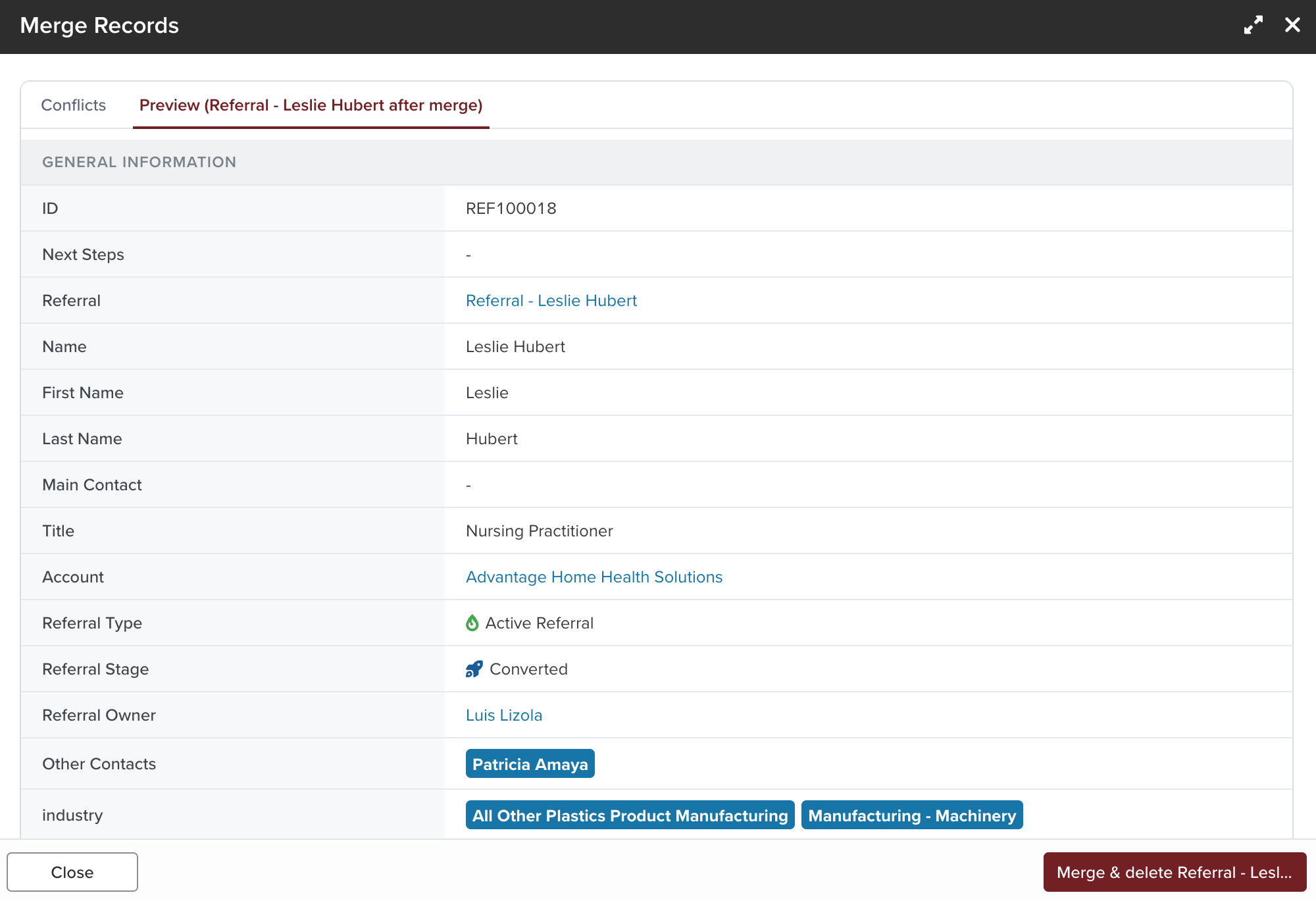
Click the Preview tab to see what the surviving record will look like after the merge, based on your current conflict selections. The preview reflects all fields — including fields with no conflict — so you can confirm the result before committing.
Note: The preview shows all fields regardless of any form rules or conditional visibility settings that may apply in the normal record view.
What Happens When You Merge
When you click Merge & delete [Record Name], the following changes are applied:
- Surviving record updated: The surviving record is updated with your chosen field values.
- Deleted record removed: The deleted record is removed from all list views.
- Activities reassigned: All activities previously associated with the deleted record (notes, emails, meetings, phone calls, SMS, attachments, and tasks) are reassigned to the survivor.
- Related records updated: All related records that referenced the deleted record are updated to reference the survivor.
- Lines preserved on survivor: If the entity uses Lines, lines from the surviving record are kept. Lines from the deleted record are removed.
- Calculated fields refreshed: Dynamically calculated fields (such as counts or rollups) that reference the deleted record are updated automatically to reflect the merge.
A confirmation toast will appear with a link to open the surviving record.
What Is Not Changed
- Creation date and Created by: These fields on the surviving record remain unchanged — they reflect when that record was originally created, not when the merge happened.
- Activity feed: The merge operation itself does not appear in the record’s activity feed.
Lines and the Merge
If the entity has Lines (e.g., line items on a deal or order), the lines from the surviving record are always kept. Lines belonging to the deleted record are removed as part of the merge. This is by design — merging line sets from two records would produce unpredictable results.
Best Practices
- Verify before merging. The merge cannot be undone. Open both records first to confirm they really are duplicates.
- Check the older record. Since the older record is the default survivor, make sure it is the one you actually want to keep — if not, click the other card before resolving conflicts.
- Use the Preview tab. Always click Preview before committing. It shows the exact result of your conflict choices across every field, not just the conflicting ones.
- Be deliberate with multi-value fields. “Keep both” is often the right answer for tags and multi-selects, but not always — review each one rather than defaulting to combine.
- Watch for Lines. If both records have line items, remember that only the survivor’s lines are kept. If the deleted record has lines you need, copy them over before merging.


