Keeping your data up to date is essential for your business. That’s why we offer several quick and easy options to update your data. Let’s get started!
User Permissions: No special permissions are required to use this feature.
Note: There are some restrictions when importing CSV files. If you are unable to import files, please contact your team’s administrator.
Navigate to Your Apps
First, use the menu to navigate to the app where you want to update a record.
- Use the search function to locate your application.
- Click the app from the main app home screen.
- Or select the app from the left menu and choose one of its views.
Edit a Single Record
There are a few ways to edit a single record:
1. Click the pencil icon to edit the record.
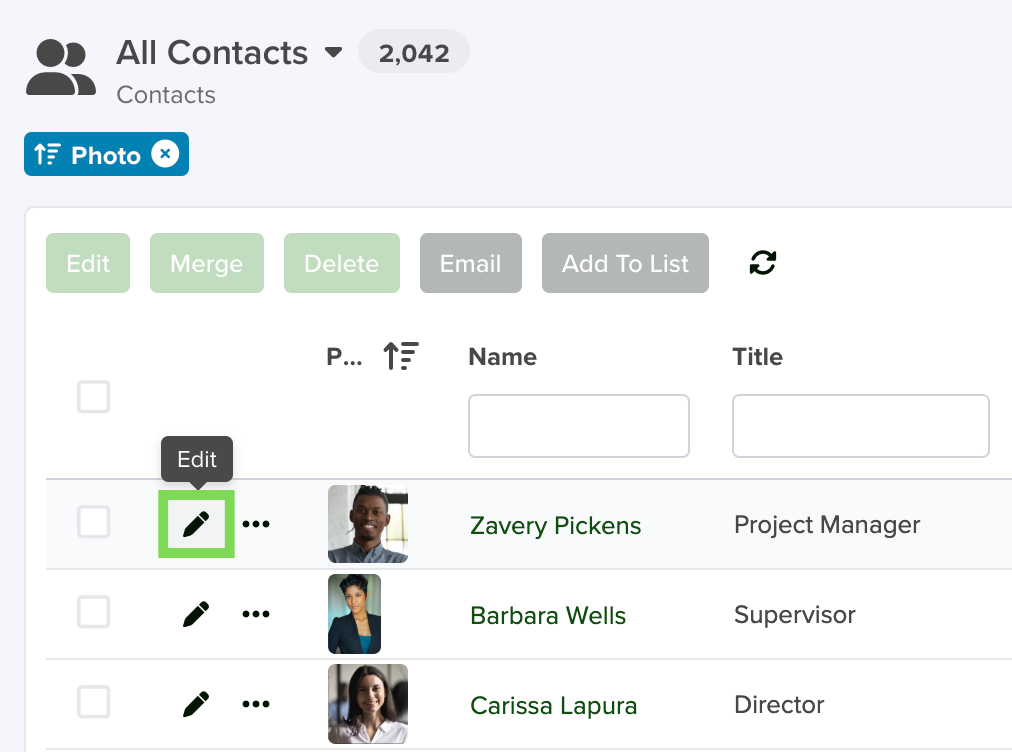
2. Click the record you want to edit, then click the “Edit” button in the top-right corner of the screen.
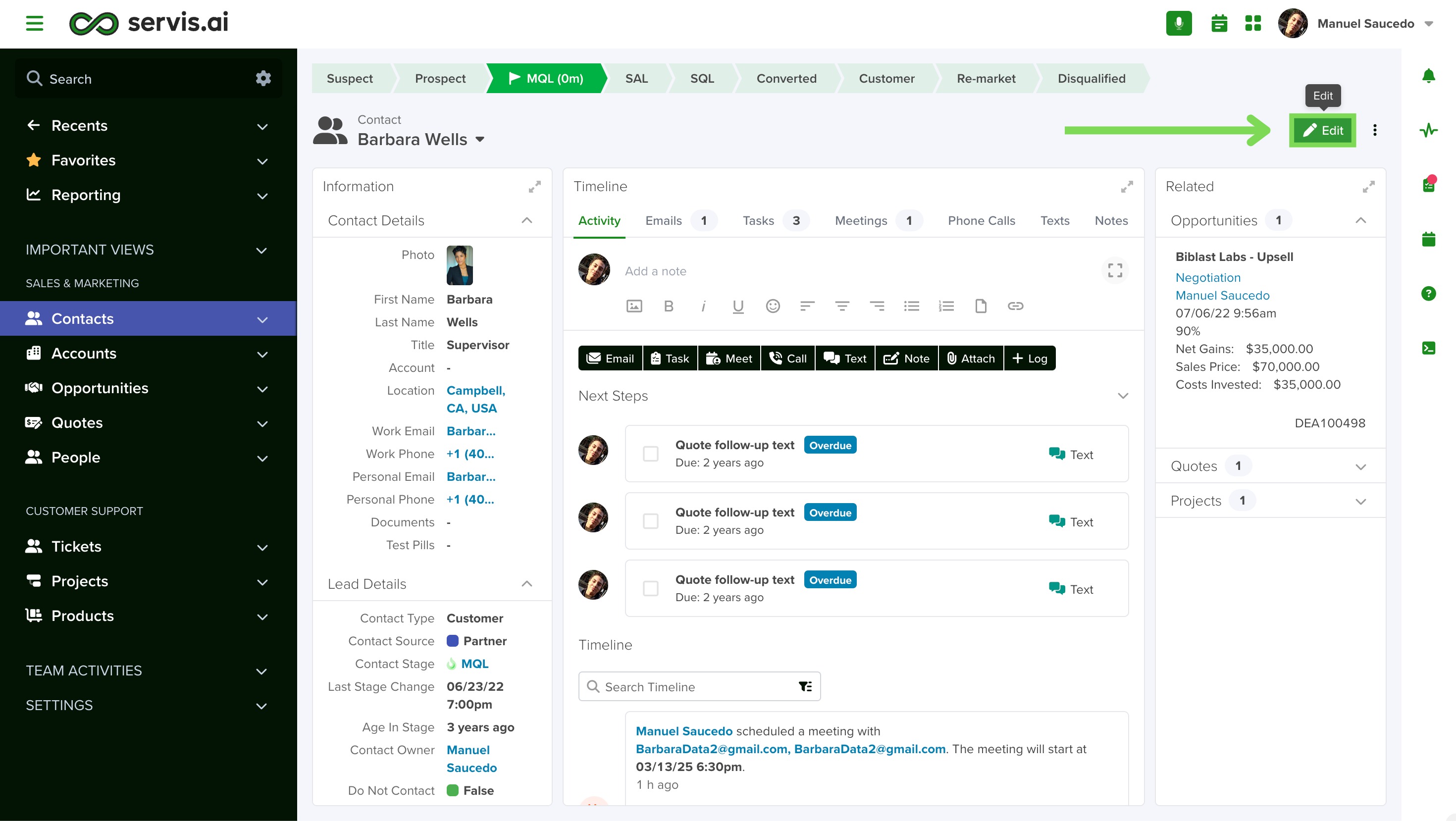
In the ‘Edit’ window, you can update all information related to the record, including the owner. When finished, click ‘Save’.
Edit Multiple Records (Bulk Edit)
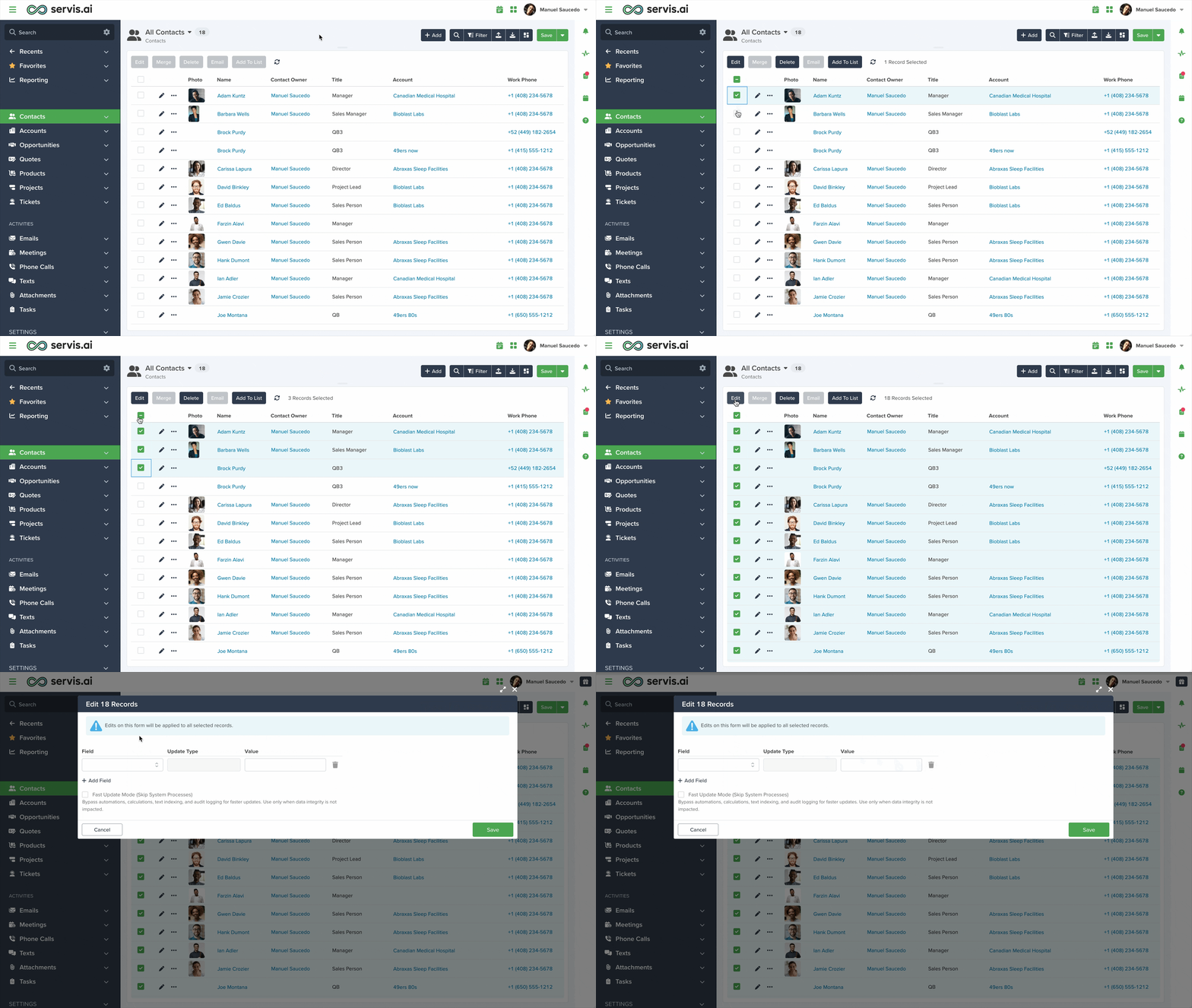
servis.ai allows you to quickly edit multiple records at once using the List View of any app. This is especially useful when making changes across many entries, saving time and ensuring consistency.
- Open the App
- Navigate to the app containing the records you want to update (e.g., Contacts).
- Switch to List View
- Display records in a table format using List View.
- Select the Records
- Check the box next to each record to select individually.
- Use the top checkbox to select the first 50 records.
- A banner will display how many records are selected.
- Click “Select all X records.” to select all.
If you want to learn more about Bulk Edit, check out the dedicated article.
Edit Multiple Records Through an Import (CSV File)
This method is recommended when you need to update a large number of records at once. Follow these three steps:
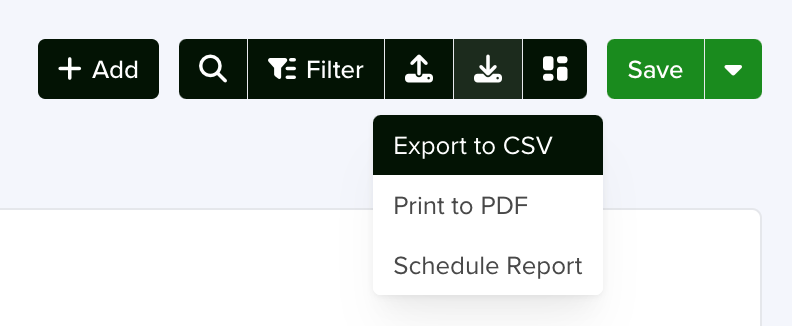
1. Download your data: Go to the app, click ‘Export and Print’, then select ‘Export to CSV’.
2. Open the CSV file and make the necessary changes. (Review Reference Join Fields)
3. Upload your CSV using the Import Wizard: Follow the same process used for importing data into servis.ai.
Key Considerations
To ensure a successful update, always base your changes on the exported CSV file. This file includes the essential ID field, which allows the system to match and update records correctly. If the ID column is missing, the system will treat the data as new records, resulting in duplicates.
Below is an example of what a record ID looks like:
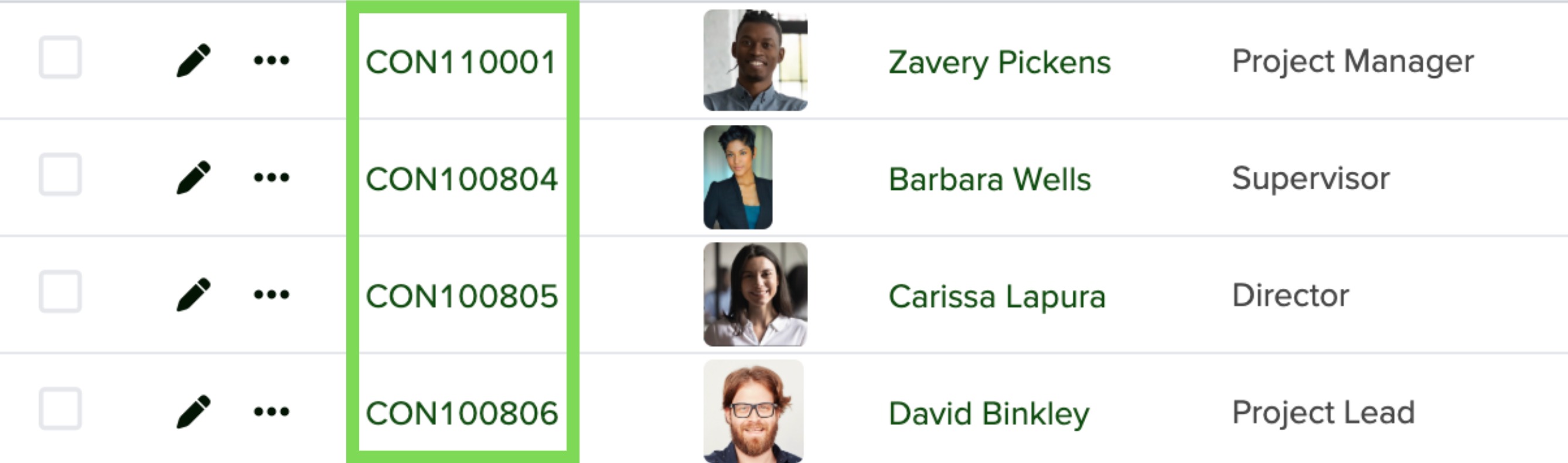
When using a Reference field that links to another app, your file must include the ID of the referenced record instead of its name. This ensures accurate mapping and prevents errors during import.
Best Practice: When updating data through import, include only the fields you want to change.
For example, if a Contact record has 100 fields but you only need to update the Contact Owner, your file should include only the Contact ID and the Contact Owner field.
For more information on preparing and importing data, visit Import Your Data in servis.ai.


