This article covers how to set up and use the GoTo VoIP integration in servis.ai.
Navigate to GoTo
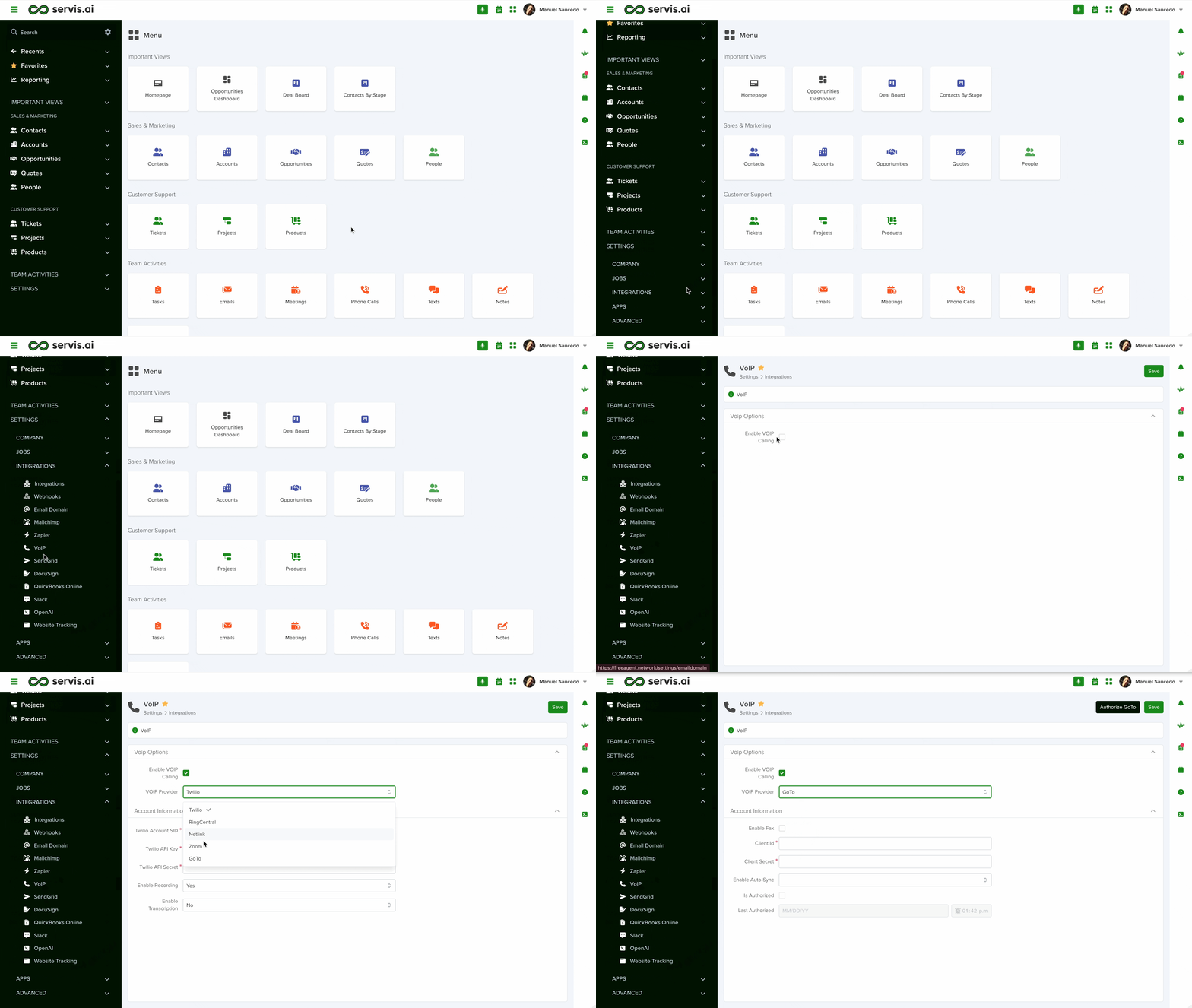
To enable VoIP with GoTo, follow these steps:
- Navigate to Settings – Go to Settings > Integrations > VoIP.
- Enable VoIP Calling – Check the Enable VoIP Calling option.
- Select a Provider – Choose GoTo from the VoIP Provider dropdown.
Create a New OAuth Client
To obtain your Client ID and Client Secret:
- Log in to the GoTo Developer Center.
- Go to OAuth Clients and click Create a client.
- Enter a Client Name, Description, and at least one Redirect URI.
- Copy the generated redirect URI and paste it into the appropriate field in servis.ai.

- Select the necessary scopes for your application.

- We recommend selecting the GoToConnect scope.

Don’t forget to save the client to generate your Client ID and Client Secret.
Account Information
After selecting GoTo as your provider, the Account Information section will update automatically with the required fields.

Before configuring these fields, ensure you have:
- A GoTo account: Sign up at the GoTo Developer Center.
- Access to the GoTo Admin Center: GoTo Admin.
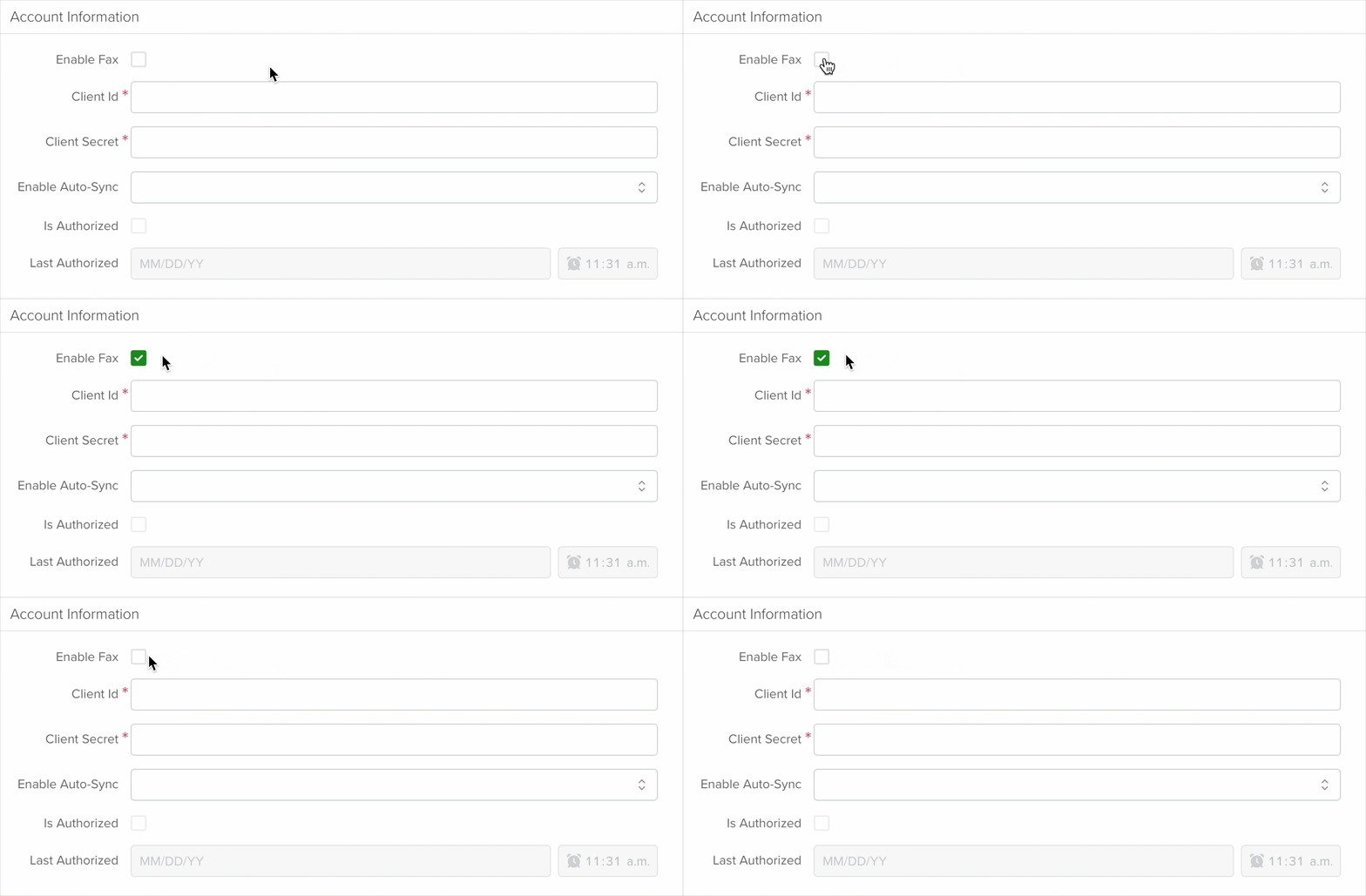
Enable Fax
Enabling Fax adds a Faxes app to your Activities menu. This allows you to manage sent and received faxes.

Client ID & Secret
These are the required fields to enable the integration. You can obtain them from the GoTo Developer Center.
Navigate to OAuth Clients > Advanced to locate your credentials and paste them into servis.ai.

Note: You must create an OAuth client in the GoTo Developer Center before accessing your Client ID and Secret.
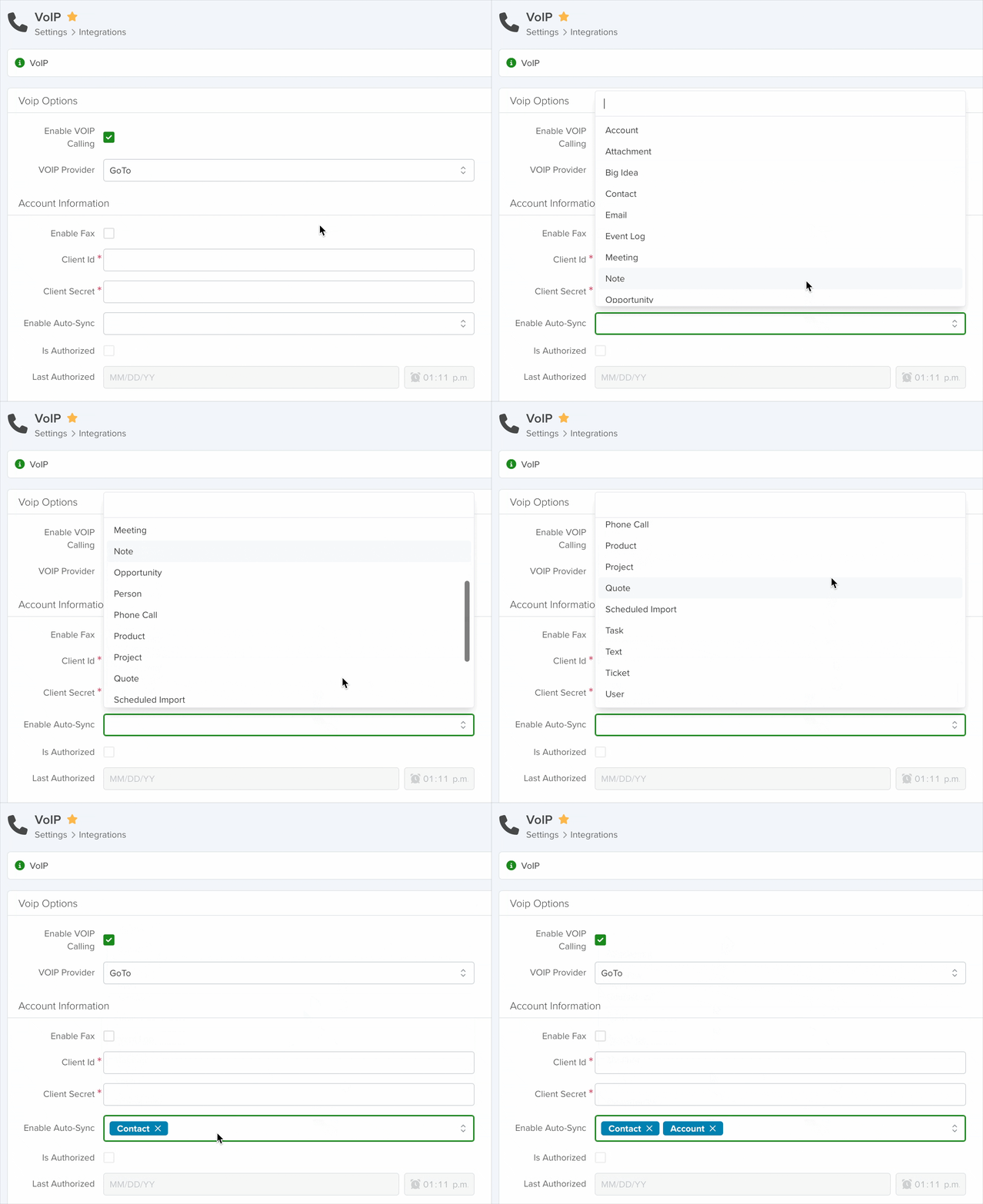
Enable Auto-Sync
Use the dropdown to select which apps the Faxes app will pull data from, including the Source Record associated with each fax.
Is Authorized & Last Authorized
These fields are read-only and show when your GoTo client was authorized.

Permissions
After entering your Client ID and Secret, click Save, then click “Authorize GoTo” to complete the integration.

You will be prompted to sign in using your GoTo Admin credentials.

Note: Make sure your GoTo account has permission to read, edit, and send faxes. Otherwise, the Faxes app will not display data correctly.


