User preferences are for updating all settings related to you as an individual user. We recommend updating these settings when you first start using servis.ai. All of the changes you make here will only affect your user profile.
User Permissions: No special permissions are required to use this feature.
Navigate to Preferences
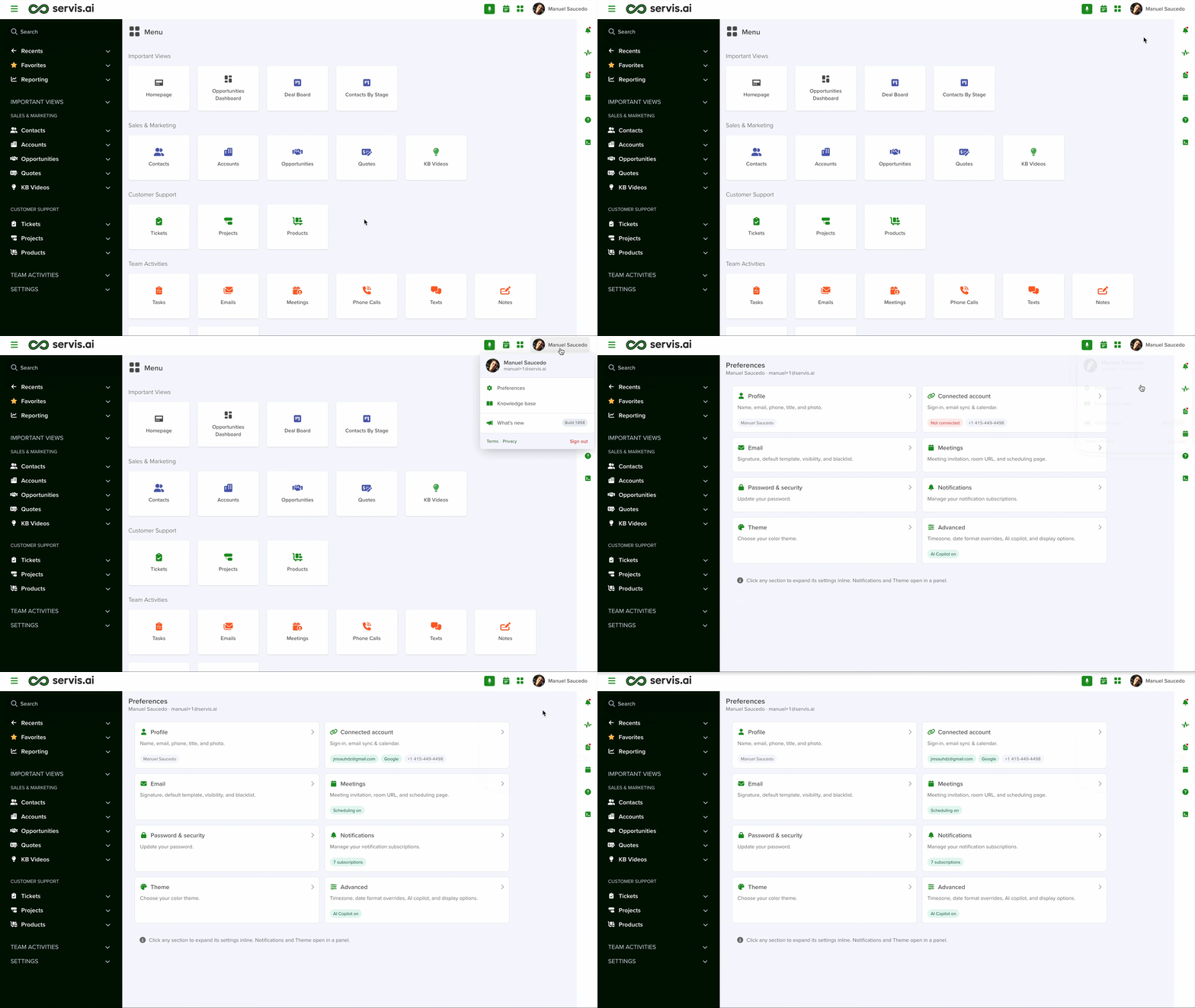
Open the Preferences menu by clicking on your username in the top right corner of the screen. This will open your profile menu. Click on “Preferences”.
Profile
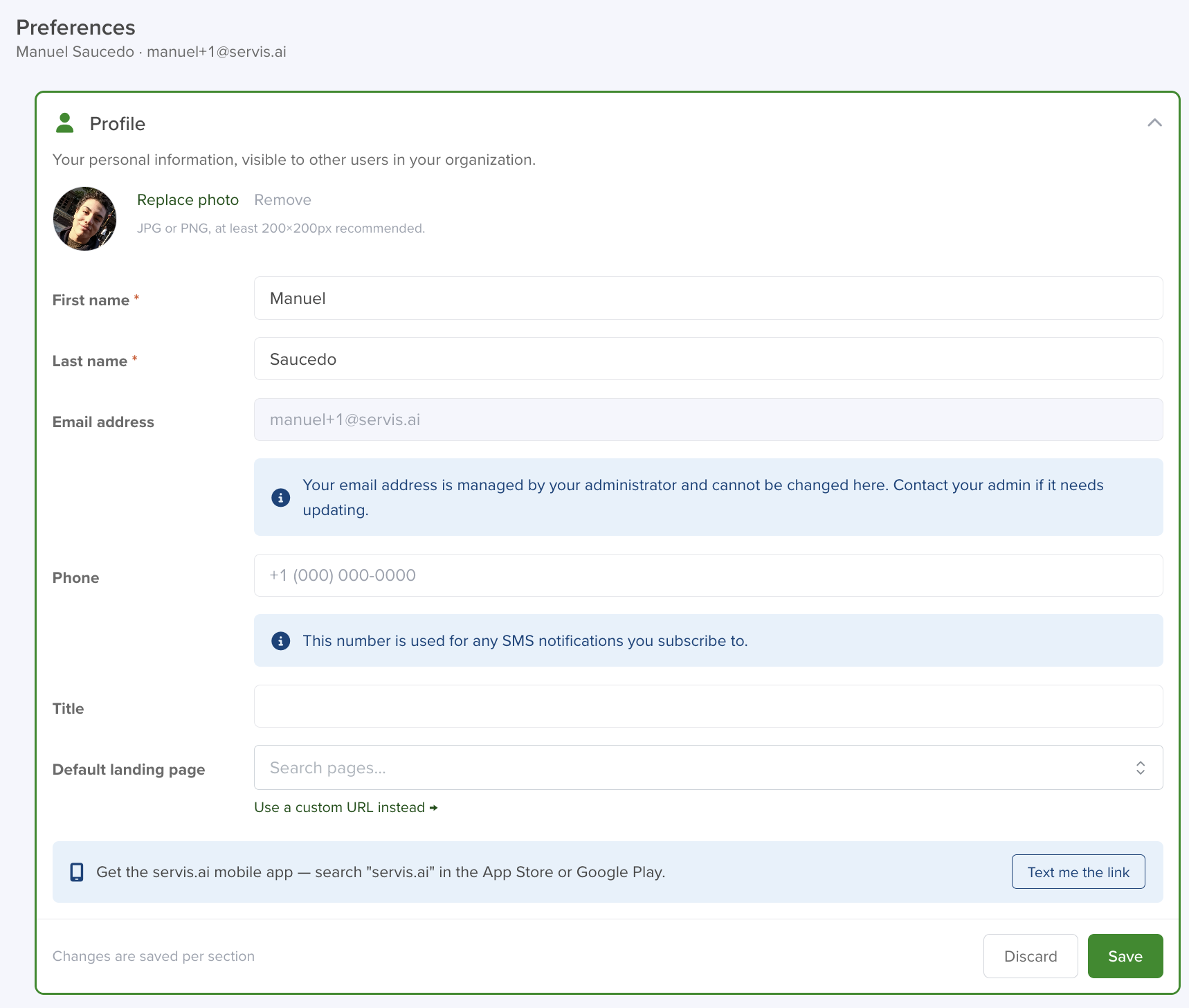
Click on the “Profile” card to get started.
Replace Photo
To upload a profile picture, click on the square. If you have already added a profile picture, click ‘Replace’ to change it. If you don’t want to use a profile picture anymore, click the trash can icon.
Name
Your first and last name.
Email Address
This is the email address you used to create your servis.ai login. This is separate from the one you may choose to pair with servis.ai.
Phone
A place to add your personal or work phone number.
Title
Adding a title can be useful for larger organizations with many users in servis.ai.
Default Landing Page
By default, servis.ai opens the All Apps screen when you first log in. You can copy and paste a different URL from within servis.ai that will then act as your home screen.


