Admins can build and maintain forms more efficiently using the Form Builder. Changes are reflected in real time, making it easier to find fields and complete form layout updates faster.
Edition Qualifier: This feature is available in all servis.ai editions.
User Permissions: Only Administrators can use this feature.
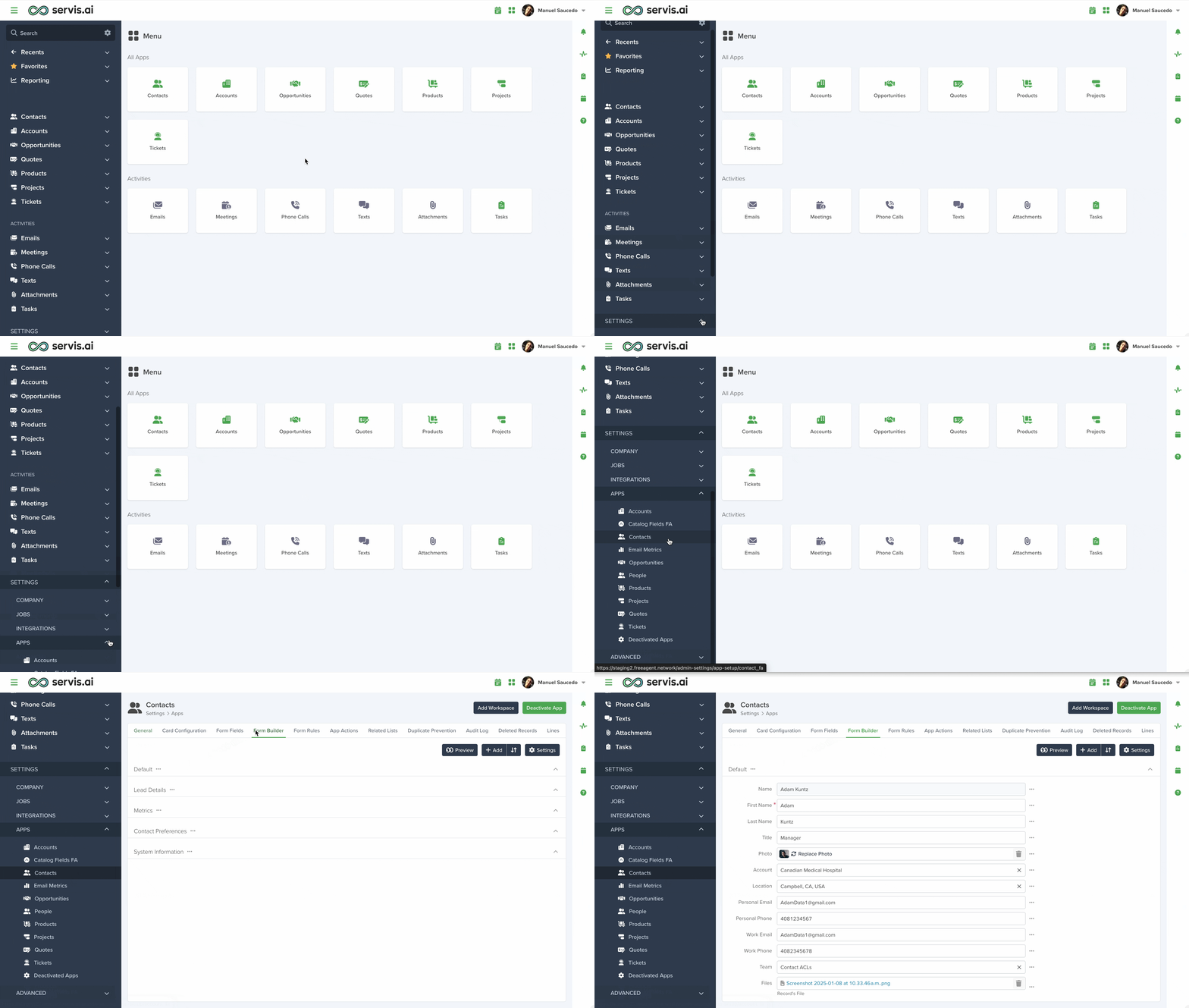
Navigate to Form Builder
Go to ‘Settings’, select the application you want to edit, and then click the ‘Form Builder’ tab at the top of the screen.
Sections
Add Sections
Adding a new section works the same across all apps. Click the ‘Add’ button and select ‘Add Section’.

Enter a name for your section and click ‘Save’.

Edit Sections and Reorder Fields
Hover over the three-dot menu next to a section title to access additional options:

Edit Section
Modify the details of your form section.

Add Field
Add new fields directly from this menu without navigating to the ‘Fields’ tab.
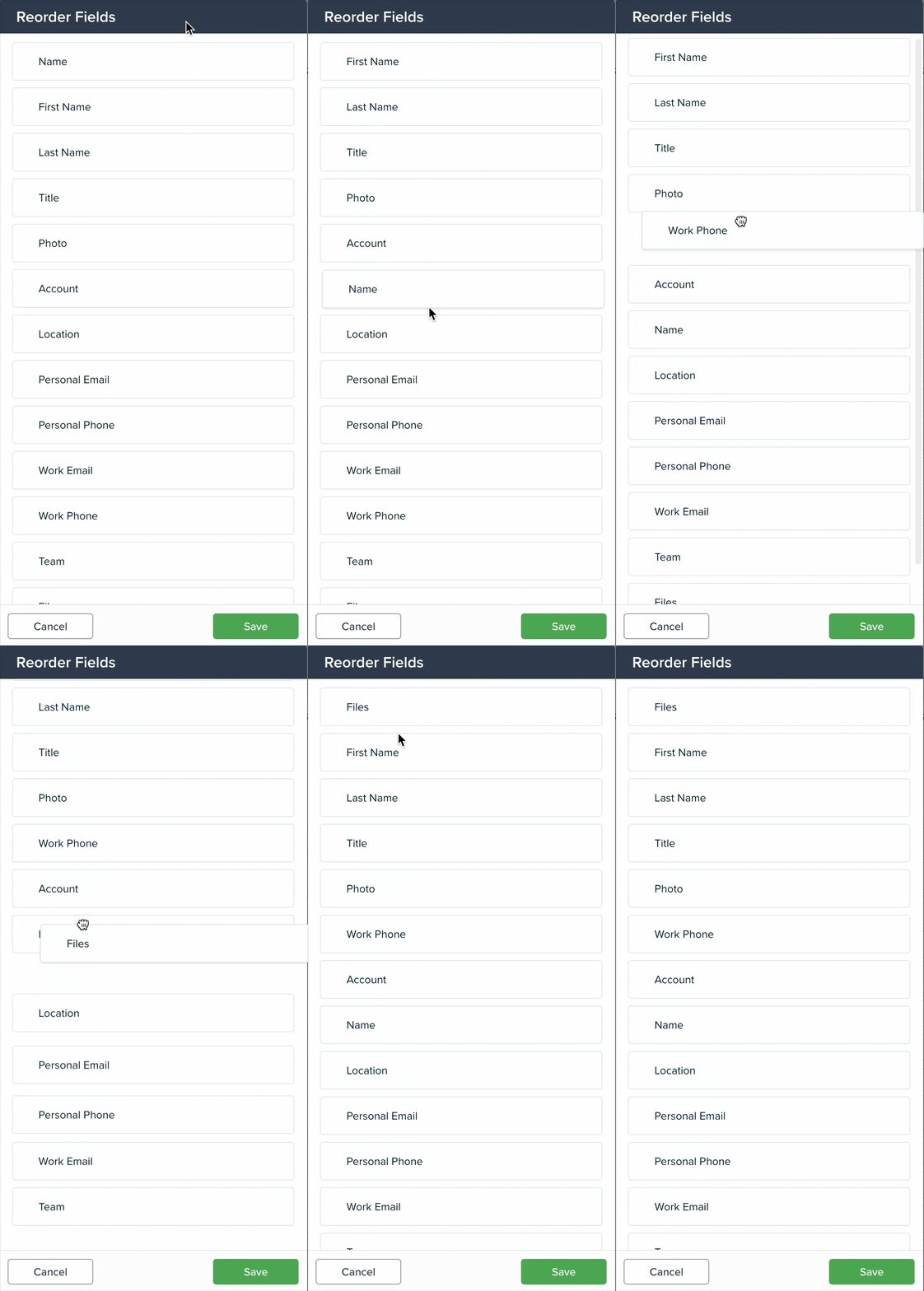
Reorder Fields
Drag and drop fields within a section to reorder them.
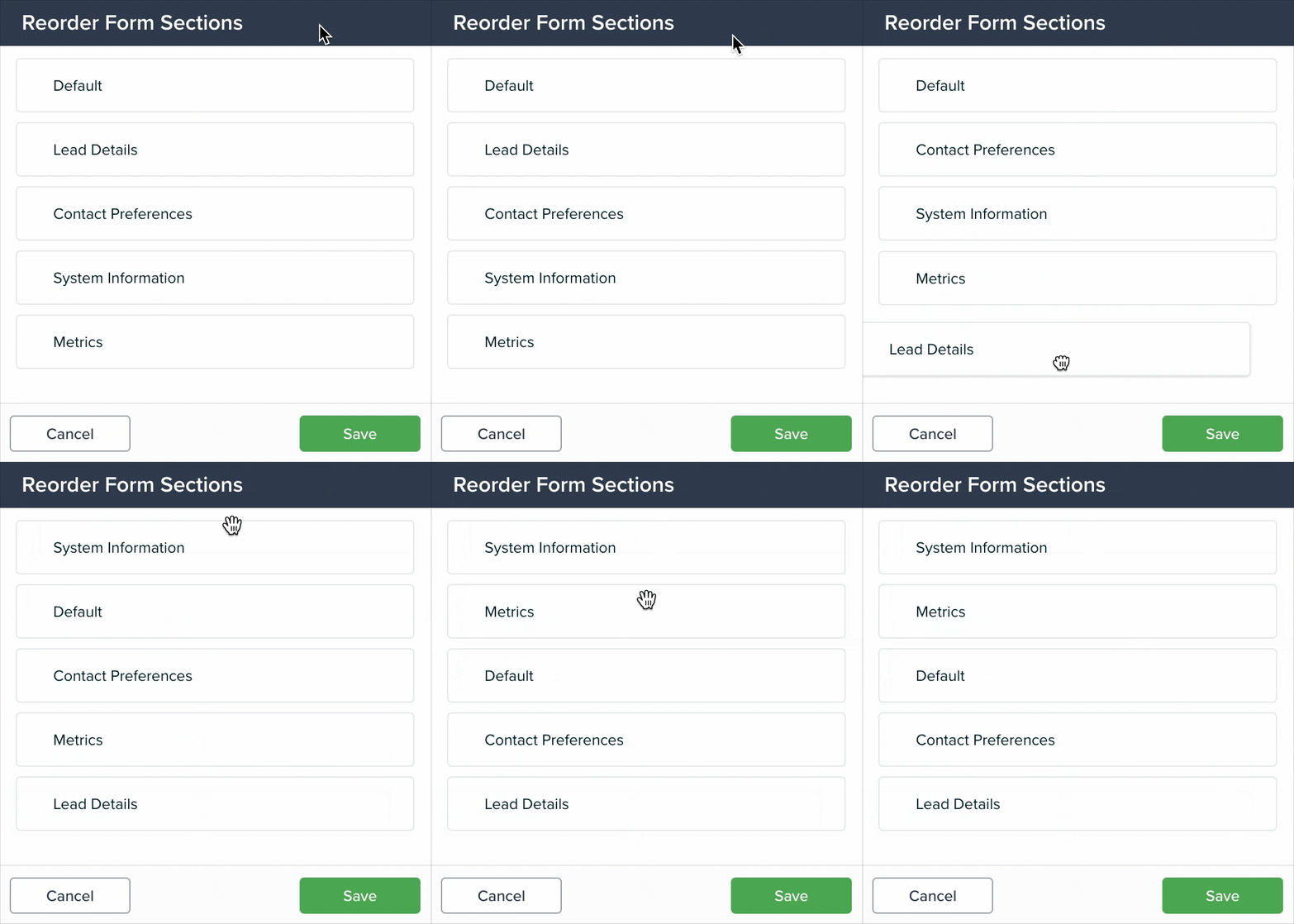
Reorder Sections

Click the ‘Reorder’ button in the top-right corner to rearrange sections.
Fields
You can create and manage Fields for Contacts, Accounts, Opportunities, Tasks, or any app in servis.ai.
The system includes predefined fields, but you can edit, rearrange, deactivate, or delete them as needed.
To learn more about field types, read the Form Fields article.
Add Fields
You can add fields in two ways:
1. From the right panel: Click ‘Add’ and select ‘Add Field’.

The field selection window will open. Fields are organized by category for easier selection.

After selecting a field type, the configuration window will appear (it varies depending on the type). From here, you can configure the field settings.

2. From a section menu: Open the three-dot menu next to a section and select ‘Add Field’. The field will be added directly to that section.

Edit and Deactivate Fields and Sections
Deactivating a Field
Hover over the three-dot menu next to a field to open its options. From here, you can edit or deactivate the field. For choice list fields, you can also manage list values.

To reactivate a field, go to the ‘Fields’ tab and enable the ‘Show Deactivated’ option.
Then open the “…” menu next to the field and click ‘Activate’.

Deactivating a Section
If You Have No Fields Assigned
If a section has no fields assigned, you can deactivate it from the “…” menu by selecting ‘Deactivate Section’.

If You Have Fields Assigned
You cannot deactivate a section if it contains fields (active or inactive).
Move the fields to another section first. Once the section is empty, you can deactivate it.


