The Find Record action in servis.ai allows you to target a single record across all apps in your instance. You can select a record using an ID, filter, or pattern to ensure precise retrieval based on predefined criteria.
If no specific selection is made, the system defaults to the first record in the List View based on the app’s sorting configuration.
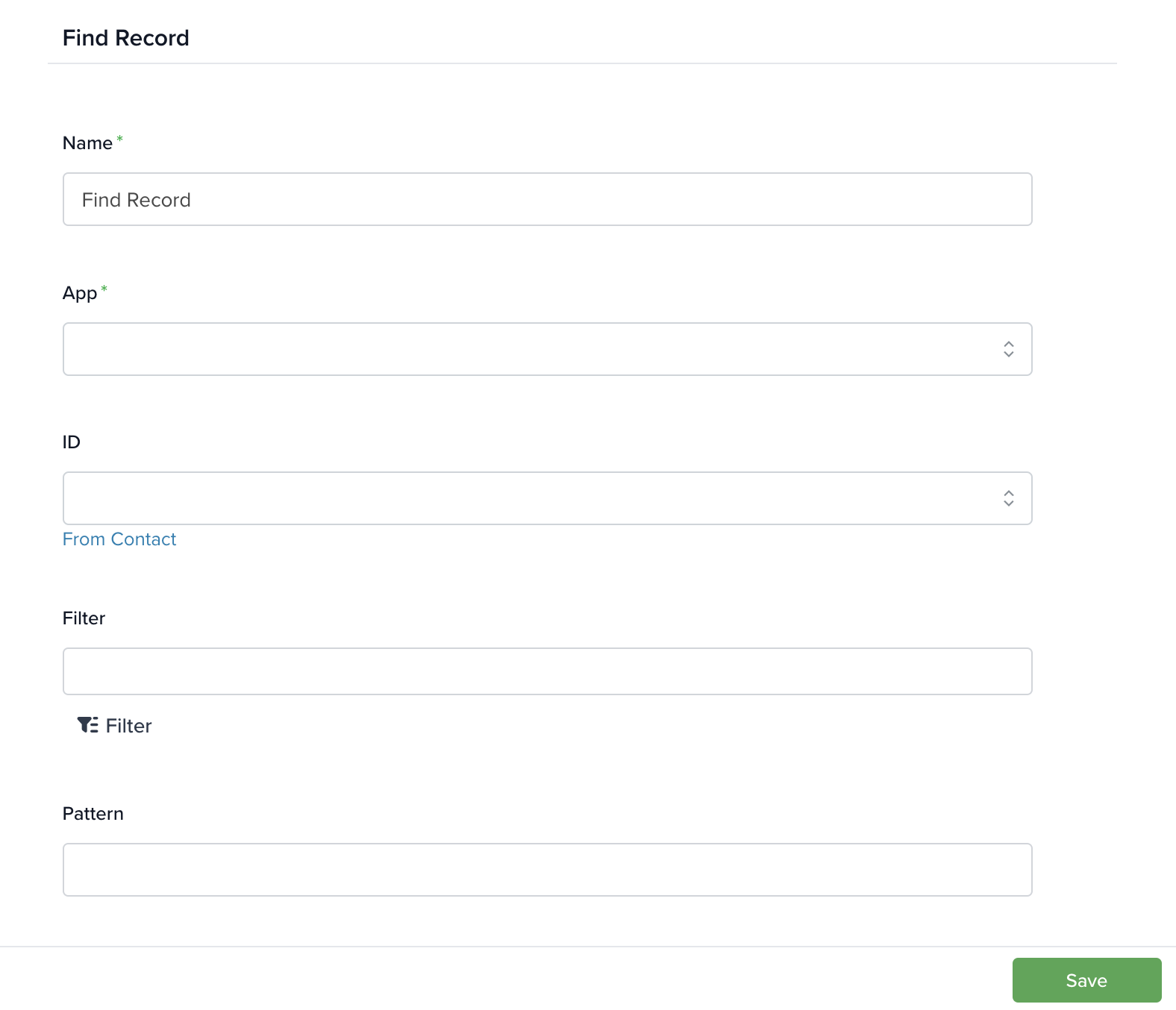
How to Set Up the Find Record Action
To configure the Find Record action, complete the following fields:
- Name (Required): Provide a descriptive name such as “Find Lead Record” or “Retrieve Contact Data.”
- App (Required): Select the app where the record is stored.
- Record ID (Optional): Select a specific record using its unique ID.
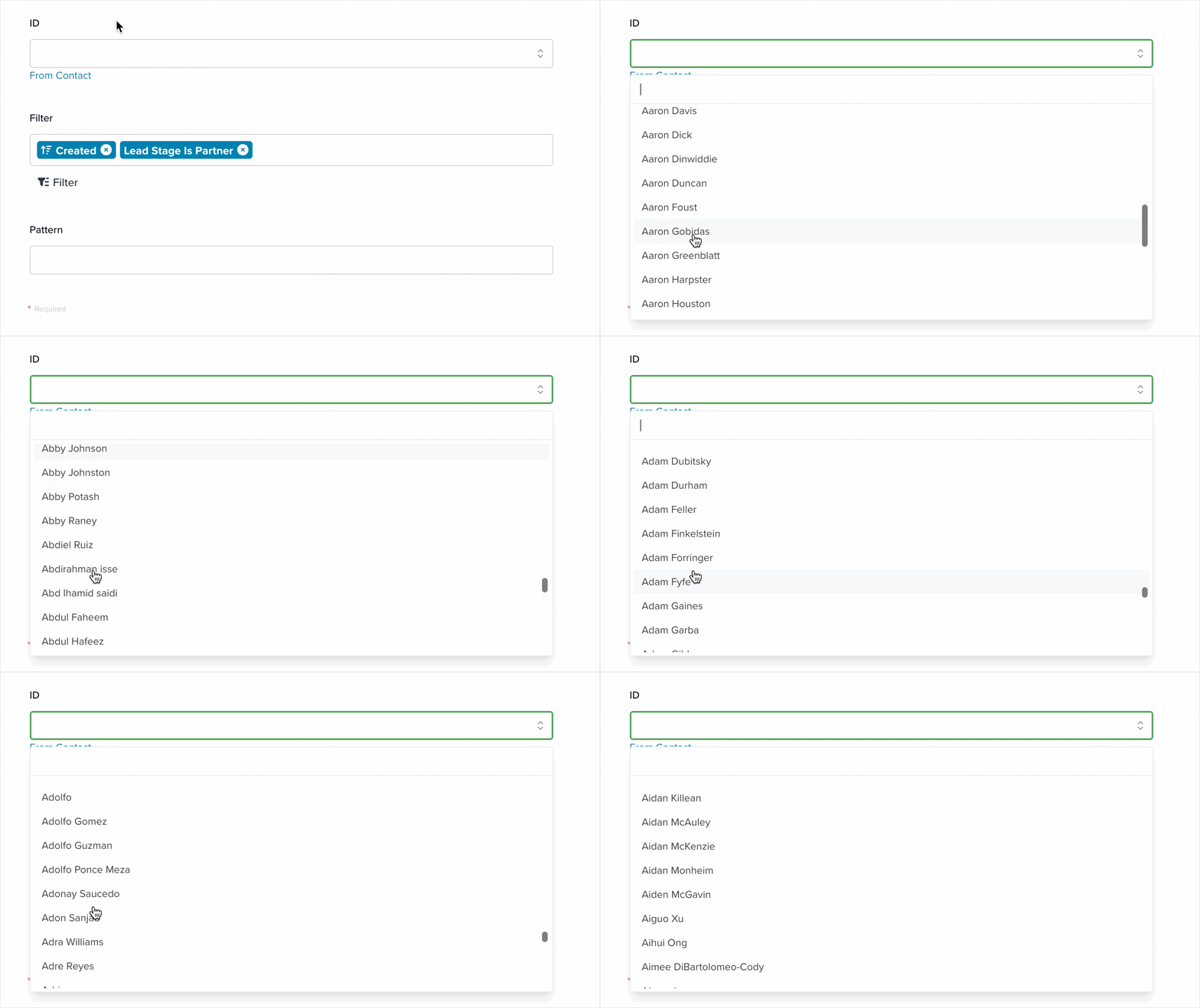
Filter (Optional): Override default sorting by applying filters and sorting rules to refine record selection.
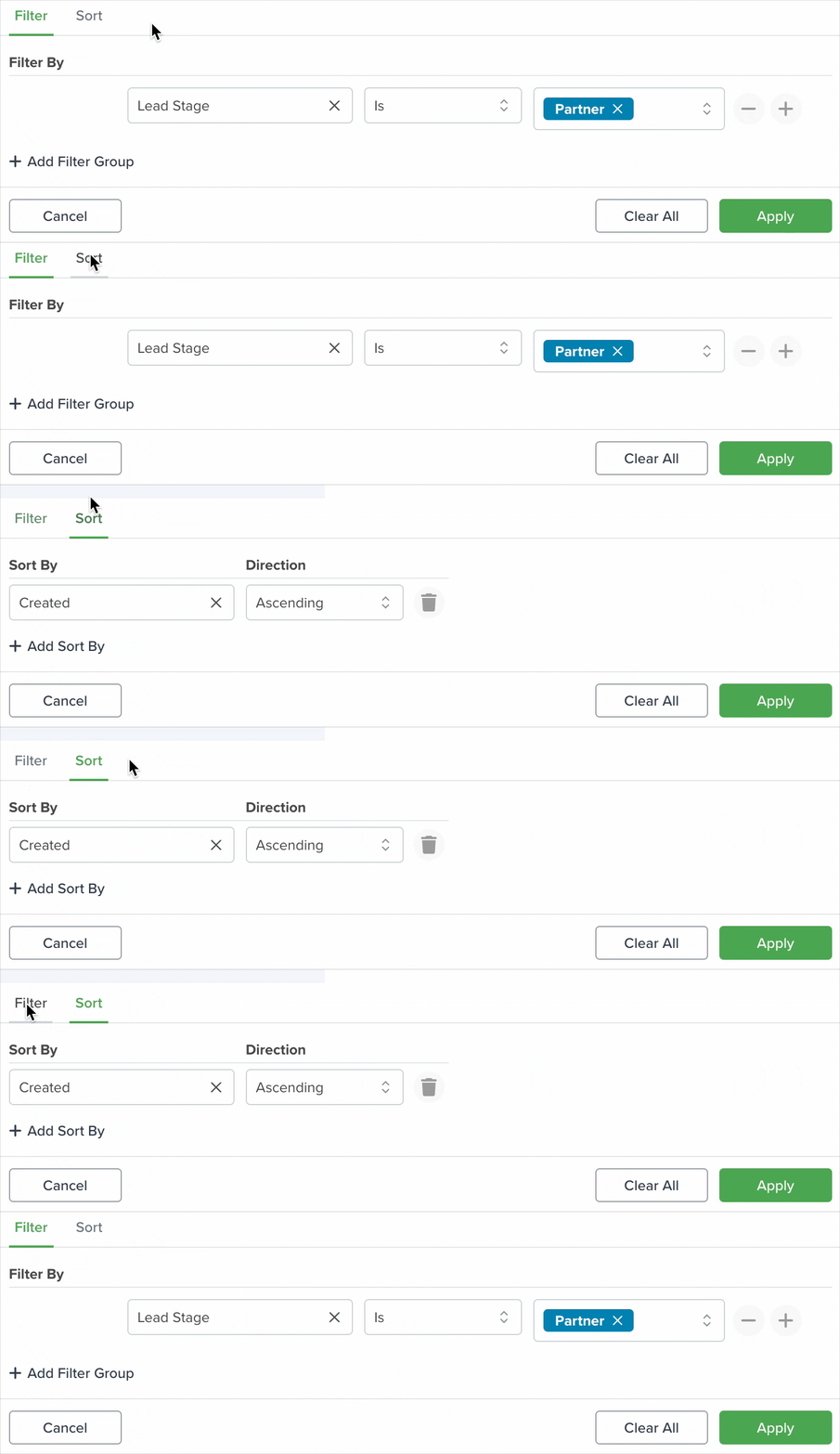
- Filter: Define conditions to narrow down records.
- Sort: Arrange filtered records before selecting the first match.
Example configuration:
- Filter: Select records where the Lead Stage is “Partner.”
- Sort: Order by Created date in ascending order (oldest first).

Pattern (Optional): Enter a value to search for the first matching record, similar to a search query in the List View.
Enter a value in the Pattern field → the system searches → the first matching record is selected.
You can customize how search results are prioritized by modifying search settings:
- Navigate to Settings > Apps > [Your Selected App]
- Open the General tab
- Locate the Search section

For example, entering “Adam” in the Pattern field selects the first matching record based on your search configuration.

Special Considerations
If no ID, Filter, or Pattern is selected, the system defaults to the first record in the List View.
- For example, in the Contacts app, the first record from the All Contacts list will be used.
How is the First Record Determined?
The order of records depends on your Sort configuration in app settings:
- Go to Settings > Apps > [Your Selected App]
- Open the General tab
- Adjust the Sort settings

Adjusting these settings determines which record is selected first when no specific criteria are applied.
Example Use Case
The Find Record action is commonly used in webform automation to assign incoming leads to the appropriate manager:
- Webform Submission: A user submits a form with details such as Name, Country, and Industry.
- Record Creation: A new record is created using that data.
- Find Record Activation: The system searches for a matching manager based on criteria such as Industry.
- Assignment & Notification: The correct manager is assigned, and a notification is sent.
Learn more about automation actions: Read this article.


