When you create or edit a field on an app in servis.ai, you can give that field a default value — a value that is pre-filled whenever someone creates a new record. Servis.ai supports two kinds of defaults:
-
Static default — a fixed value you type in once (for example, the text “Open”, the number 5, or a specific catalog option). Every new record starts with exactly that value.
-
Dynamic default — a value that is calculated at the moment the user opens the form, based on the context of the record being created. Dynamic defaults let a field automatically pick up a value from another field on the same record, from a related record, or from the logged-in user.
Dynamic defaults reduce data entry, keep records consistent with their parents, and help enforce business conventions without requiring a workflow rule.
Key Concepts
|
Term
|
Meaning
|
|---|---|
|
Default value type
|
Setting on a field that is either Static or Dynamic. Chosen when configuring the field.
|
|
Source field
|
The other field whose value is copied into the field being defaulted.
|
|
Dot-walking
|
Following a reference field into a related record — e.g. on a Contact, walking from the Account lookup to the account’s Industry field. Written as account.industry.
|
|
Current User
|
The logged in user when the form opens.
|
How to Configure a Dynamic Default
Dynamic defaults are configured by administrators in the field setup form.
-
Open the app’s Form Builder and select the field you want to edit (or create a new one).
-
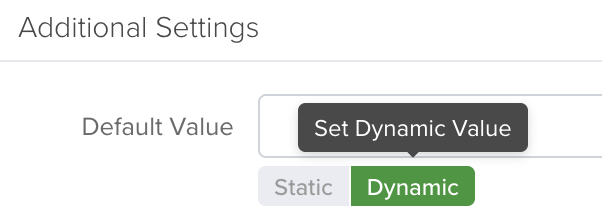
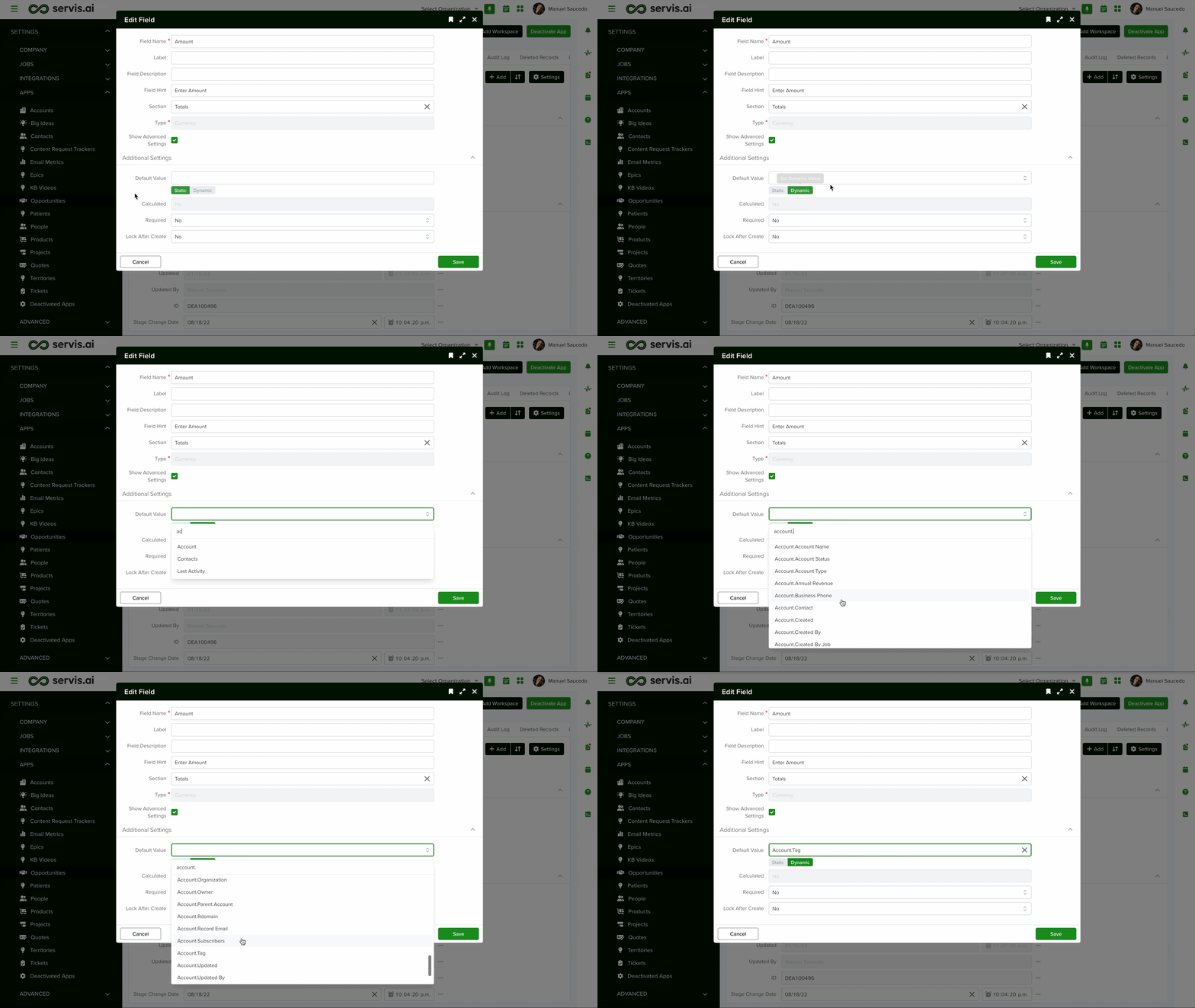
Click “Show Advanced Settings” and scroll down to the Default Value section. You will see two buttons: Static value and Dynamic value.
-
Click Dynamic value. The input changes to a field picker dropdown.

-
Pick the field whose value should be used as the default:
-
Select a field on the same app to copy its value directly.
-
Or expand a lookup field in the dropdown to “dot walk” into a related record and pick one of its fields.
-
-
Save the field. From now on, every new record will evaluate that dynamic source whenever the form is opened.
Note: You can switch back to Static value at any time. Switching types clears the previously entered default.
How Dynamic Defaults Behave on the Form
When an end user opens a form on a field that has a dynamic default:
-
If the field is empty, servis.ai resolves the source and fills the value in automatically.
-
If the user has already typed something, servis.ai does not overwrite it. Dynamic defaults are a helping hand, not an override.
-
A small refresh icon appears next to any field with a dynamic default. Clicking it re-evaluates the source and replaces the current value with the freshly-resolved default — useful after the user changes a related lookup and wants the dependent field to catch up.
-
When dot-walking into a Location field, all related sub-fields (address lines, city, latitude, longitude, etc.) are copied together so the full location is populated in one step.

Common Use Cases
Use Case 1: Copy a value from a parent record
Scenario: On the Contacts app, you want new contacts to inherit the Industry of their parent Account.
-
Edit the Industry field on the Contact app.
-
Set the default to Dynamic value.
-
In the field picker, expand Account and select Industry.
-
Save.
Now when a user creates a contact and picks an account, opening the Industry field auto-fills it with the account’s industry. If the user later changes the account, they can click the refresh icon to pull the new industry.
Use Case 2: Default an owner to the logged-in user
Scenario: You want the Owner field on new Opportunities to default to whoever is creating the record.
-
Edit the Owner field on the Opportunity app.
-
Set the default to Current User.
-
Save.
Every new opportunity will start with the creator as the owner, but the user can still change it before saving.
Use Case 3: Mirror another field on the same form
Scenario: On a Shipping Address form, the Billing Address field should default to whatever the user typed in the Shipping Address field, unless they change it.
-
Edit the Billing Address field.
-
Set the default to Dynamic value.
-
Pick Shipping Address from the same-app field list.
-
Save.
When the user tabs into Billing Address, it auto-fills with the Shipping Address they just entered.
Static vs Dynamic — Which Should I Use?
|
Situation
|
Recommended
|
|---|---|
|
The default is always the same literal value (e.g. Status = “New”)
|
Static
|
|
The default depends on the logged-in user
|
Dynamic (Current User)
|
|
The default should match another field on the same form
|
Dynamic (same-app field)
|
|
The default should come from a parent/related record
|
Dynamic (dot-walking)
|
|
The field is a file, image, or thumbnail upload
|
Static only (dynamic not supported)
|
Tips & Best Practices
-
Use dynamic defaults for data that “belongs” to a parent. Industry, region, currency, and account manager are classic examples — if they change on the parent, the child should too.
-
Remind users about the refresh button. If a dynamic default depends on a lookup and the user changes the lookup, the field won’t auto-update silently; the refresh icon is there for that.
-
Dynamic defaults never overwrite user input. If you need a value to always match its source, use a workflow rule or formula field instead.
-
Test in a sandbox. Because dot-walking follows live data, verify your chosen path works for records that don’t have the parent set yet — the default will simply be blank in that case.
Troubleshooting
|
Issue
|
Likely Cause
|
Resolution
|
|---|---|---|
|
Field stays blank when the form opens
|
The source field (or parent record) is empty at that moment.
|
Fill in the source field first, then tab into the dynamic field or click its refresh icon.
|
|
Default doesn’t update after I change the parent lookup
|
Dynamic defaults do not overwrite existing values automatically.
|
Click the refresh icon next to the field to re-resolve.
|
|
I don’t see the Dynamic value button
|
The field type (file, image, thumbnail) doesn’t support dynamic defaults.
|
Use a static default or a workflow rule instead.
|
|
The default shows on the form but isn’t saved
|
The user cleared the value before saving, or the source record was removed.
|
Confirm with the user; dynamic defaults are suggestions, not enforced values.
|


