There are multiple ways to create Contacts and Accounts in servis.ai, including automations and imports. In this article, we will cover how to create a Contact or Account record manually using the +Add button in the All Contacts or All Accounts view.
Add a Contact or Account
To create a Contact or Account using +Add, navigate to the Apps section in the navigation menu and select the All view for the desired app. In the example below, we are using the Contacts App and selecting the “All Contacts” view.
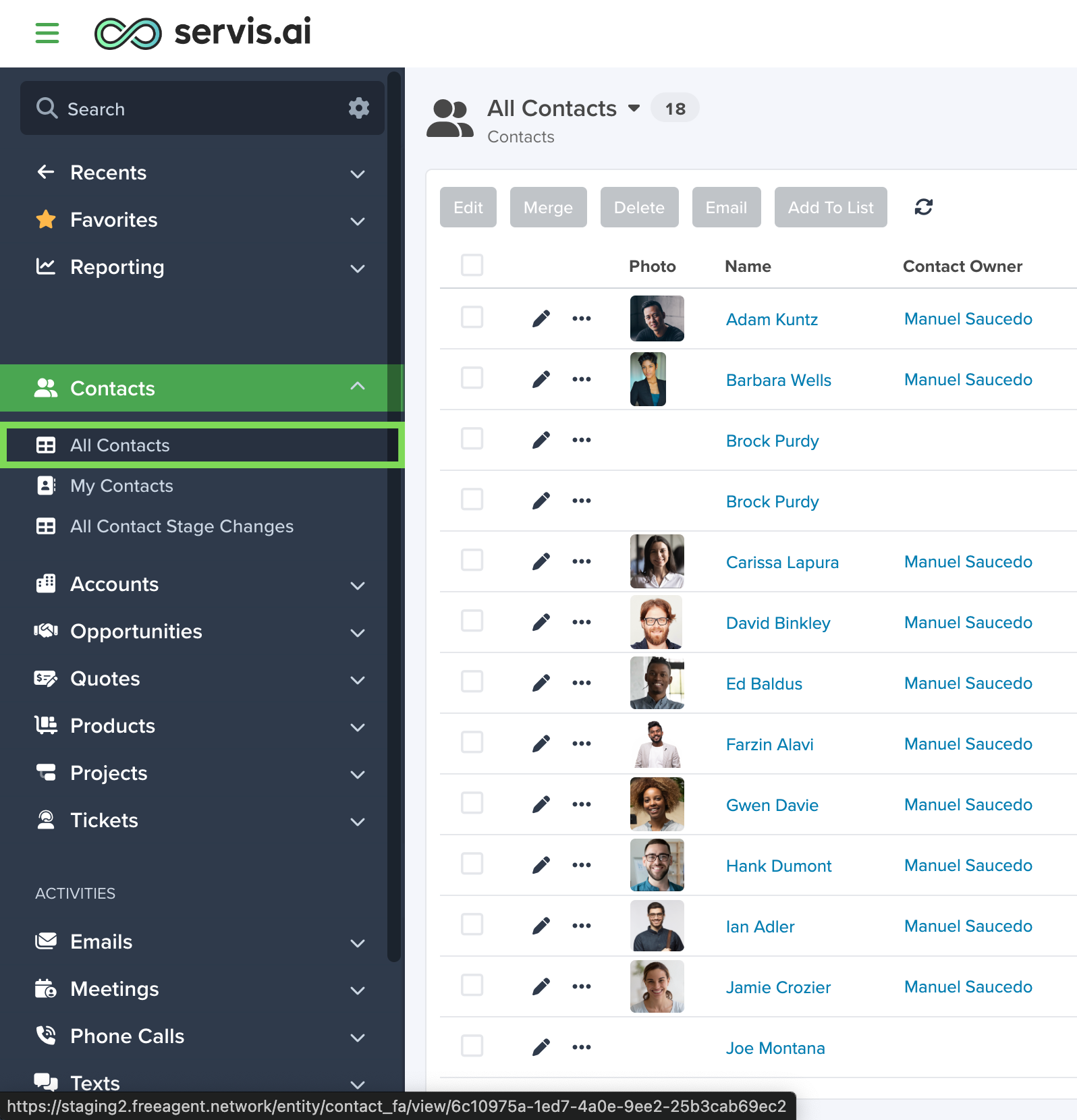
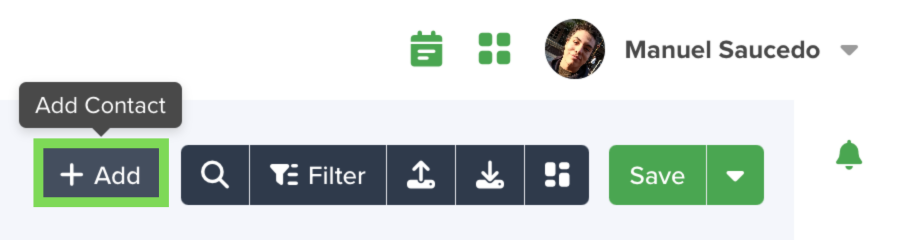
Next, click the +Add button located in the top-right corner of the All view page. This will open the form for the selected app.
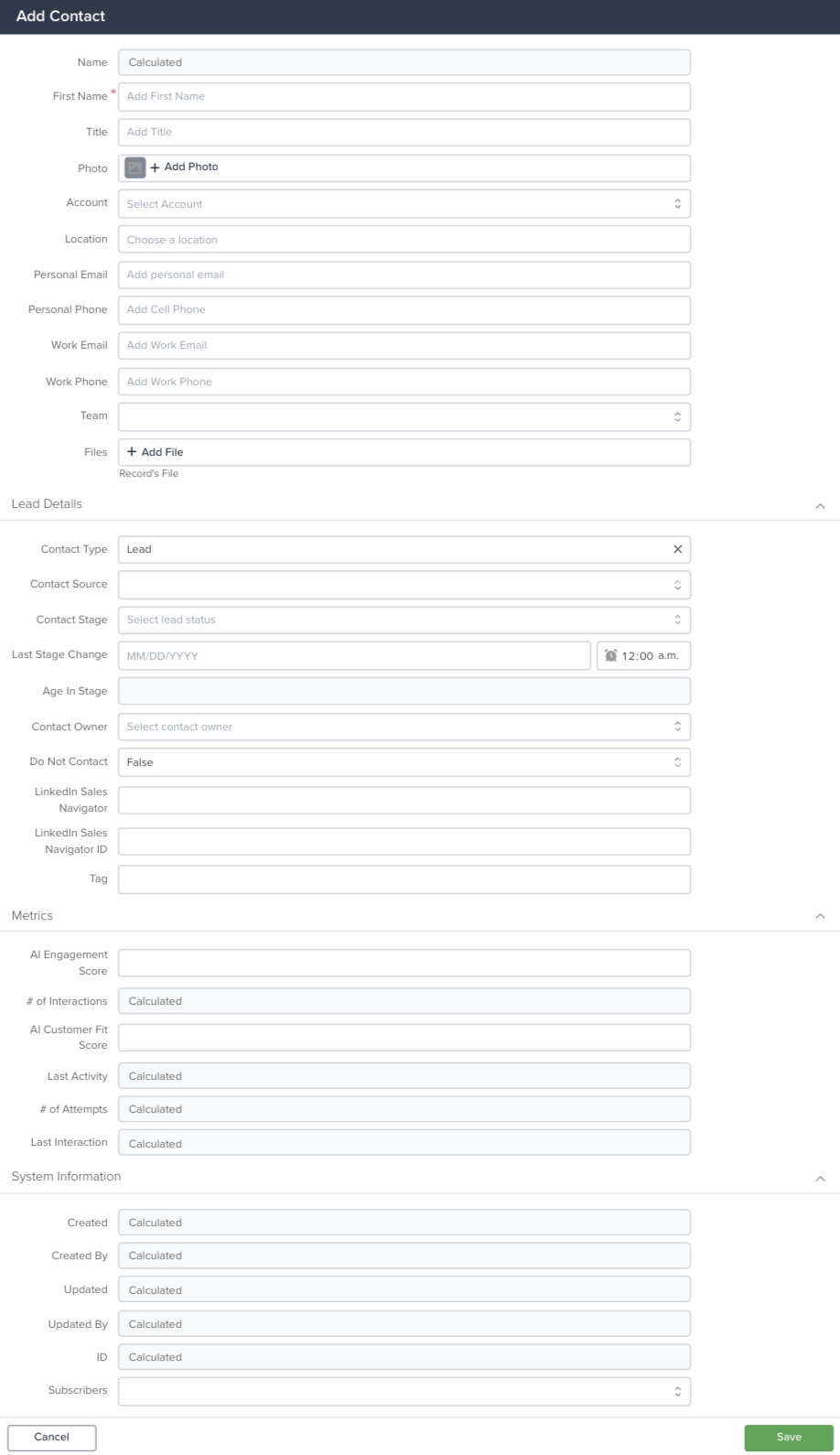
You can now enter the details for the Contact or Account record.
Note: If you need to customize fields or mark fields as required, refer to the Form Fields documentation.
App Form Example – Contacts
Required Fields
Required fields are marked with a red asterisk and must be completed before saving. For example, all Contact records must include a First Name.

Restricted Fields
Restricted fields appear grayed out and cannot be edited manually.
Note: Fields may be restricted due to form rules or system configurations such as Calculated Fields.

In the example above, the Name field is a calculated field derived from the First Name and Last Name fields.
Reference Fields
Reference fields allow you to link a record in one app to a record in another. For example, a Contact record may reference the Account it belongs to.
To learn more, see: Reference Fields or Reference Join Fields.
Form Sections
Each app form is organized into sections that group related information. For example, the Contacts App includes:
- General Information: Name, title, and contact type
- Contact Details: Email, phone number, and timezone
- Contact Preferences: Opt-out settings for email, text, or phone communications
Save
After entering all required information, click the Save button to create the record. The new record will appear in the All view for that app.
Updating Records
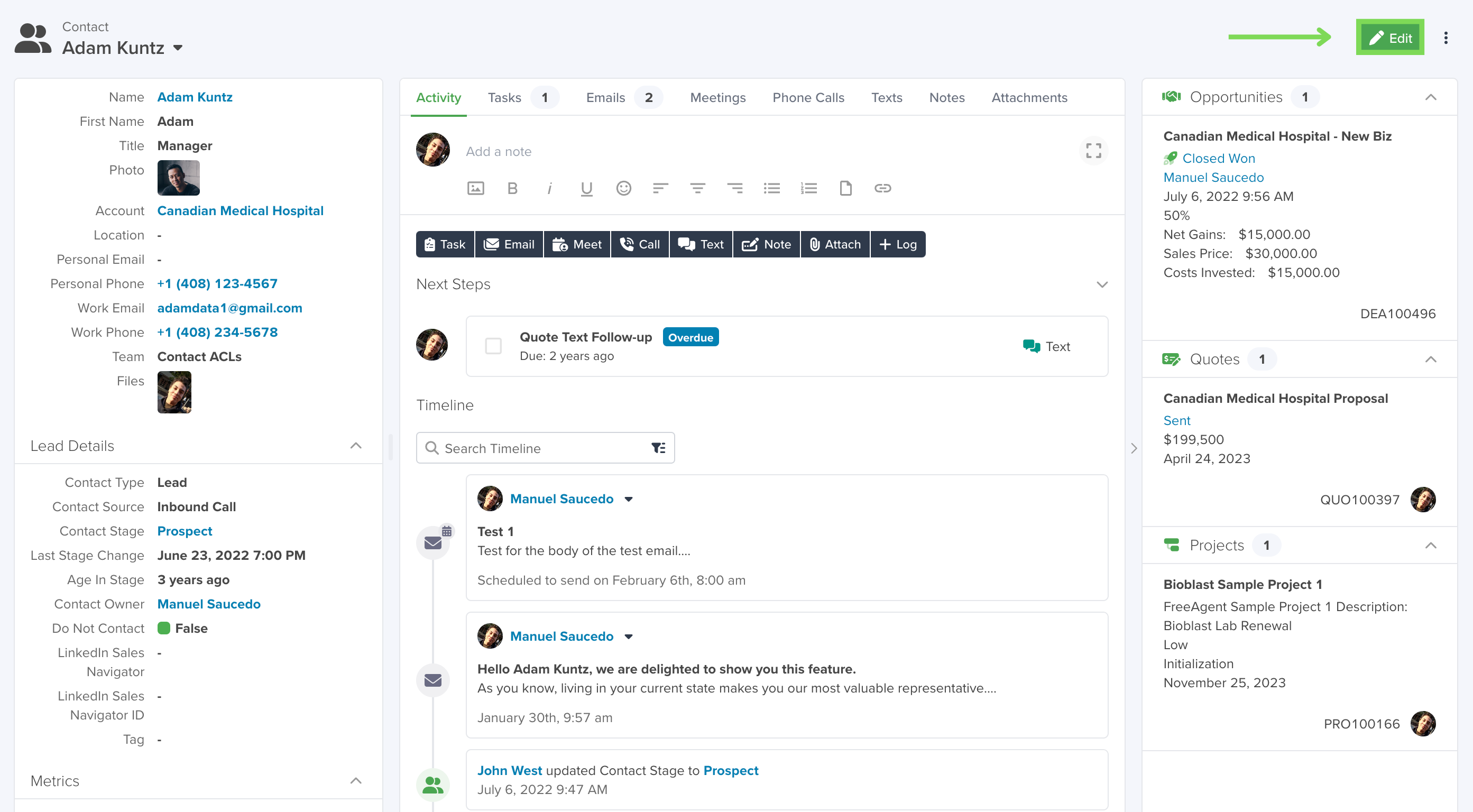
To update an existing record, open the record and click the Edit button located in the top-right corner of the detail page.
 “
“

