The Calendar View is mainly used to visualize your data in the Calendar. It is especially useful when you want to check your availability for meetings or to get a view of all upcoming tasks that are assigned to you.
Edition Qualifier: The Calendar View is available in all servis.ai Editions.
User Permissions: No special permissions are required to use the Calendar View.
Calendar View
Customizing the Calendar view will allow you to see the information about your Apps just in the way you need it. This view is great to review for example, how many meetings you have scheduled for the week, or how is your task load looking for the month.
It also allows you to review your team member’s calendars to find the perfect time to invite them to a meeting.
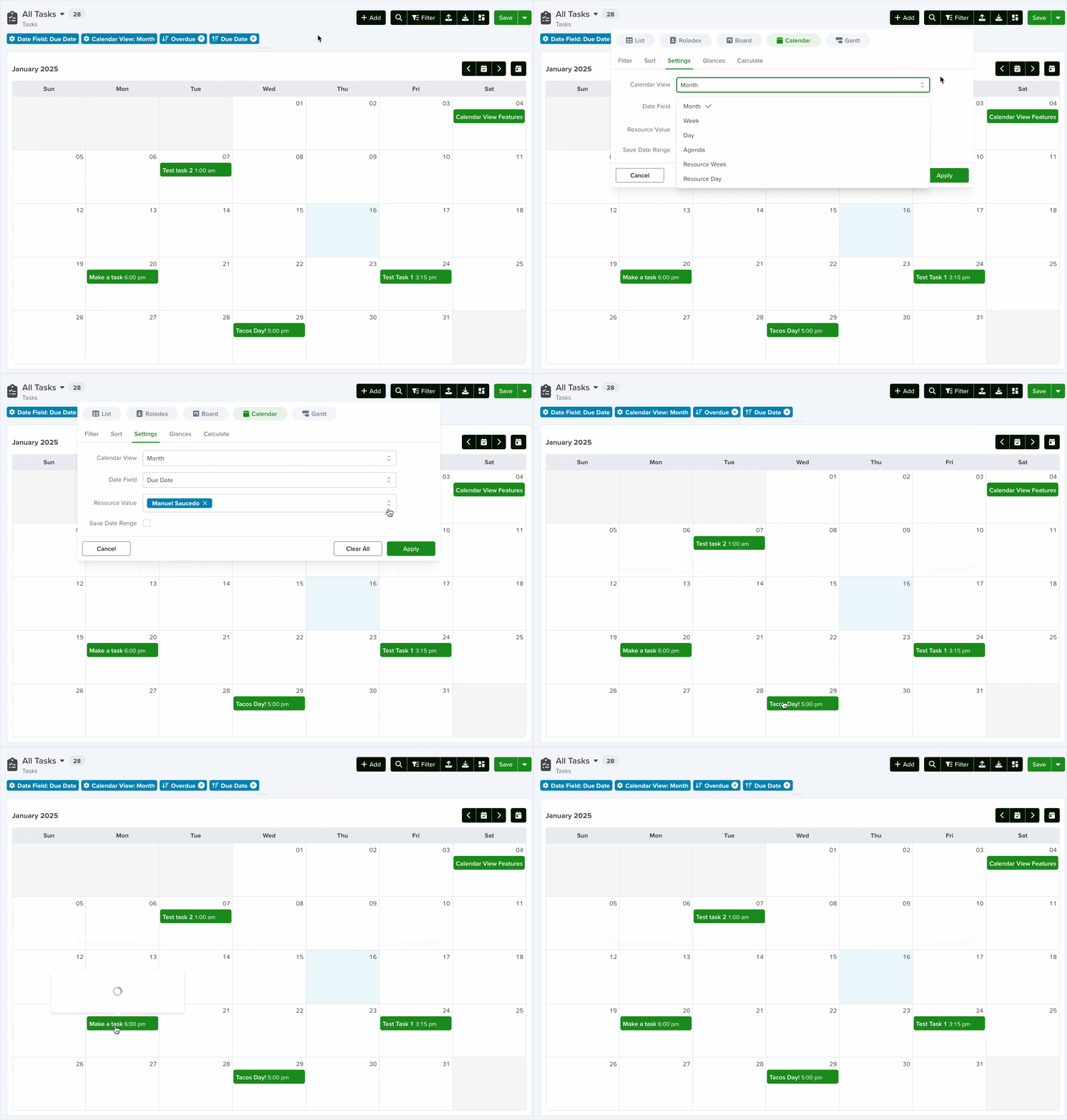
Calendar Configuration
There are a few options when it comes to configuring your Calendar view.
Filter, Sort & More
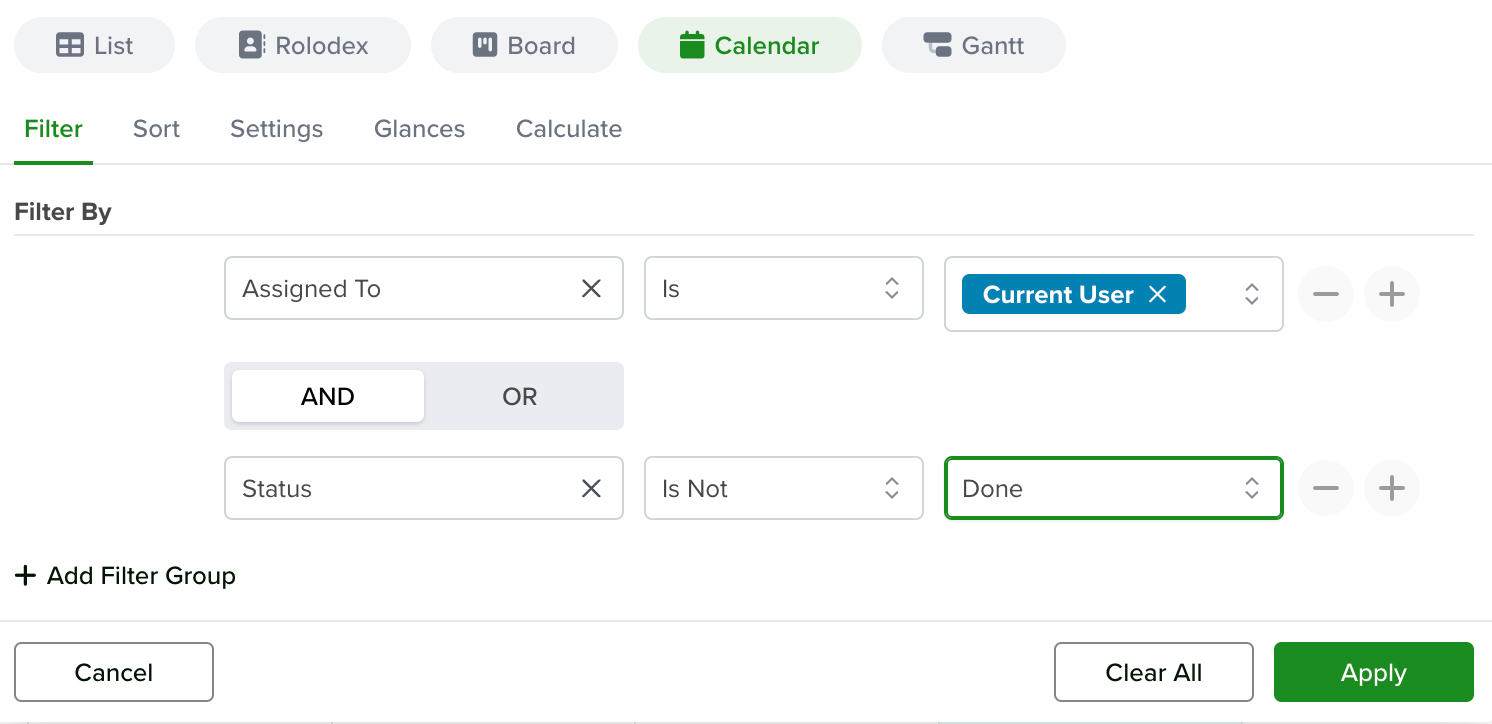
Here you can apply filters, define your sorting rules, specify your calendar settings, and add calculations. To learn more about these options, please visit the following article:
Settings
Calendar View
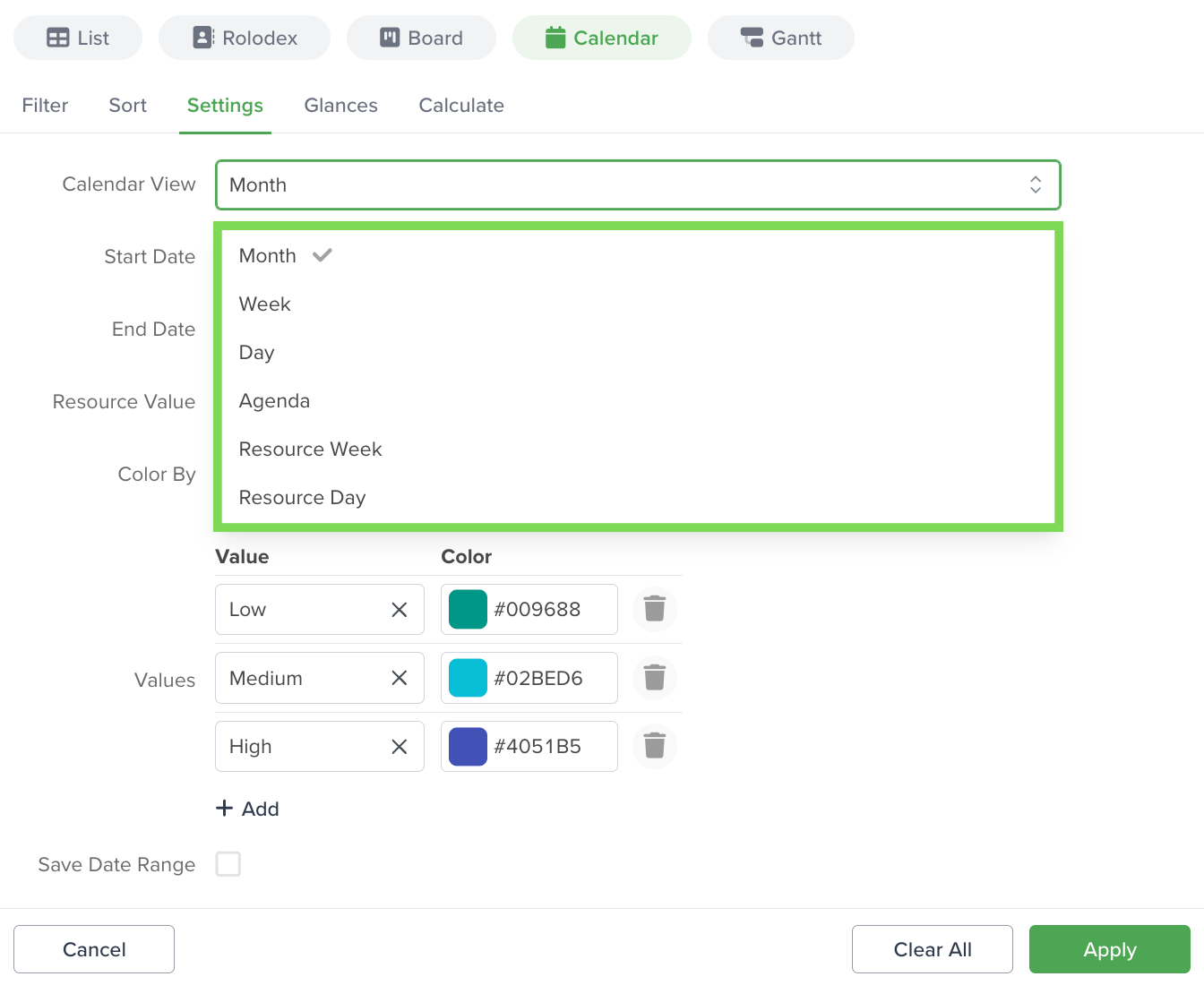
Month – This shows all the records organized in the monthly calendar using the Date field specified below.
Week – Shows all the records organized in the weekly calendar using the Date field specified below.
Day – Shows all the records for the current day using the Date field specified below.
Agenda – Shows all the records of the month in an agenda-like structure.
Resource Week/Day – Allows you to specify a resource field* to use as a base to select the resources for the resource value**. The records of the specified team members will be shown in a weekly/daily calendar view one next to the other for comparison purposes.
Date Fields (Projects App Example)
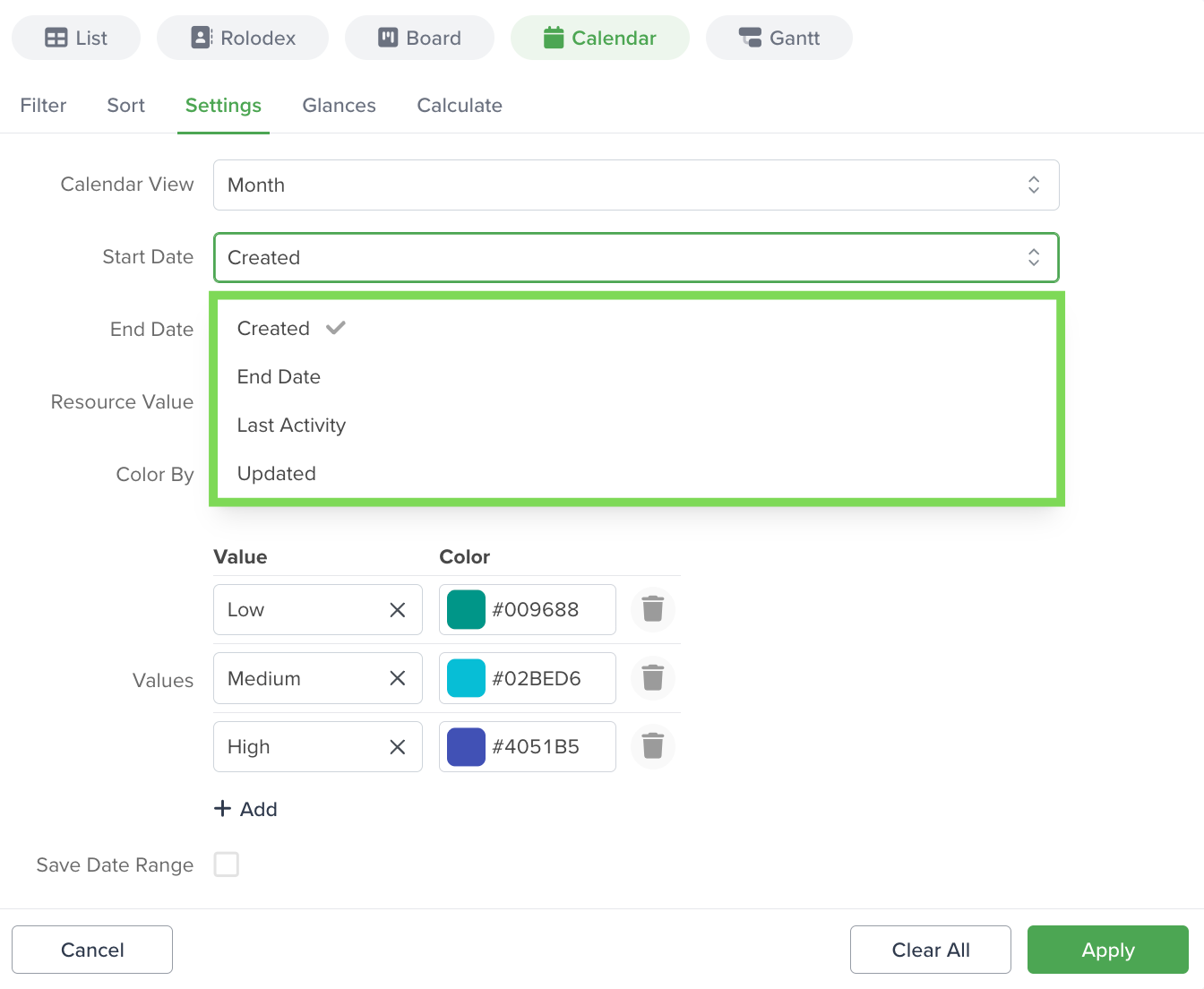
Resource Value: Applies when you want to track the activity of a specific user interacting over time with the records in the app you are in using the Calendar View.
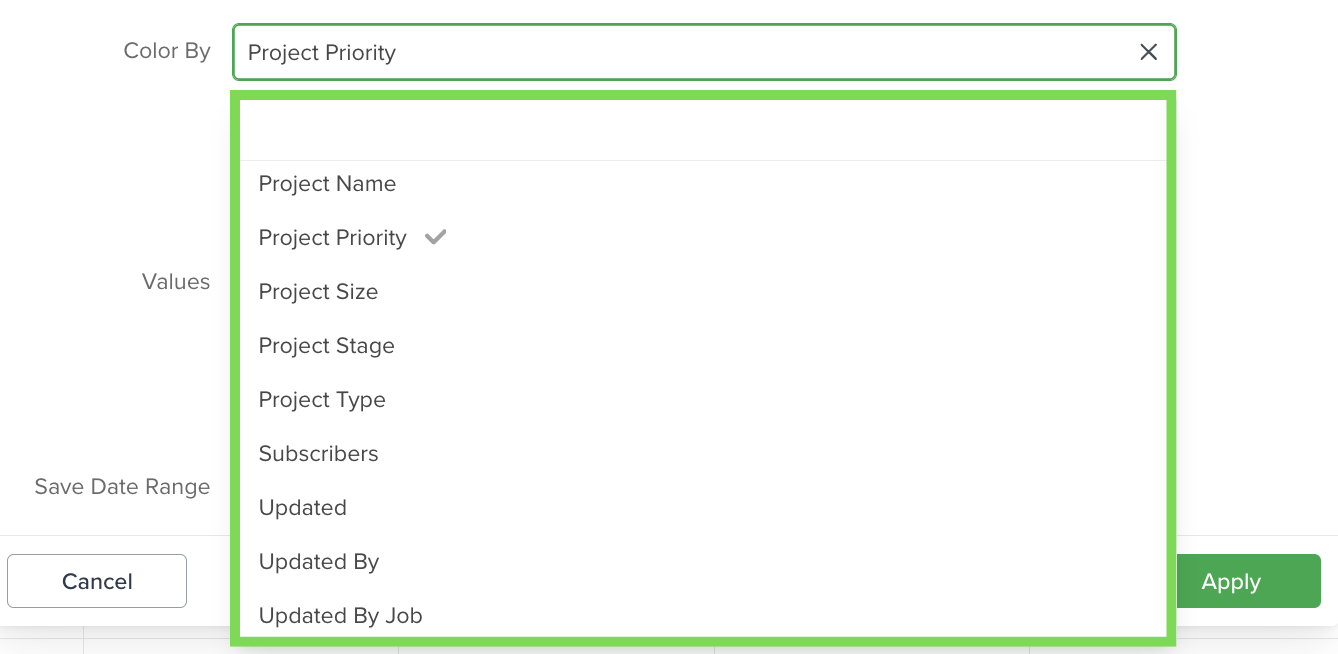
-
See the available values for that field
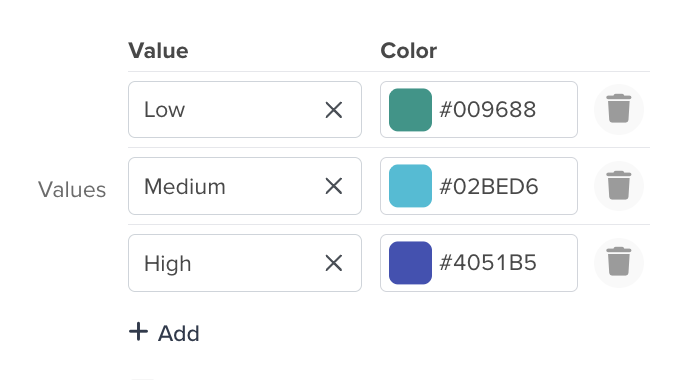
-
Assign a specific calendar color to each value
Save Date Range
If you enable this option, your view will show the date range you have selected in the Calendar.
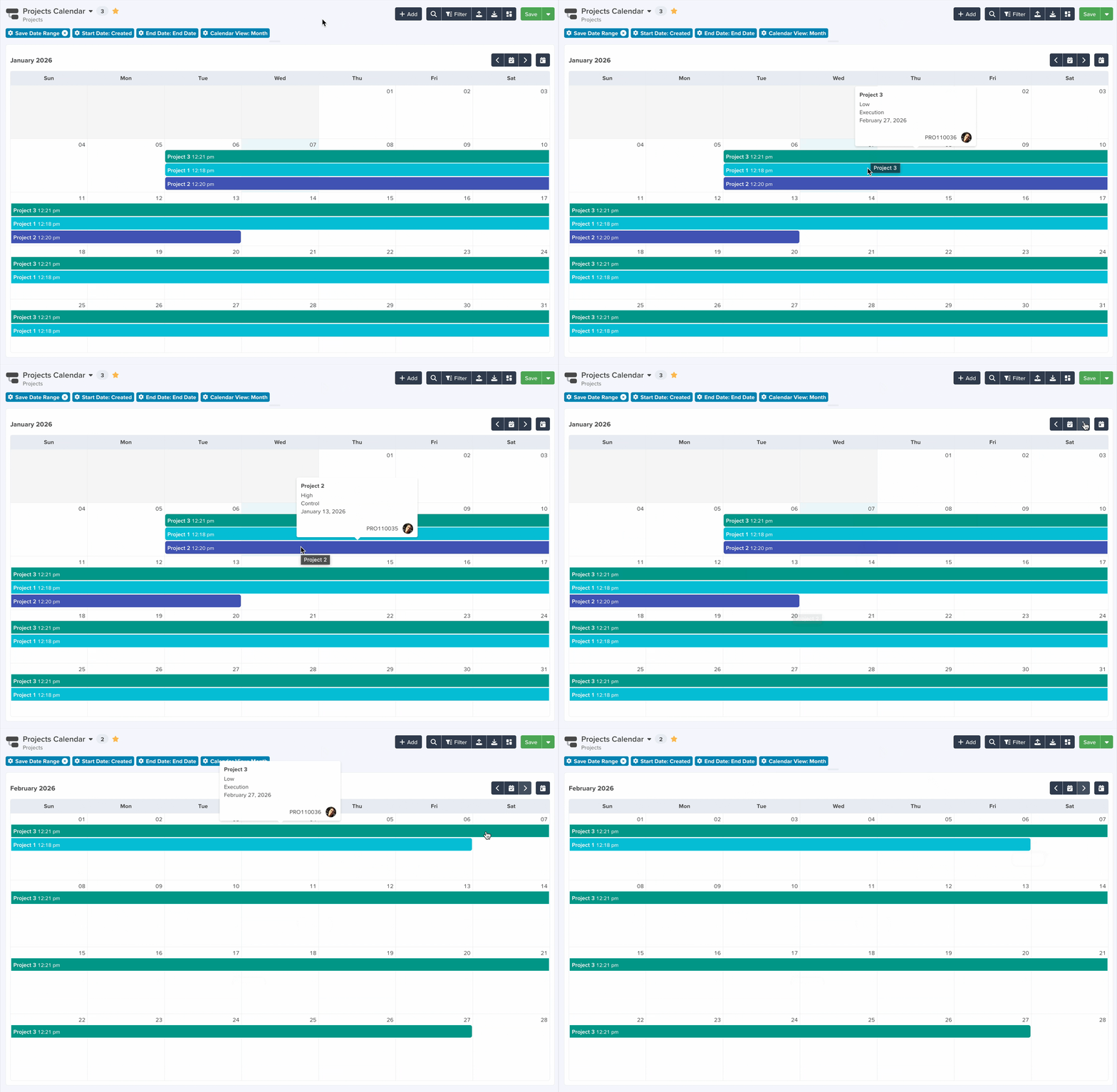
Results
Manage Data
Drag & Move
You can change the views configuration as needed. If you are looking to use the same view on multiple occasions, we recommend that you save it. To learn more about Saved Views, please visit the following article:
Note: Any changes you make to the configuration will only be visible under your own profile. They will not impact your team members. To keep your current configuration or share it with your team, save it as a View, and don’t forget to check the Share with team box.
If you are the team’s administrator, you can make changes to the configuration of the calendar view and save them for your entire organization.
All your existing Saved Views can be used for reporting purposes. With them, you can create powerful dashboards. To learn more about Dashboards, please visit the following article:



