The Bulk Update action is a powerful tool that allows you to modify multiple records at once within an automation. Instead of updating entries one by one, you can apply changes to up to 1,000 records in a single step.
Whether you’re targeting records by ID, using filters, or matching patterns similar to the app’s search bar, this action makes mass updates quick and efficient.
Ideal for large datasets and recurring tasks, Bulk Update helps save time and reduces manual effort.
How to Set Up the Bulk Update Action

Name: Enter a name to identify the action.
App: Use the dropdown to choose the app whose records you want to update.
Step: Select a previous action in the automation that will serve as the starting point for the Bulk Update. You can choose from:
- Create Record
- Update Record
- Find Record
- Generate Document
This option uses the record created, updated, found, or linked in the selected step, and applies the Bulk Update configuration to it (if conditions are met).

Note: From this point on, you can define the conditions for updating. Records that meet the conditions will be updated automatically.
Record: Select the Field you want to update. This field must relate to the record selected in the Step and match the selected App.
For example, if the Step is the triggering record and the app is Accounts, you can update a field that references Accounts.

If the triggering record comes from the Contacts app and you choose Accounts as the target app, you can select a field in Contacts that references Accounts.
Filter: Click the Filter button to define conditions. Only records that meet these conditions will be updated.
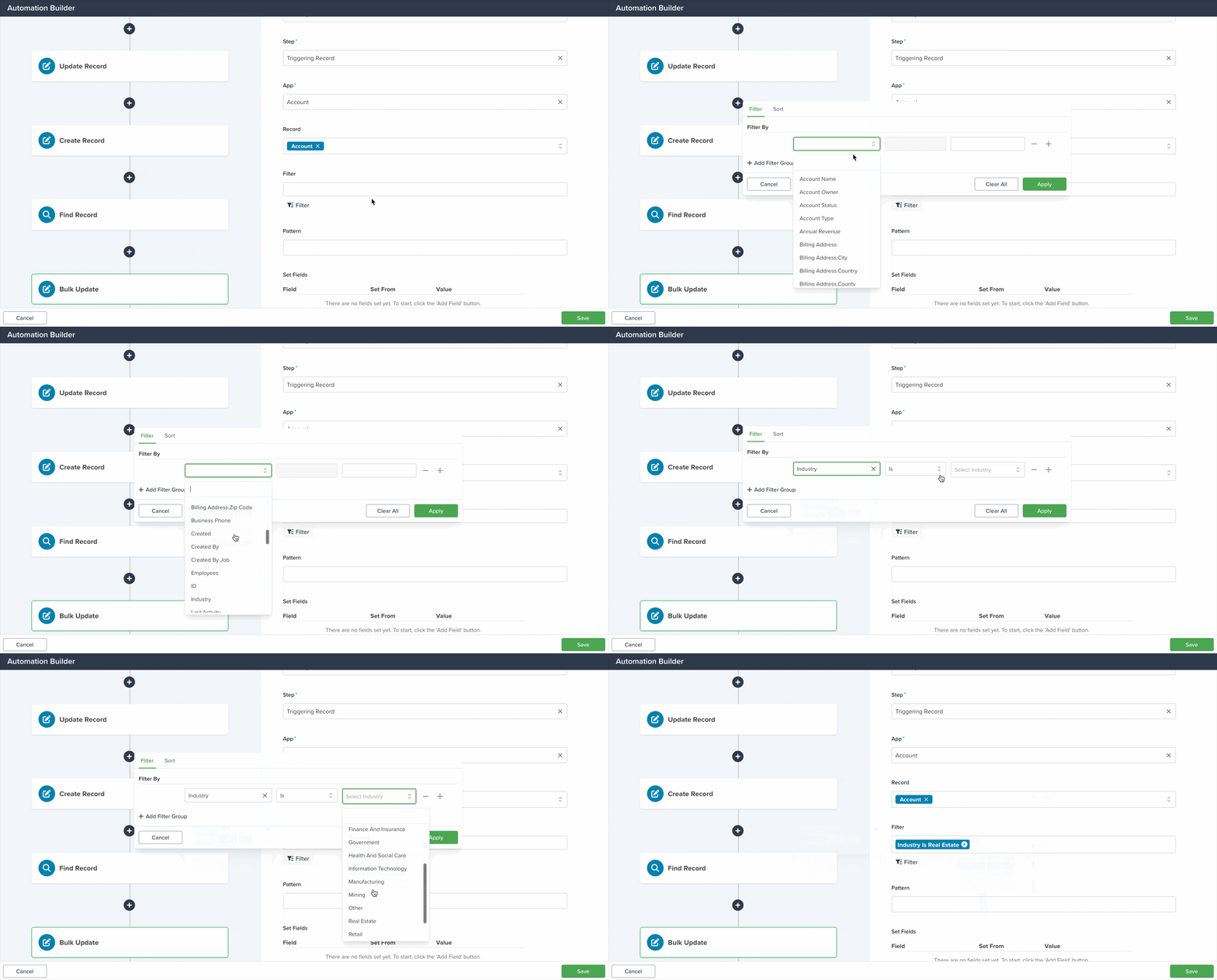
Pattern: Works like the search bar in list view. Enter text to match records that will be updated.

Note: Each Bulk Update action can modify up to 1,000 records. To update more, create additional actions.
Set Fields: Define which fields will be updated. You can add as many as needed.
- Field: Select the field you want to update.

- Set From:Choose how the value will be determined:
- Static Value: Apply the same value to all selected records.
- Triggering Record: Use the value from the field in the triggering record.


- Value: Displays available values based on your selected Set From option.
Learn more about automation actions: Read this article.


