The All Columns feature helps you quickly add multiple fields without selecting them one by one. It displays all available options at once, making it easy to customize your view.
What Does the “All Columns” Option Do?
This feature lets you instantly add all columns that are not currently part of your view. Once added, they will appear at the bottom of your existing column list.
1. Start in List View
Open the List view of the app you want to customize.
2. Open the Filter Panel
Click the Filter button in the top-right corner.
3. Go to the Columns Tab
Inside the Filter panel, select the Columns tab to manage your view.
4. Add Columns
Use the Add Column dropdown to select individual fields, or choose All Columns to add all available fields at once.
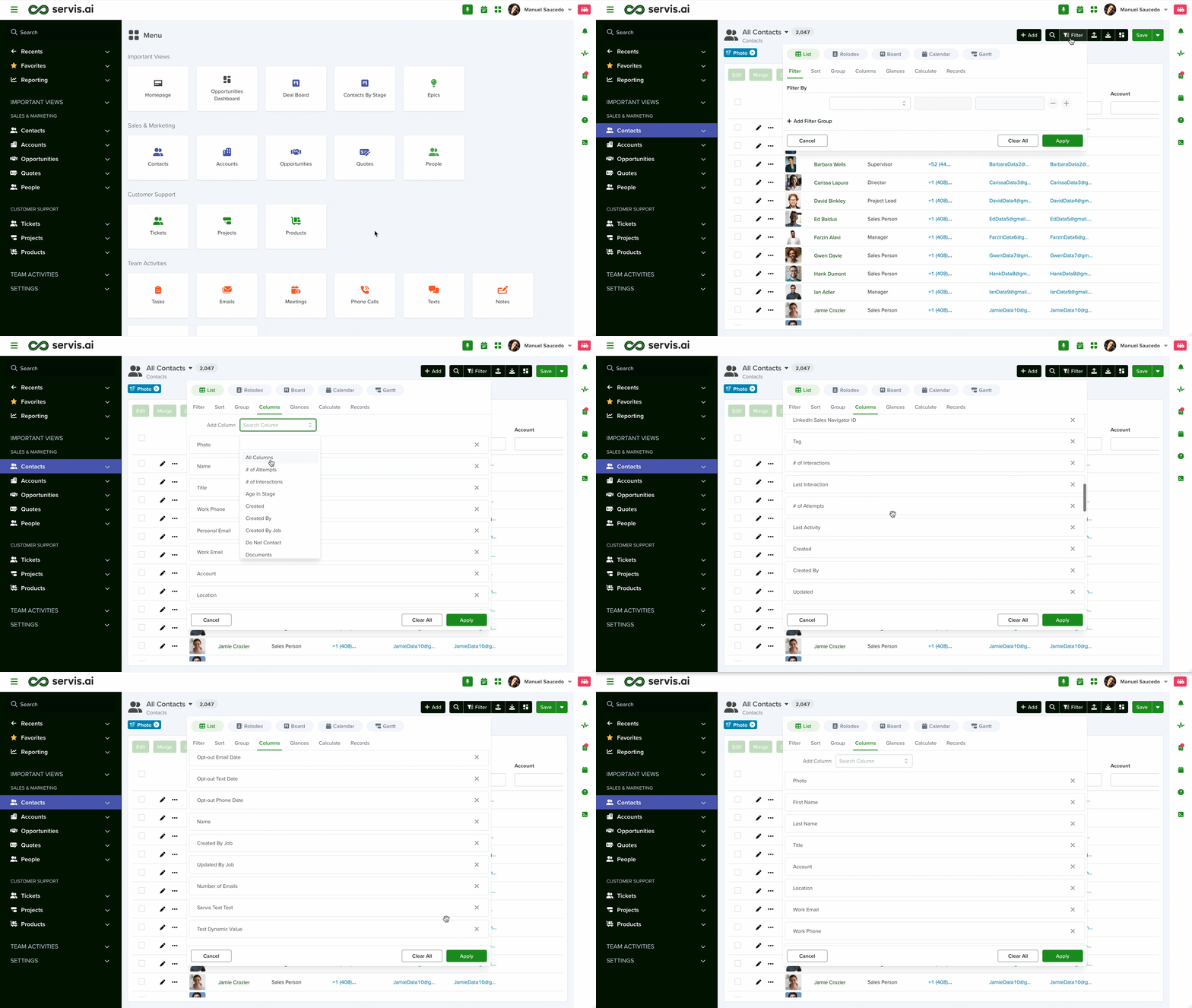
What Happens When You Use “All Columns”?
All unused columns are added to the bottom of your current column list.
Customize Your View
After adding columns, you can refine your setup:
- Remove unwanted columns: Click the “x” next to a column to remove it.
- Rearrange columns: Drag and drop to reorder them.
Save Your Changes
Click Apply at the bottom of the Filter panel to save your changes.
How Does “All Columns” Know What to Display?
The All Columns feature pulls data from your app’s Form Builder settings. This is where all fields used to create records are defined.
To learn more about the Form Builder, see this article.
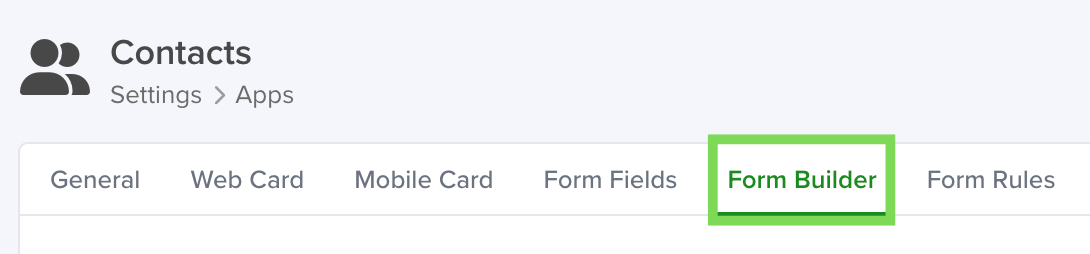
These fields determine:
- Names: The labels displayed for each column.
- Order: The default sequence when columns are added.
- Content: The data used to populate each column.
Modifying Columns
To add, edit, or remove columns, update the fields in the Form Builder. Any changes made there will automatically reflect in the available columns for the List view.
With this feature, you can quickly customize your List view and tailor it to your workflow.


