When trying to log in to servis.ai for the first time, you may see a Microsoft screen that says something like:
Need admin approval
servis.ai (or FreeAgent) needs permission to access resources in your organization that only an admin can grant.
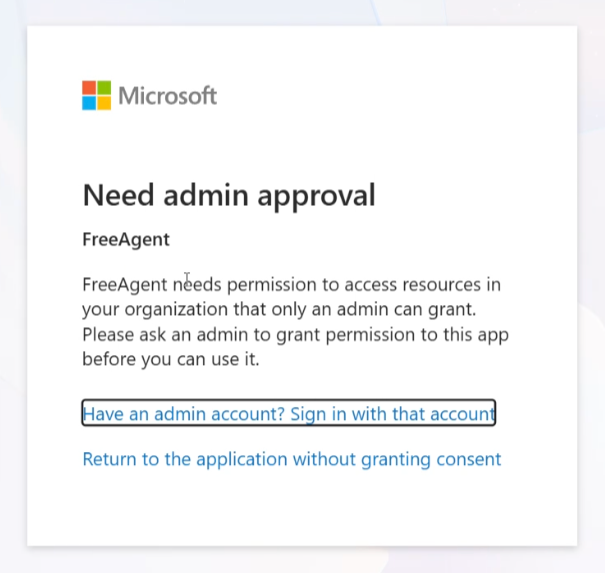
This can be confusing — especially if you’re already an admin yourself. But this message isn’t coming from servis.ai. It’s generated entirely by your organization’s Microsoft 365 tenant settings.
Why it happens
Your organization’s Microsoft 365 settings control whether users are allowed to grant permission (“consent”) to third-party apps — like servis.ai — that request access to your Microsoft account (e.g., to sync calendar, email, or contacts).
If your organization has user consent to third-party apps set to “Do not allow user consent,” then no user — regardless of their own role — can approve the app for themselves. Only someone in a specific admin role can approve it: a Global Administrator, Application Administrator, or Cloud Application Administrator in Entra ID (Azure AD).
So if you’re seeing this screen and you’re not in one of those specific roles, you’ll need someone else in your organization who is.
In short: this is standard Microsoft 365 security behavior that applies to any third-party app — it’s not something unique or restrictive about servis.ai.
How to fix it
Option A — Approve the pending request (quickest, one-time)
- Sign in to the Microsoft Entra admin center as a Global Admin, Application Admin, or Cloud Application Admin.
- Go to Enterprise apps > Consent and permissions > Admin consent requests.
- Find the pending request for servis.ai, click Review permissions and consent, then Accept.
Some admins also receive an email notification about the pending request — if so, you can grant permission directly from the link in that email instead of navigating to the admin center.
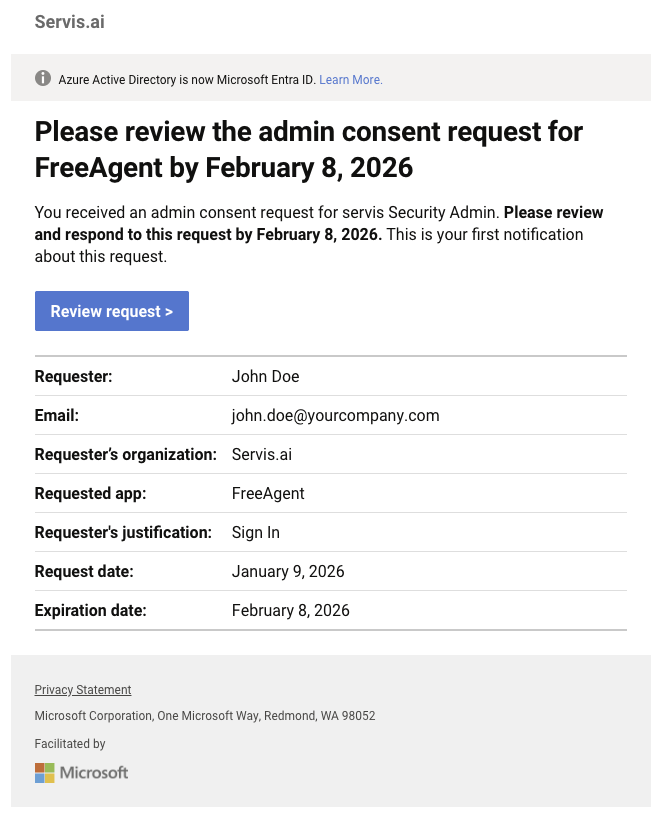
Option B — Change your organization’s consent policy
- In the Entra admin center, click Enterprise apps in the left menu, then go to Consent and permissions > User consent settings.
- Choose a less restrictive option, such as “Allow user consent for apps from verified publishers” — this lets users approve trusted apps themselves going forward, while keeping stricter oversight for unverified ones.
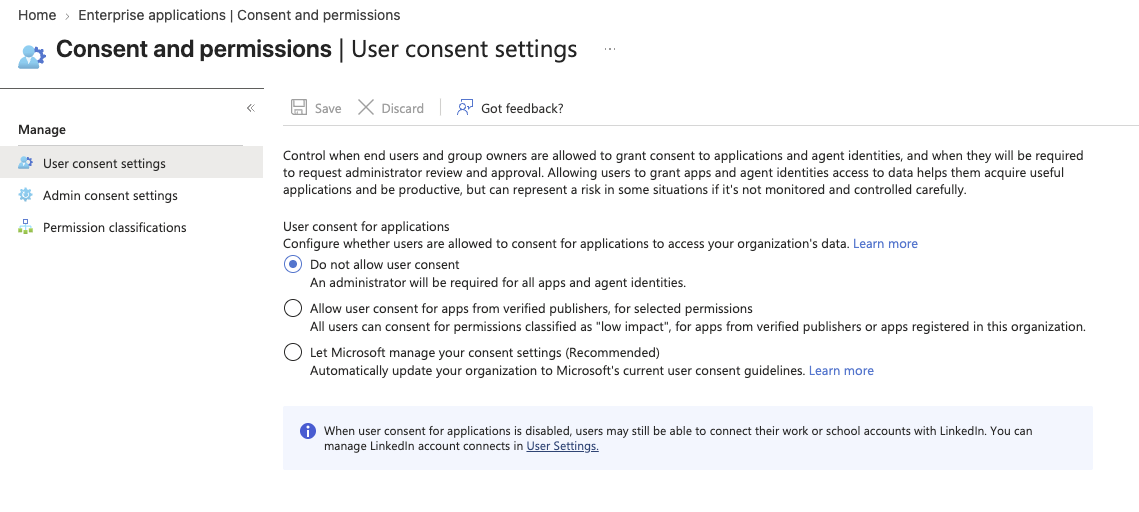
Note: This setting applies to your entire organization, not just servis.ai. Changing it affects how users can consent to any third-party app going forward, so we’d recommend reviewing the change with whoever manages your security policies before making it. servis.ai isn’t responsible for the effects of changes made to your organization’s Microsoft 365 security settings.
Option C — Have an admin grant access directly
- Share the servis.ai sign-in link with your Global Admin.
- The admin opens that link and signs in with their own admin account.
- On the consent screen, they check “Consent on behalf of your organization” (if shown) and click Accept. This grants access org-wide, so no one else in your organization will see this screen again.
A couple of things worth knowing
- This setting exists in every Microsoft 365 tenant — it’s a Microsoft security default, not something servis.ai can turn off or bypass on our end.
- It’s a one-time approval. Once granted, no one else in your organization will need to go through this again for servis.ai.
- Not sure who to ask? Look for whoever manages your organization’s Microsoft 365 / Office 365 admin settings — often your IT team or Microsoft partner, not necessarily whoever manages day-to-day user accounts.