The servis Everywhere Chrome extension detects email addresses in your preferred email platforms and checks them against your servis.ai instance. From there, you can quickly create contact records as you work through your inbox.
Requirements
-
Servis.ai user with read and write permissions.
-
A Contacts app (e.g., Patients, Profiles, etc.).
-
An Organizations app (e.g., Accounts, Companies, etc.).
-
Notify your admin before installing and configuring the extension.
Install the Extension
-
Click Add to Chrome.
-
Open chrome://extensions to confirm it is installed.
-
Pin the extension to your toolbar for quick access

Setup
-
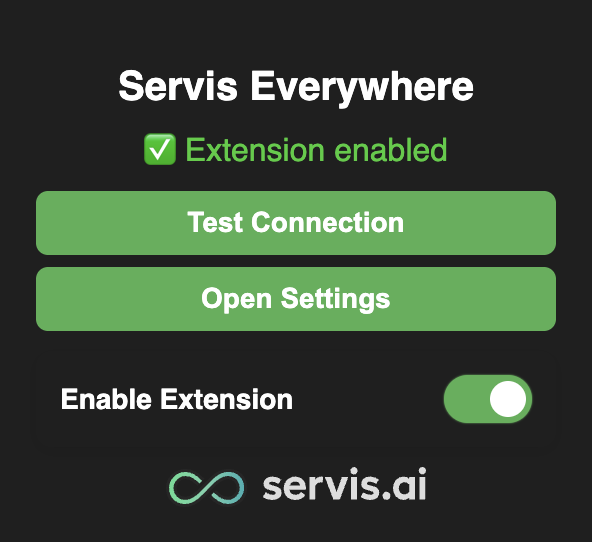
Click the servis Everywhere icon in your Chrome toolbar.
-
In the quick view you’ll see:
-
Current extension status
-
Test Connection
-
Open Settings
-
Enable/Disable toggle
-
Settings
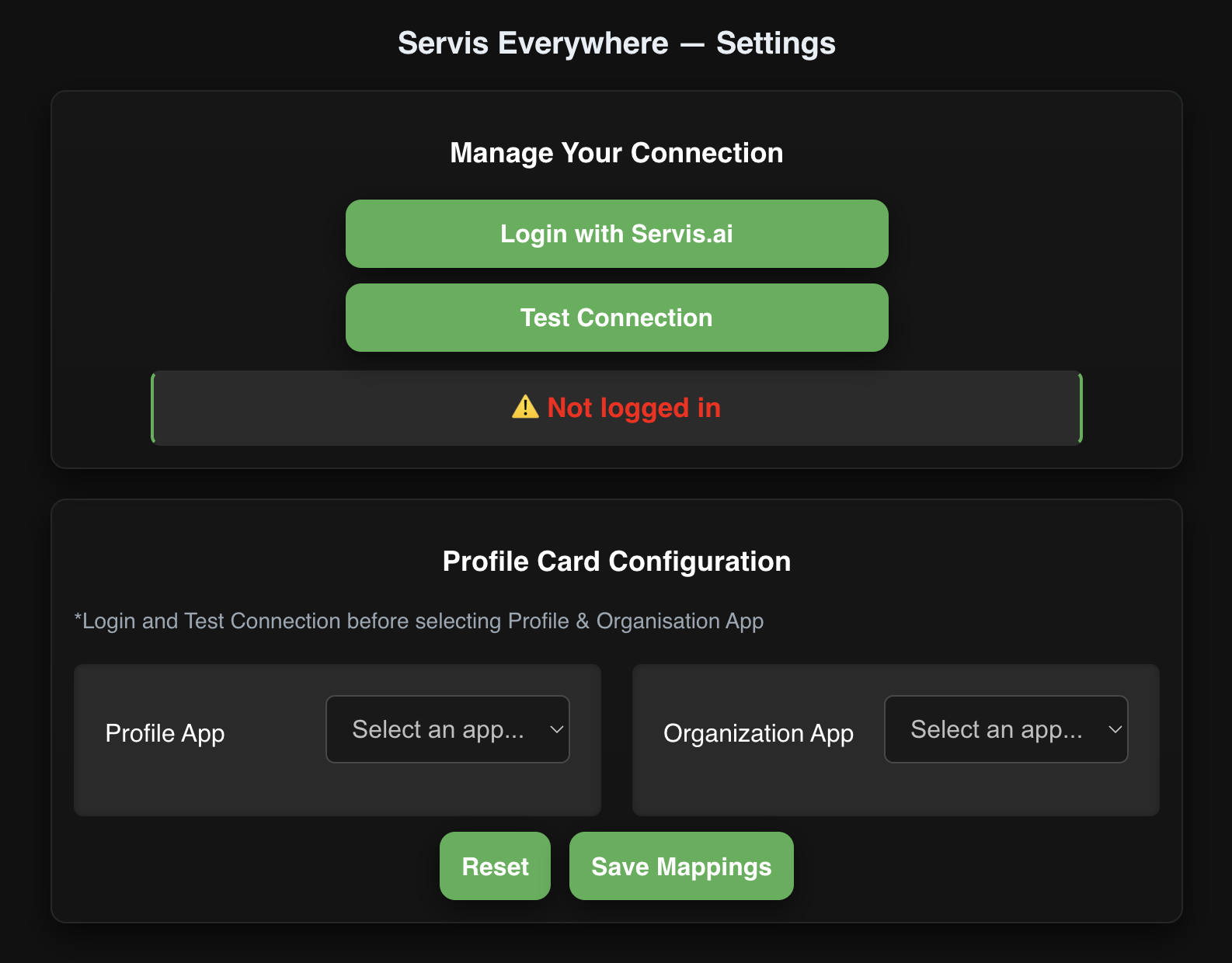
- Click Open Settings to open the full configuration page in a new tab.
-
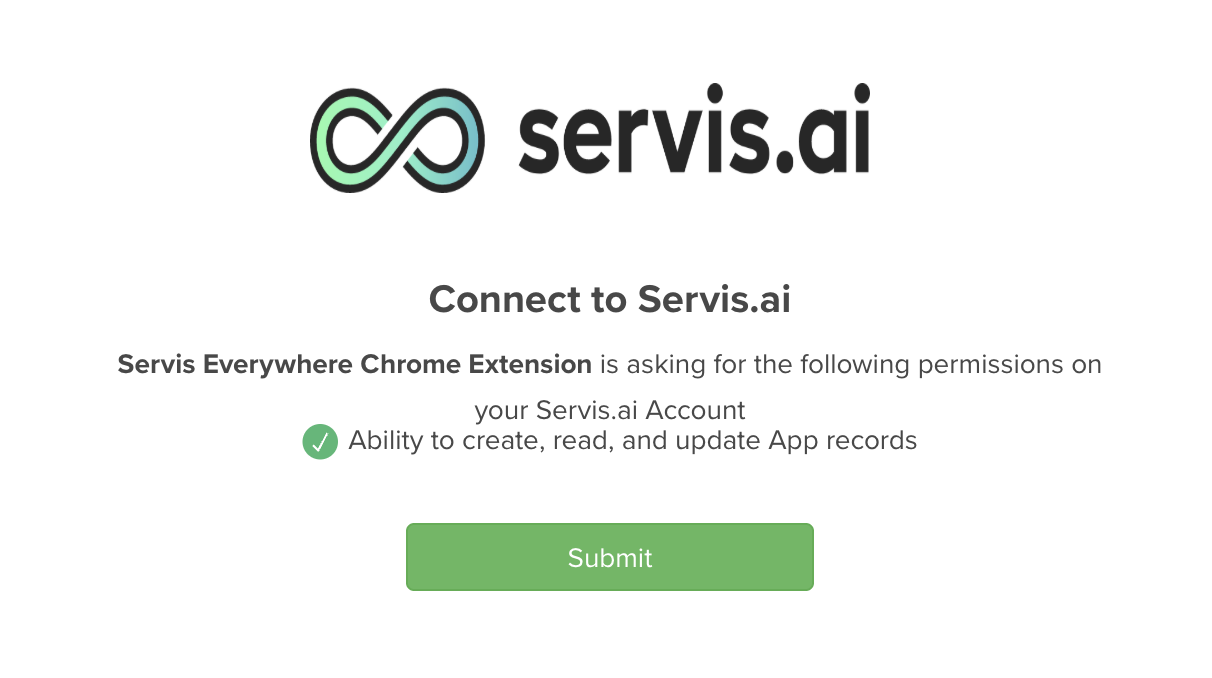
Click Login with servis.ai. You’ll be redirected to the servis.ai login page.
-
Sign in and approve any permission prompts.

-
You’ll be redirected back to the extension settings page.
-
Click Test Connection to confirm everything is set up correctly.


Profile & Organization Mapping
In here you can tell the extension how to match email data to existing records and how to create new ones in servis.ai.
-
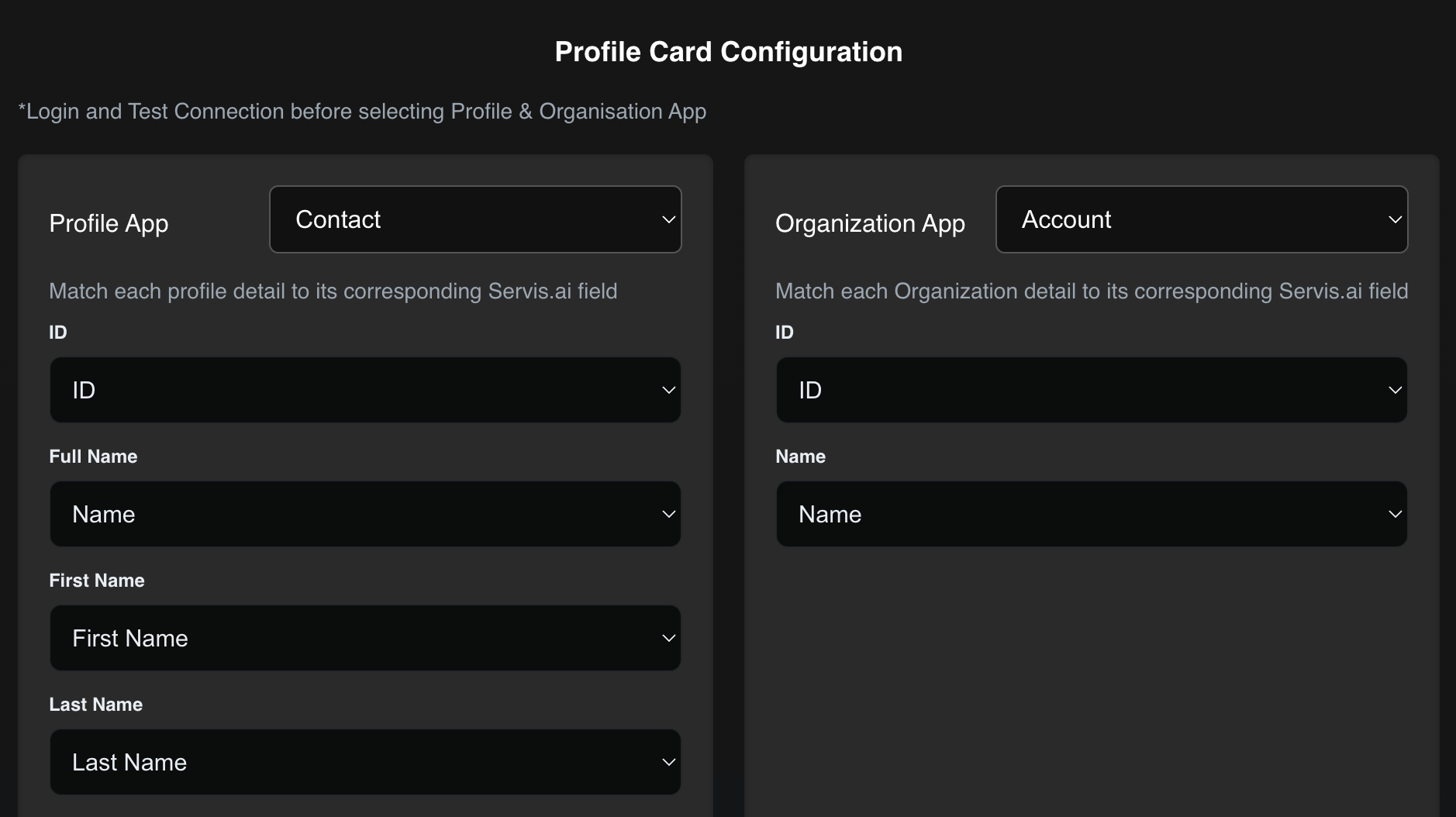
In Settings, select:
-
The app where you store contact records (Contacts, Patients, Profiles, etc.).
-
The app where you store organization records (Accounts, Companies, etc.).
-
-
Map fields for both apps so the extension knows:
-
Which email fields to use for matching.
-
Which fields to populate when creating a new record.
-
-
Leave any non-applicable fields blank.
-
Click Save Mappings when you’re done, or Reset to start over.

Note: If you’re unsure which apps or fields to use, ask an admin or customer support for help.
Using servis Everywhere in Gmail or Outlook
-
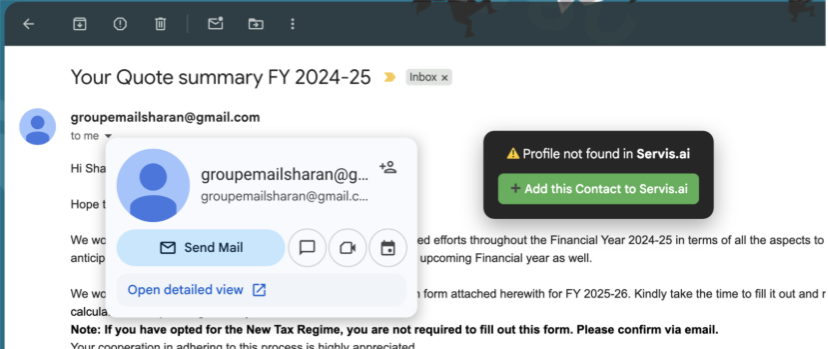
Hover over an email address in Gmail or Outlook.
-
The extension will:
-
Look for an existing contact in servis.ai.
-
If a match is found, show a contact card.
-
If no match is found, offer to create a new contact.

-
-
Click + Add this Contact to servis.ai to open the Review Contact Details window.
-
Review and edit any fields as needed.

-
Click Save Contact to create the record.
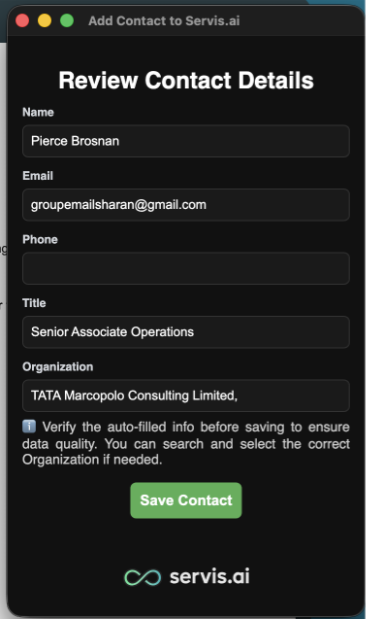
Note: The extension uses intelligent parsing and may not always be 100% accurate. Always review the data before saving it to servis.ai.


