Dashboards allow you to bring multiple Saved Views together into one organized display. This provides a centralized way to monitor data and makes Dashboards a powerful reporting tool within servis.ai.
Navigating to Manage Dashboards
Open the menu and go to Reporting > Dashboards.
Here, you will see a list of all dashboards created by you and your team.
Administrators have access to all dashboards by default. Other users can only view dashboards that have been shared with them.
Using Filters
Like other list views, you can apply filters to determine which dashboards are visible.
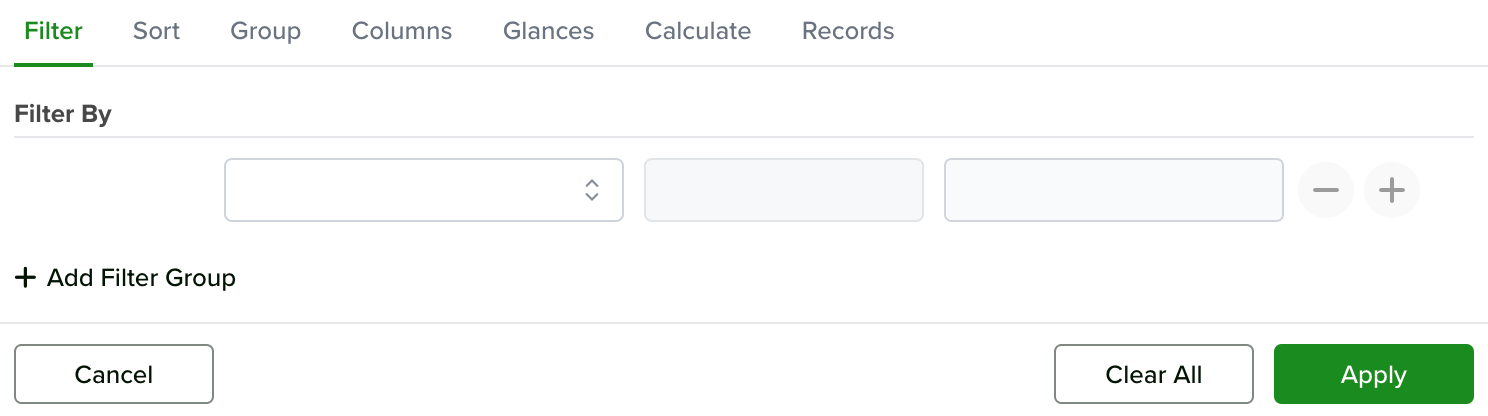
To learn more about filters, see:
Filter, Sort & More
Creating a Dashboard
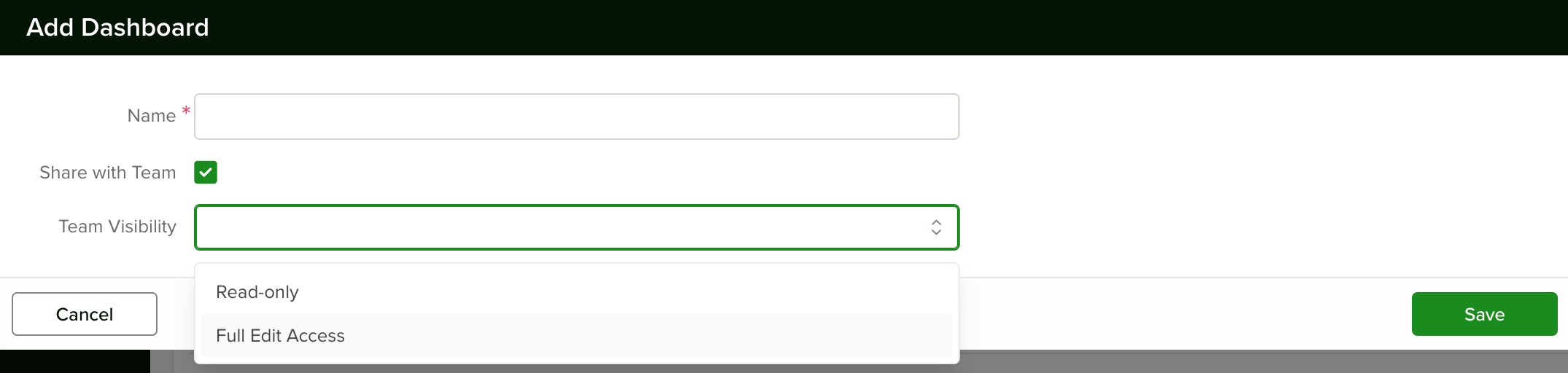
Click New Dashboard in the top-right corner. Enter a name for your dashboard, then click Save.
Your dashboard will appear in the list. Click its name to begin adding widgets (also called Saved Views).
To learn how to create Saved Views and add them to dashboards, see:
Adding Widgets to a Dashboard
Open the dashboard and click the three-dot menu. Then select Add View.
Widgets can be created using a Saved View, or you can configure custom settings directly within the widget.
Creating a Saved View
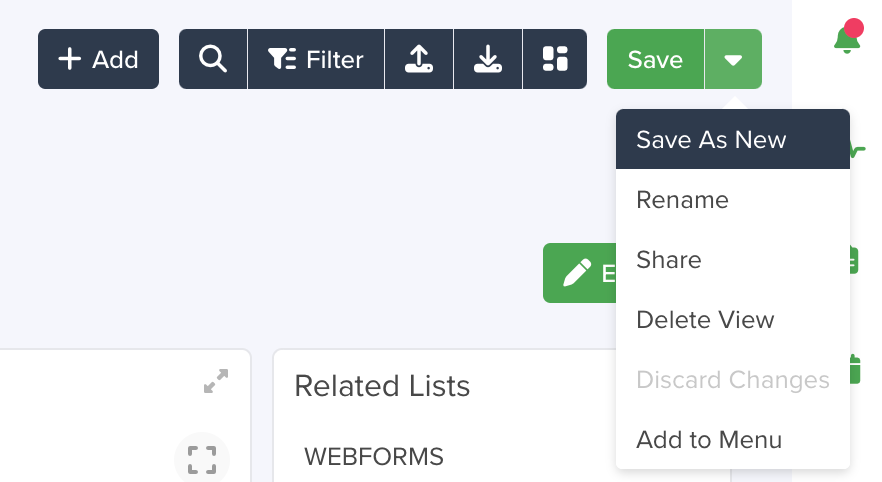
Dashboards are powered by Saved Views, which allow you to display exactly the data you need. Once a Saved View is created, it can be easily added to a dashboard.
Saved Views let you preserve filters, column order, column width, and other view customizations so you can reuse them at any time.
Learn more:
Updating an Existing Saved View

You can update Saved Views by modifying filters, adjusting configurations, or applying sorting options.
After making changes, click Save changes to update the existing view instead of creating a new one.
Rearranging Your Dashboard Widgets
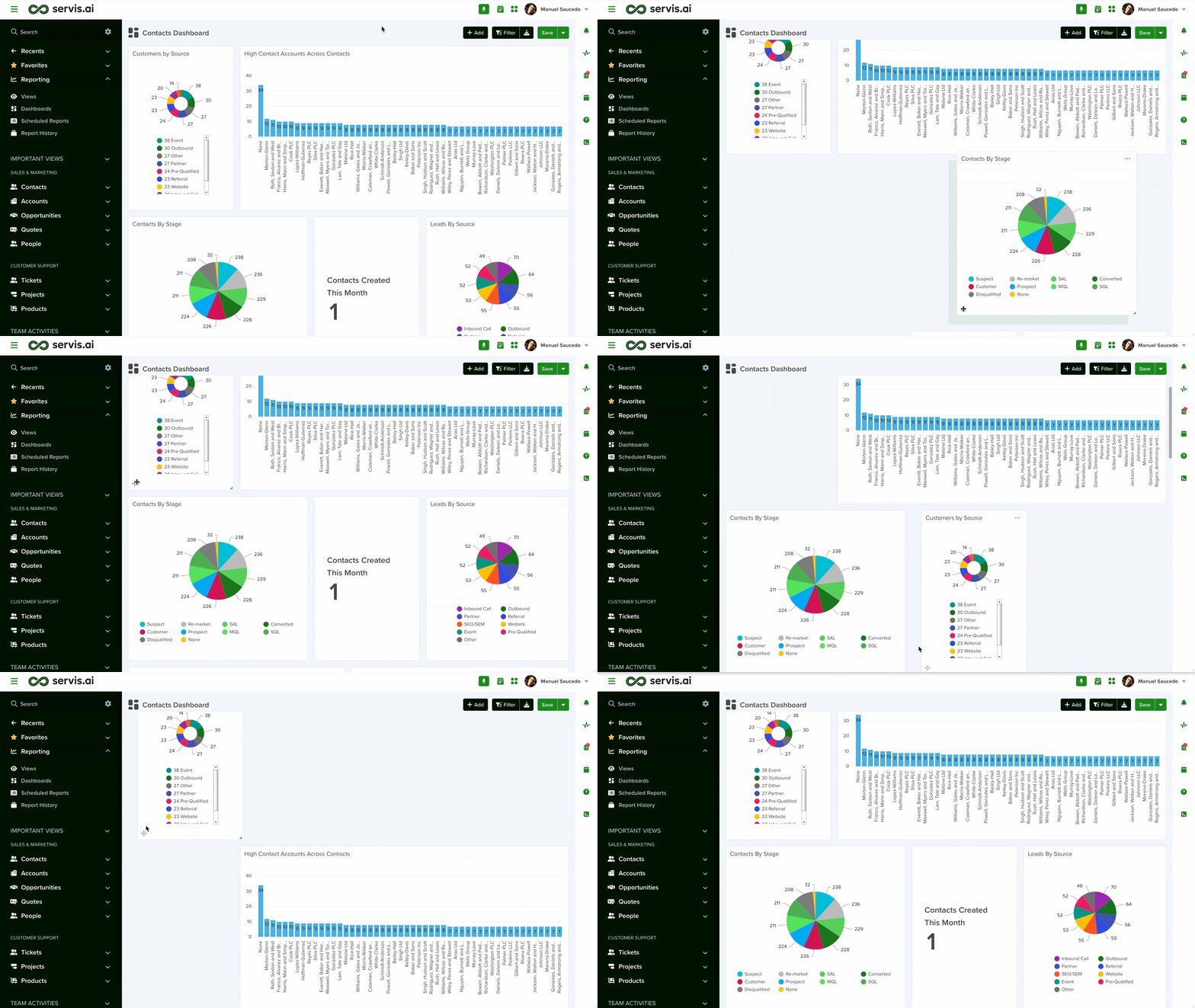
You can rearrange widgets by dragging and dropping them into place. Other widgets will automatically adjust.
You can also resize widgets using the handle in the bottom-right corner of each one.
Overriding Read-Only Dashboards
You can create a private duplicate of a dashboard marked as Read-Only to make changes without affecting the original.
Learn more: Overriding Read-Only Dashboards
Deleting Dashboards
To delete a dashboard, select the checkbox next to it and click Delete.
Note: This action cannot be undone and there is no confirmation step. The dashboard will be deleted immediately. Be sure to only delete dashboards you created.



