Dot Walking enables you to use field data from one app when applying filters or configuring a list view in a different app. Any app that has a Reference Field to another app can make use of Dot Walking. To learn how to configure Reference Fields in servis.ai, check out our Reference Fields article.
User Permissions: No special permissions are required.
How to Use Dot Walking with Filters
Filters are used to focus your data around a set of desired fields. Typically, filters can only be applied to fields within a single app, but with Dot Walking you can apply filters using data from other apps.
Navigate to the All View of the App
There are two ways to access the All view of an app:
1. From the Navigation Menu, select the app and click the All (App Name) button.

2. From the Apps Home page, hover over the app and select All (App Name).

Applying Filters Using Dot Walking
Click the Filter button from the Action menu at the top of the All view page.

The Filter window will appear. Make sure you are in the Filter tab.

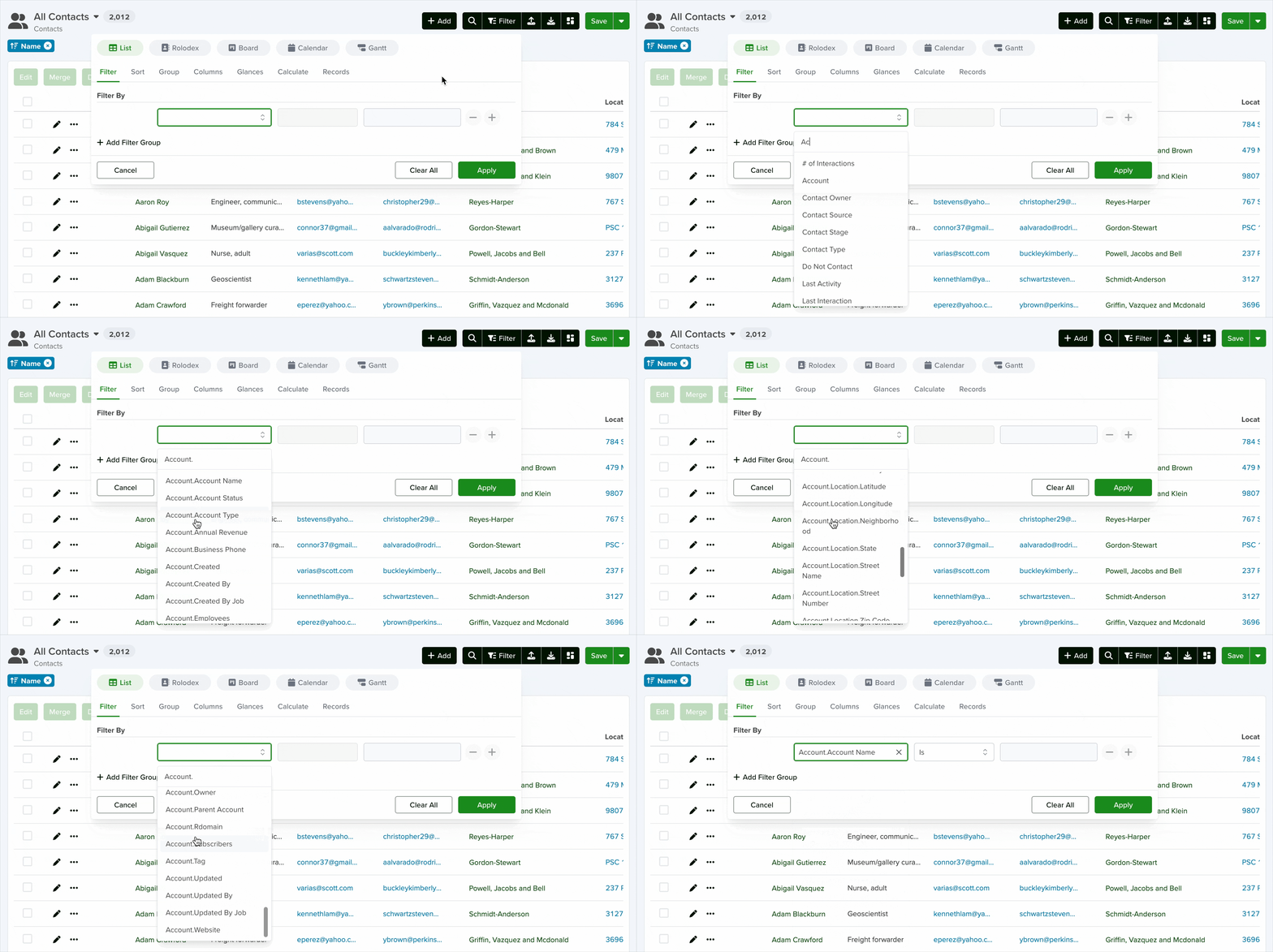
In the Filtered By field, you can use Dot Walking to access referenced fields from another app. Type the app name, followed by a period, then the field name.
Example: account.account name
As soon as you type the app name followed by a period, a list of available referenced fields will appear.
How to Use Dot Walking to Add Columns to List Views
When configuring a list view, you can control which columns are displayed. Using Dot Walking, you can also include fields from other apps.
Navigate to the All View of the App
There are two ways to access the All view of an app:
1. From the Navigation Menu, select the app and click All (App Name).

2. From the Apps Home page, hover over the app and select All (App Name).

Add Columns to List Views Using Dot Walking
Click the Filter button from the Action menu.

In the Filter window, switch to the Columns tab.

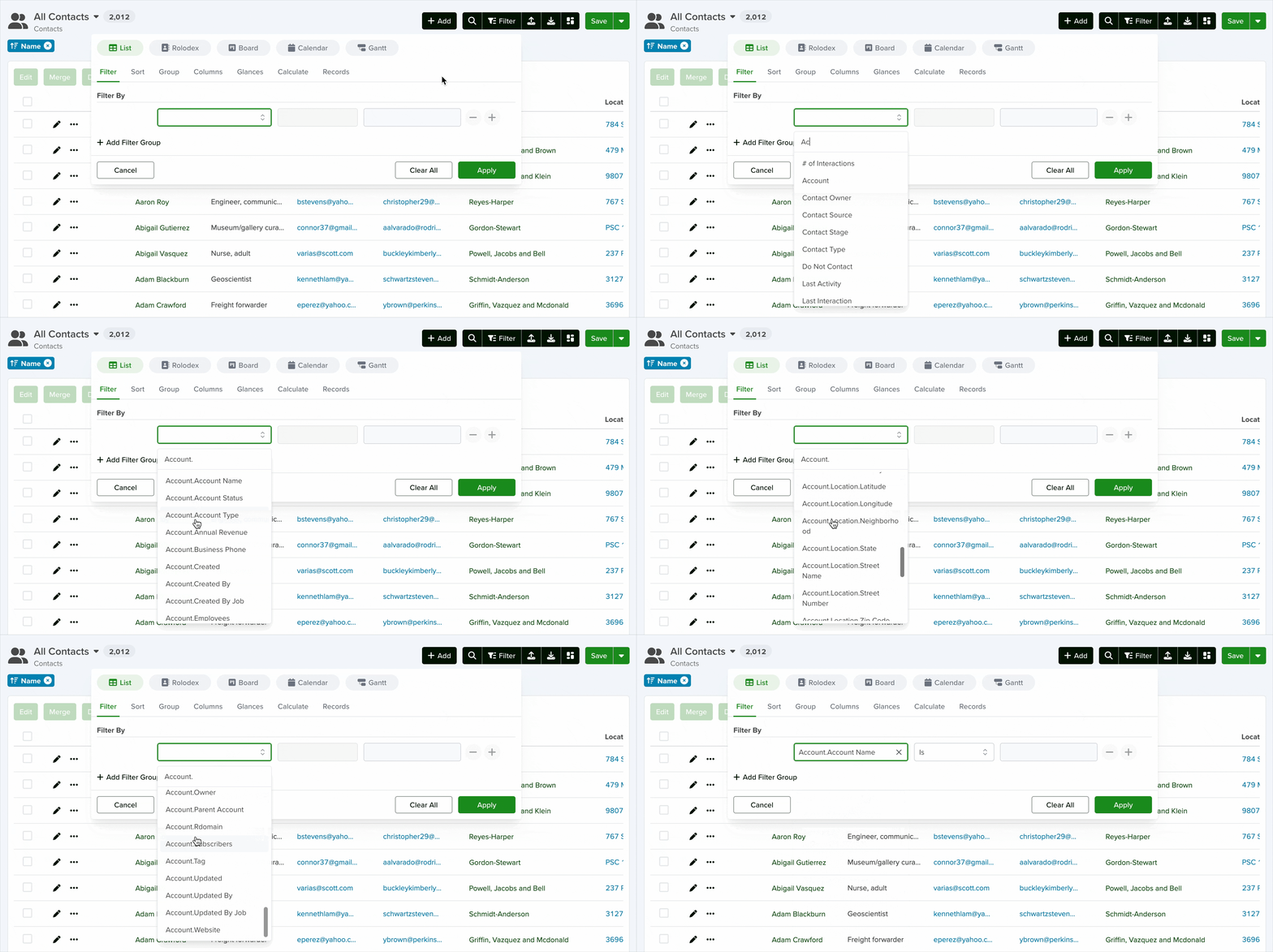
In the Add Column field, you can use Dot.Walking to access Referenced Fields from another App. To do so, type the name of the App you want to reference, followed by a period, followed by the name of Field you want to reference.
Example: account.account name
After typing the app name and a period, available referenced fields will appear.
Click Apply to finish.
.) to allow the system to load available fields. Typing too quickly may prevent them from appearing.


