The Groups feature allows admins to assign tasks to multiple users at once, making collaboration in servis.ai more efficient.
User Permissions: Only Admins can manage Groups.
What Is It?
Groups help organize users within the Task App, enabling:
- Assigning tasks to multiple team members at once.
- Better collaboration and visibility across shared tasks.
How to Set It Up
Admins can create groups in a few simple steps:
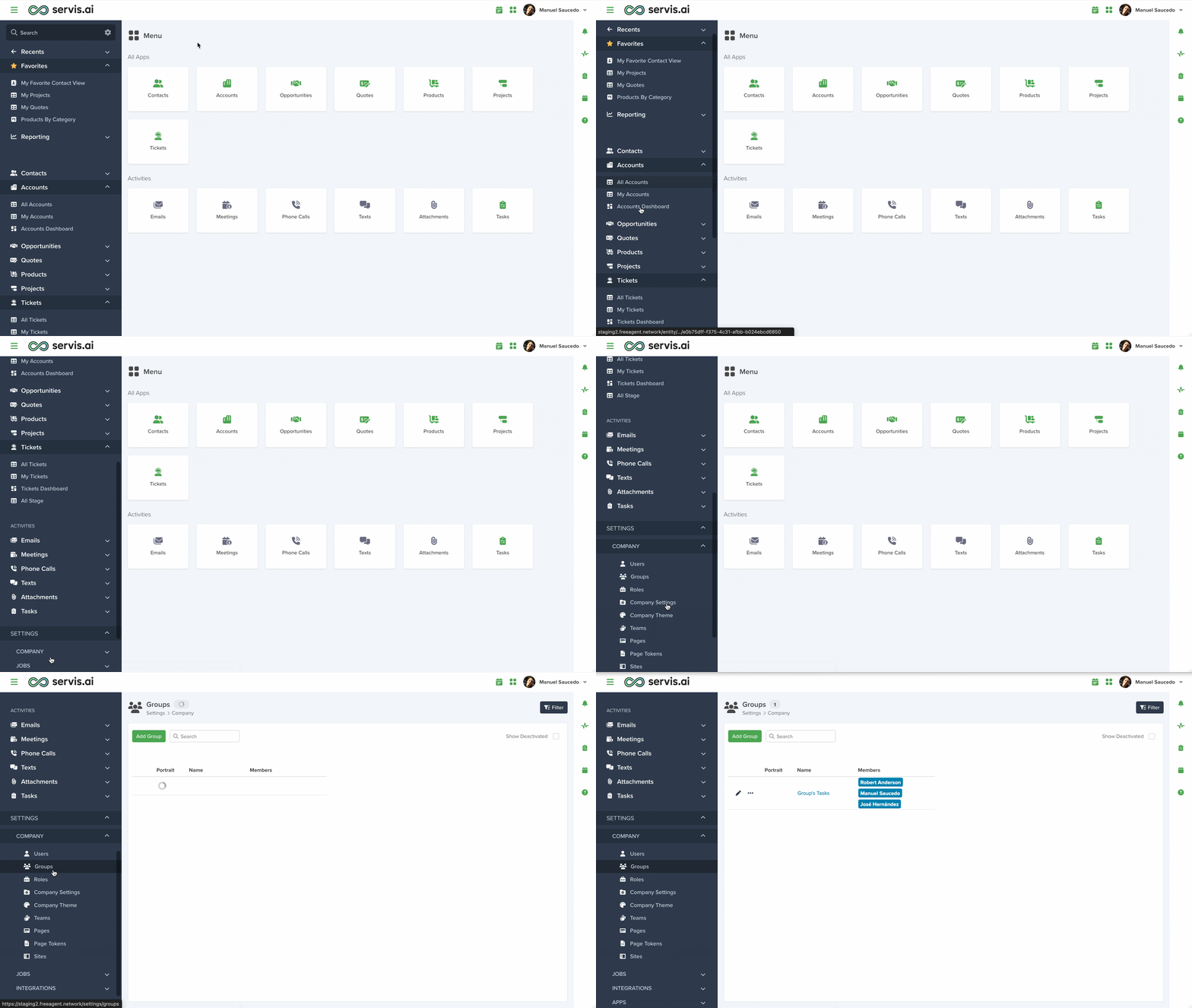
Navigate to Groups
Go to Settings > Company > Groups.
Add a New Group
Click “Add Group”.

Set Up the Group
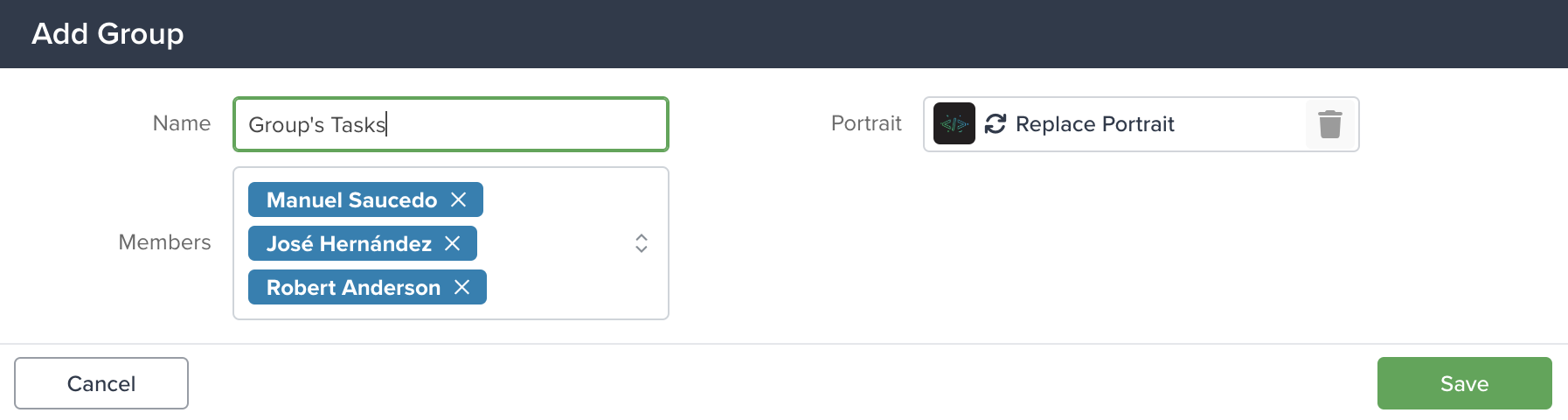
- Name: Enter a name for the group.
- Portrait: Upload an image to represent the group.
- Members: Select users to include in the group.
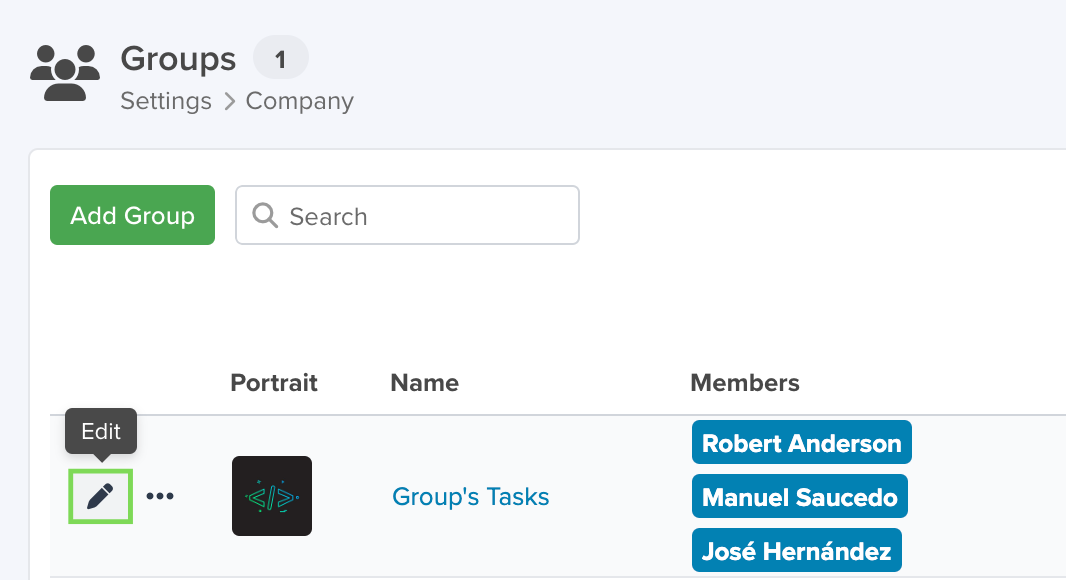
Edit
Click the pencil icon to edit an existing group.
Save
Click “Save” at the bottom of the page to apply your changes.
Once saved, the group is ready to use.
Activate / Deactivate
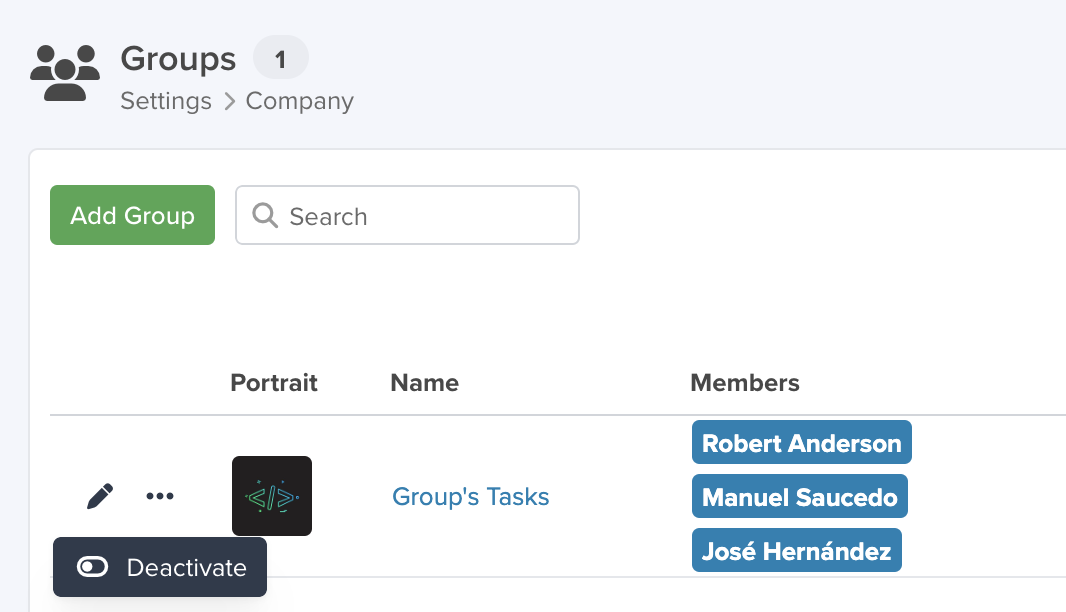
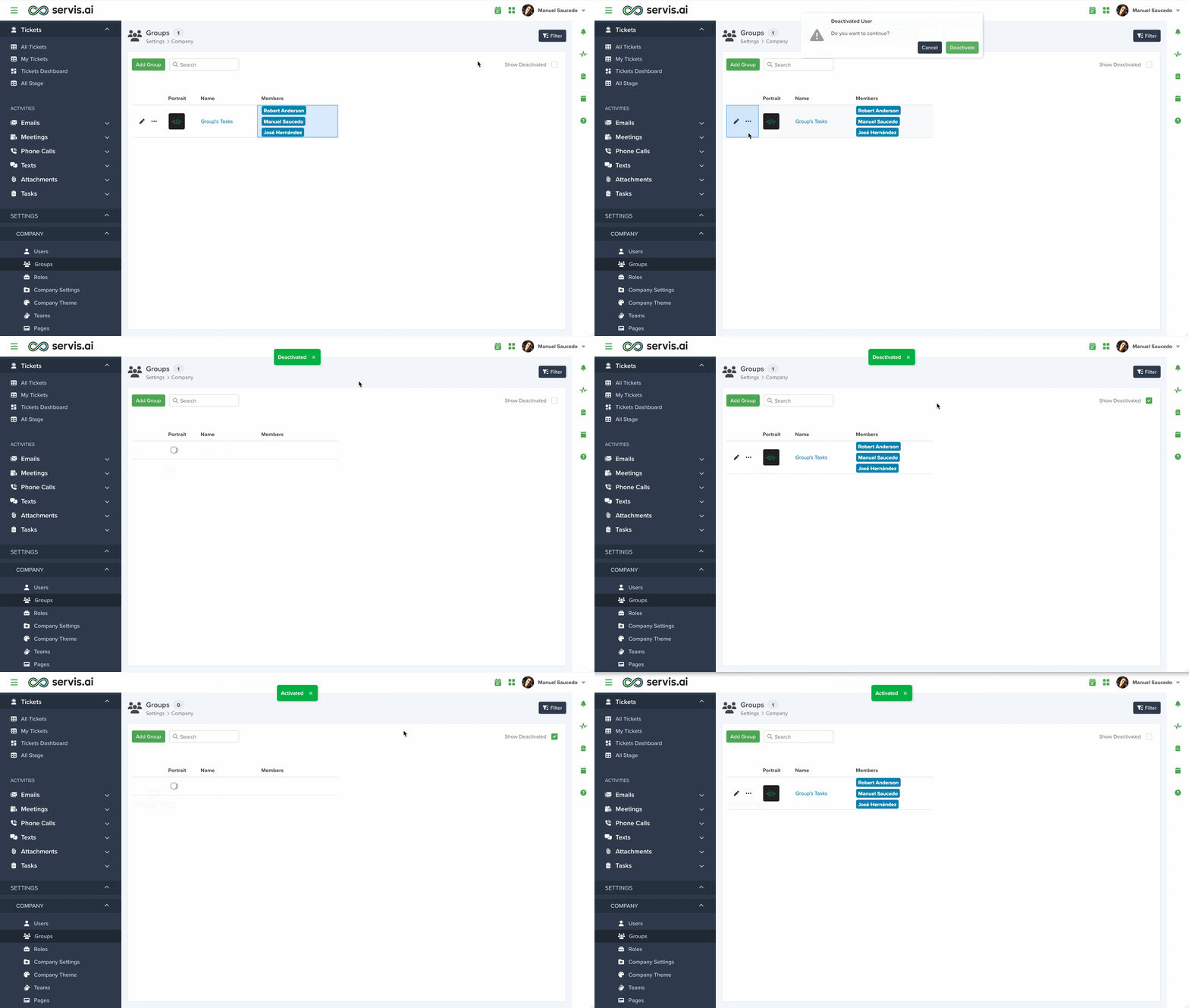
To deactivate a group, click the three-dot menu and select “Deactivate”.
To reactivate a group:
- Enable “Show Deactivated”.
- Use the three-dot menu and select “Activate”.
Using Groups in the Task App
Groups enhance task management with the following capabilities:
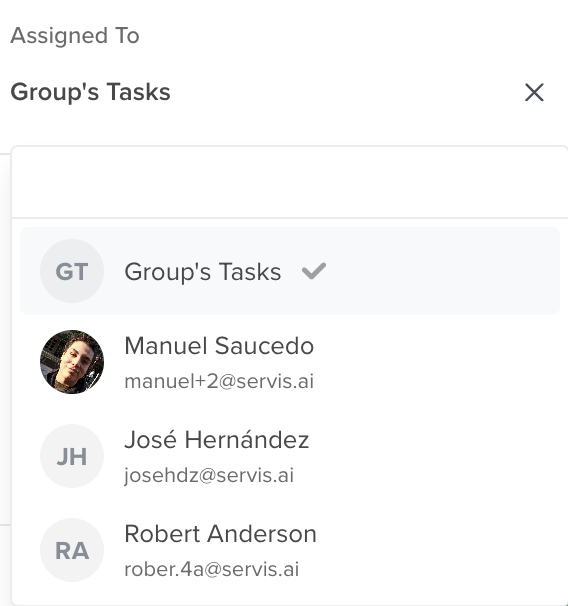
Assign Tasks to a Group
Assign a task to an entire group so all members can collaborate.
Filter Tasks by Group
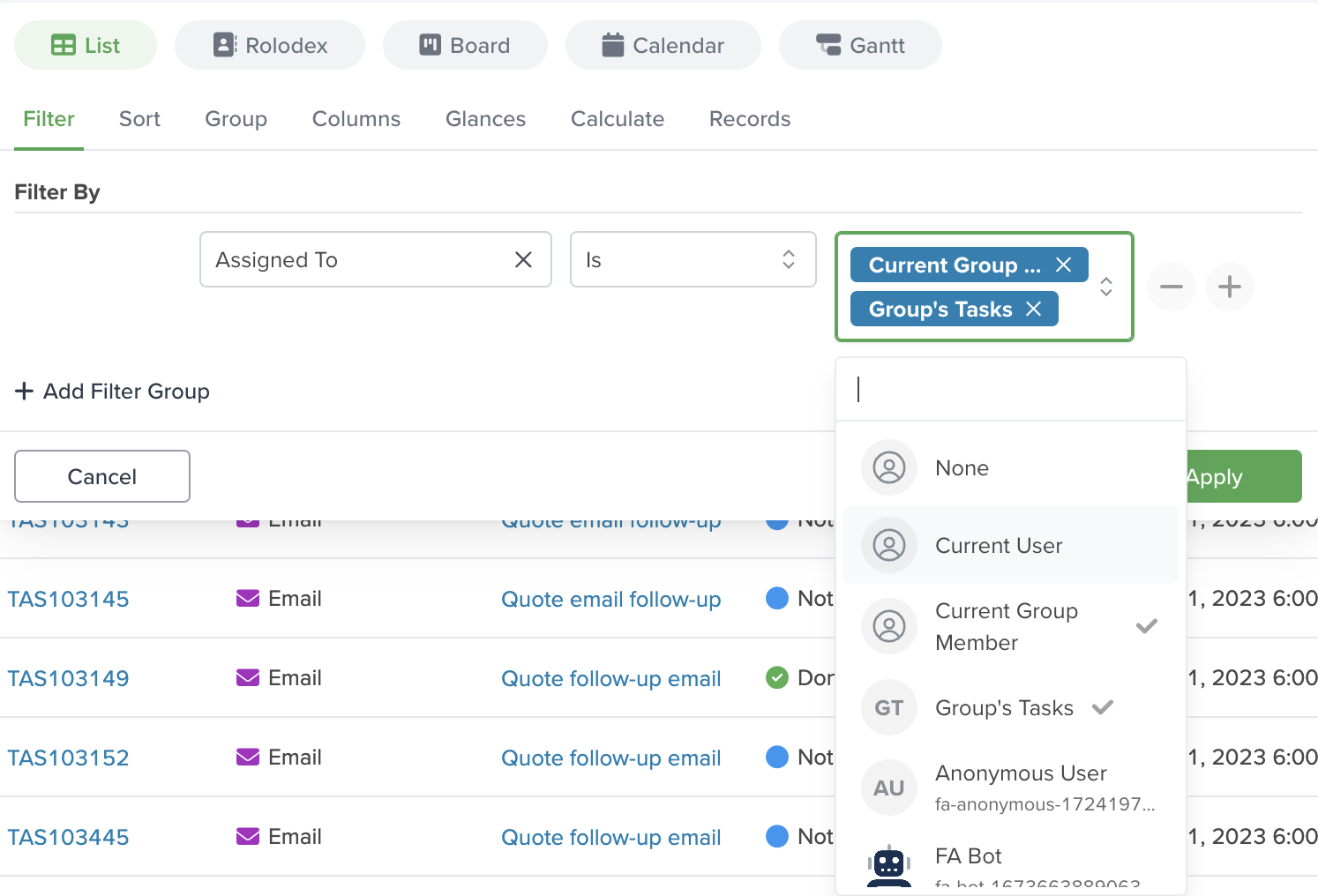
In the All Tasks view, use the Assigned To filter to:
- View tasks assigned to your group(s).
- Select specific groups to create custom views.
View Group Tasks
Group tasks are visible to all members:
- In the My Tasks tab, you’ll see both personal and group tasks.
- All group members can view and act on shared tasks.
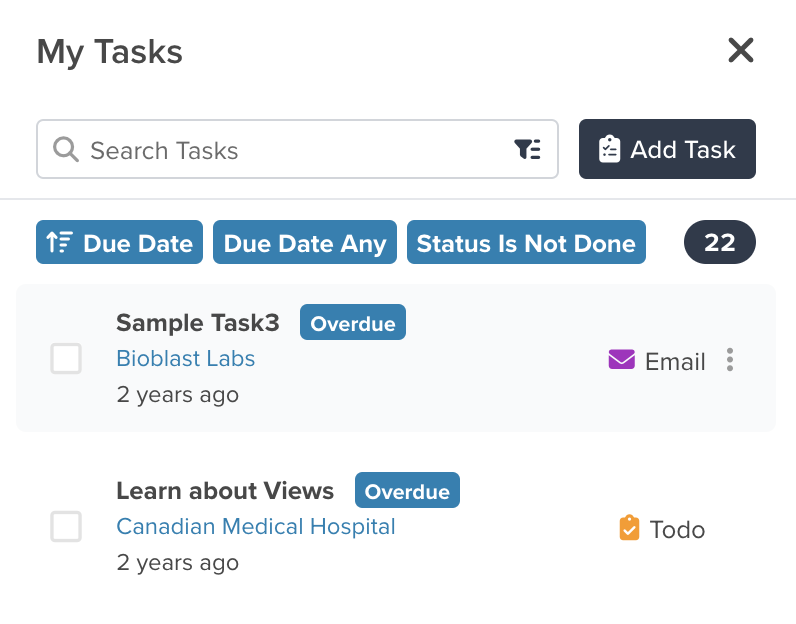
Learn more about tasks in this article.
Notifications
Create notifications for group members based on specific events, such as when a task is assigned.
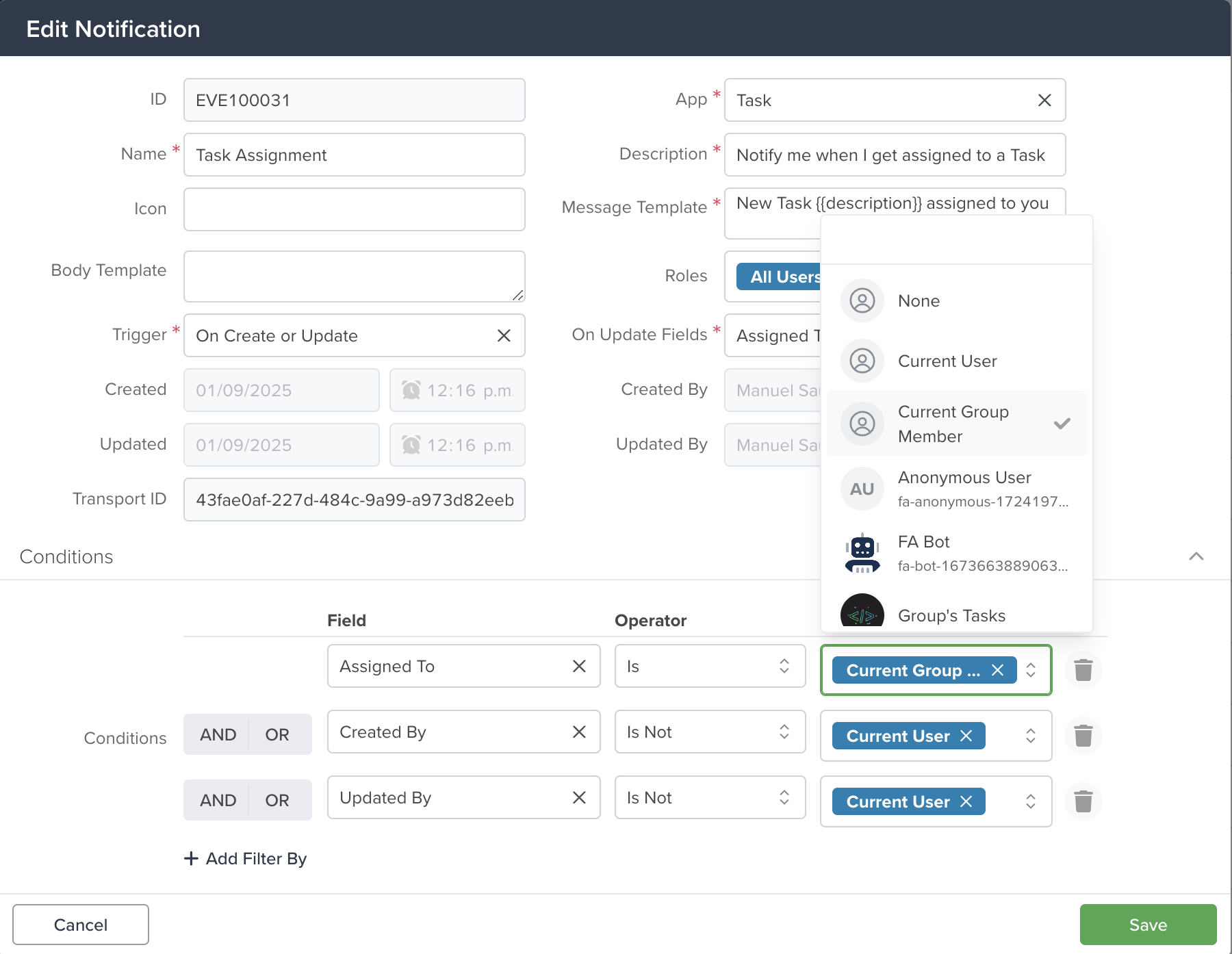
For example, when a task is assigned to a group, notifications can be sent to all members by setting the value to Current Group Member.
Mentions
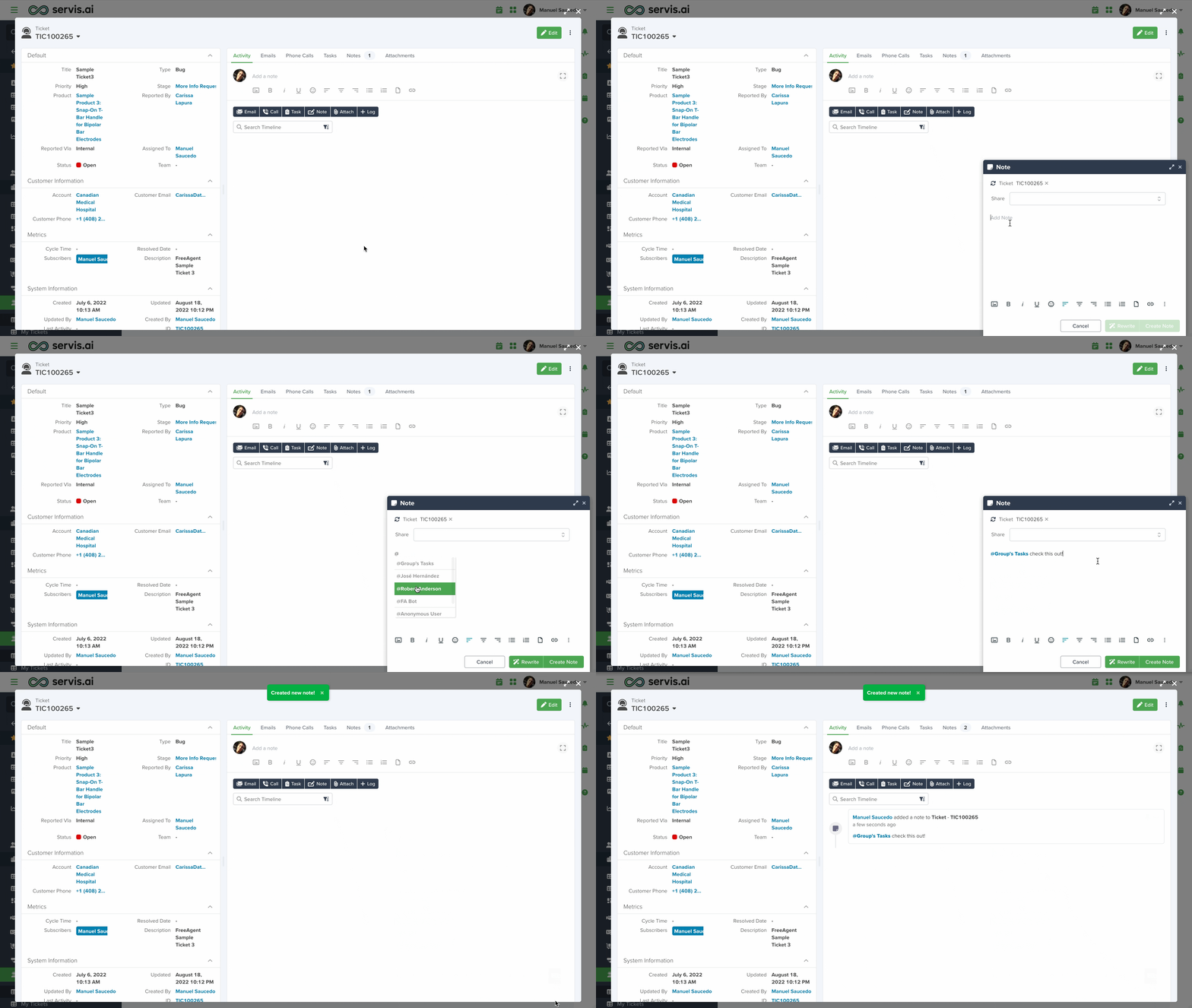
Use mentions to notify all group members across any app.
Simply add a note in a record (e.g., a Ticket) and mention the group to notify all members.