Efficient data management is essential for maintaining accuracy and operational efficiency. Scheduled imports automate data updates by running at predefined times, ensuring seamless and timely data integration.
- Time Efficiency: Automating imports reduces manual effort and allows teams to focus on strategic work.
- Improved Data Quality: Automation minimizes human errors and ensures consistent data transfer.
- Scalability: Automated processes can handle large data volumes as your business grows.
Initial Manual Import
Before scheduling imports, you must complete a one-time manual import. This step establishes field mapping and ensures all columns are aligned. The configuration will be reused for future scheduled imports. Learn more here.
Navigate to Imports
After completing the initial import, go to your app (e.g., Contacts) to access it:
- Go to Contacts
- Click Import Contacts
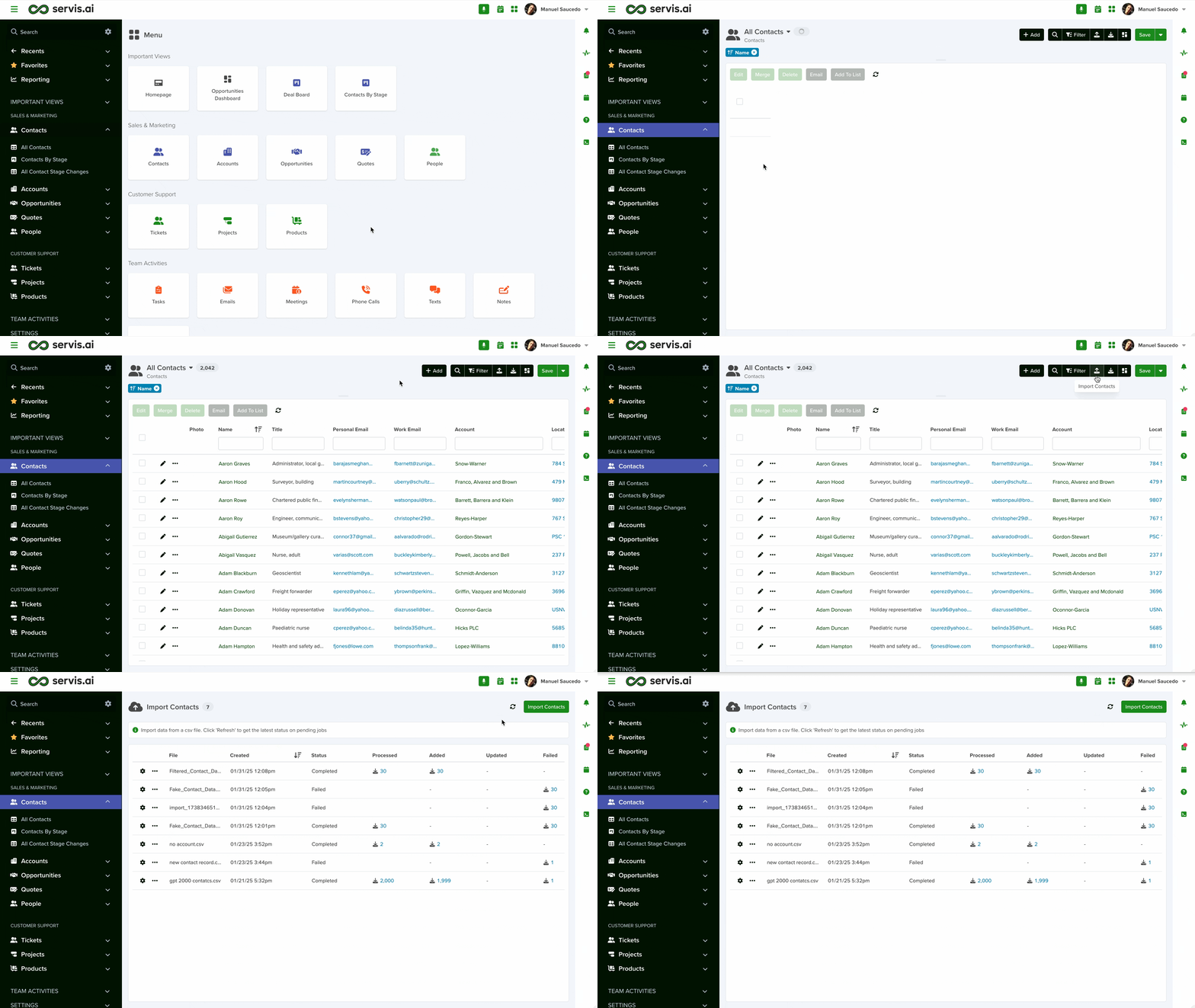
Once the manual import is complete, proceed to set up your SFTP account.
Add Scheduled Import
Click the gear icon next to the completed import to open the Add Scheduled Import modal.

1. Name
Enter a descriptive name for the scheduled import to make it easy to identify later.
2. SFTP Account
This field enables automated imports via SFTP using the configuration from your manual import.
To request access, email support@servis.ai. Once you receive your credentials, you can proceed with configuration.
3. File Name Pattern
File name patterns help the system recognize and process files for different apps.
Examples:
- “order” →
order_03112025 - “account” →
account_03112025
This allows multiple file types to be uploaded and processed correctly.
4. File Type
Select either CSV or HL7 from the dropdown.
5. Frequency
Choose how often the import will run:

Now
Runs immediately when you click Save.
One Time
Runs once at a specified date and time using the Schedule Date field.

Every Weekday
Runs Monday through Friday at a selected time using the Time field.

Hourly
Runs immediately after saving, then automatically every hour.
Daily
Runs immediately after saving, then daily at a specified time.

Weekly
Select a day of the week and a time for recurring imports.

Monthly
Select a specific day (1–28 or last day of the month) and time for monthly imports.
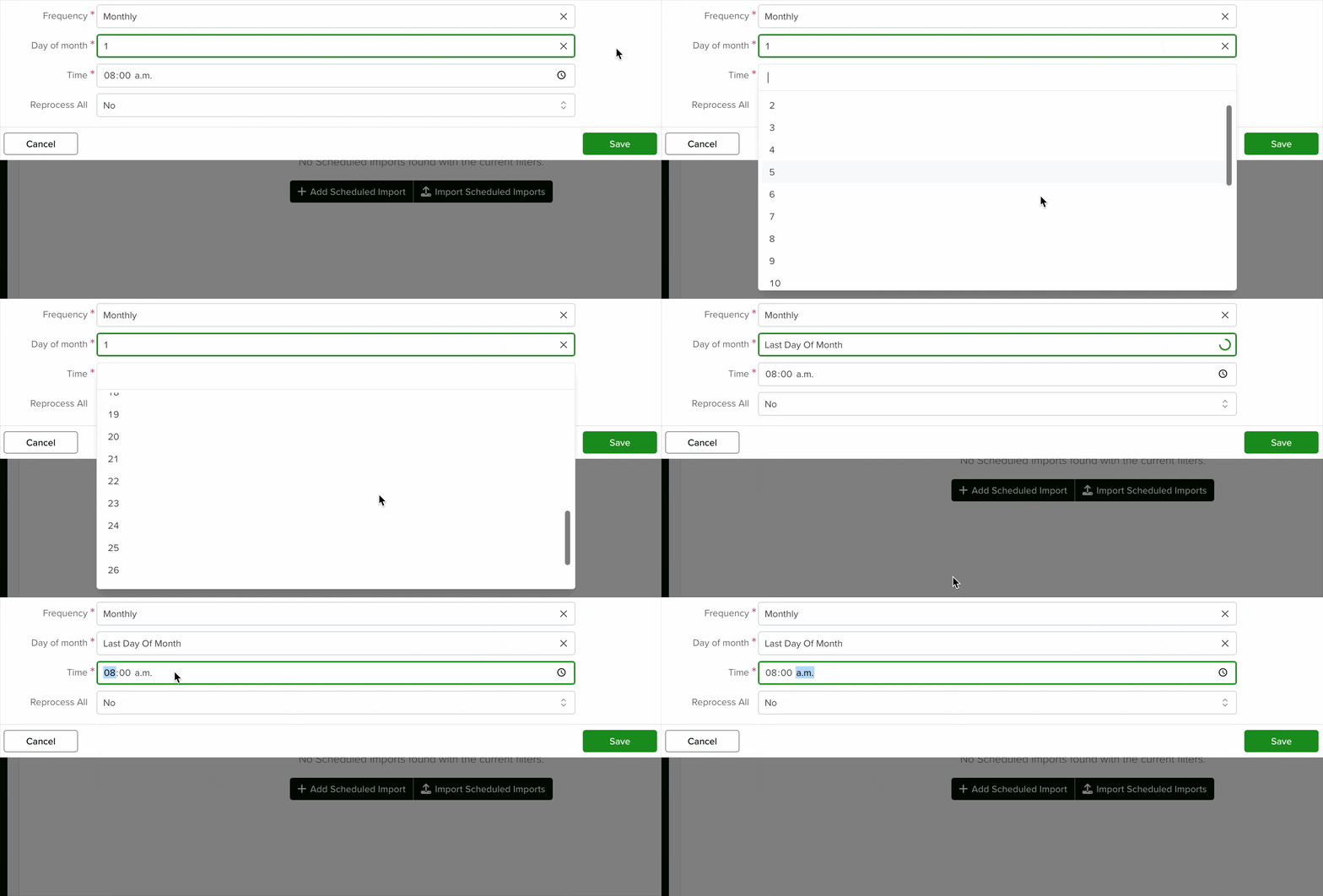
Note on Time Zone
Scheduled imports use the time zone of the browser used during setup.
6. Reprocess All
When enabled, the system re-checks all previous imports before running the next one. Select Yes to enable or No to disable.


