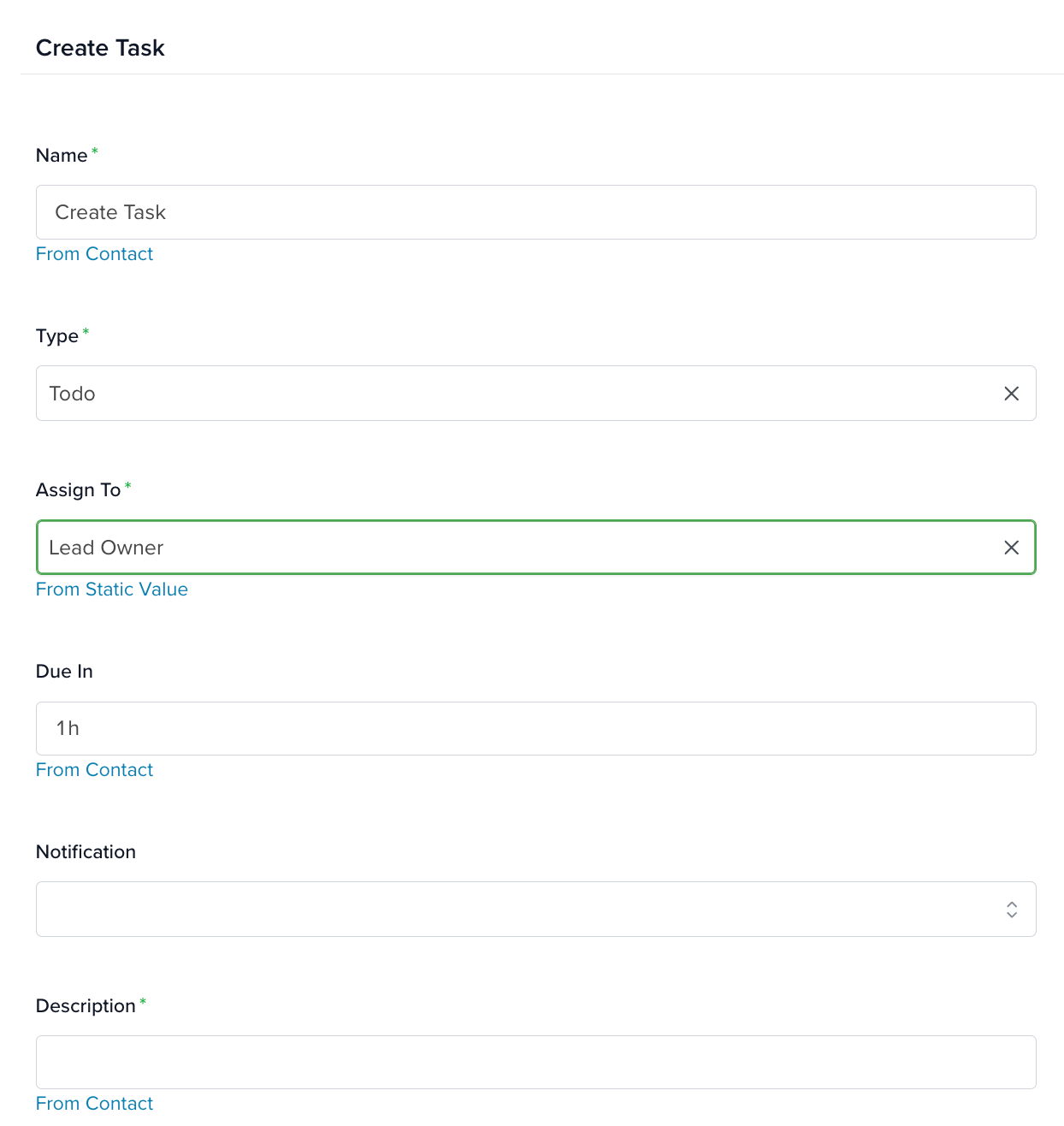
The Create Task action allows you to generate and assign a new task as part of an automated process. Within this action, you can:
- Define the task type to categorize it appropriately.
- Assign the task to a specific team member or role.
- Configure notifications so the assigned user is alerted.
Learn more about tasks right here.
How to Set Up the Create Task Action
Name: Enter a descriptive name for the task.
Task Type: Select the type of task to be assigned. The available options are defined in your Task App configuration. To modify or add new task types:
- Navigate to Settings > Apps > Tasks.
- Locate the Task Type section.
- Update the available task types as needed.
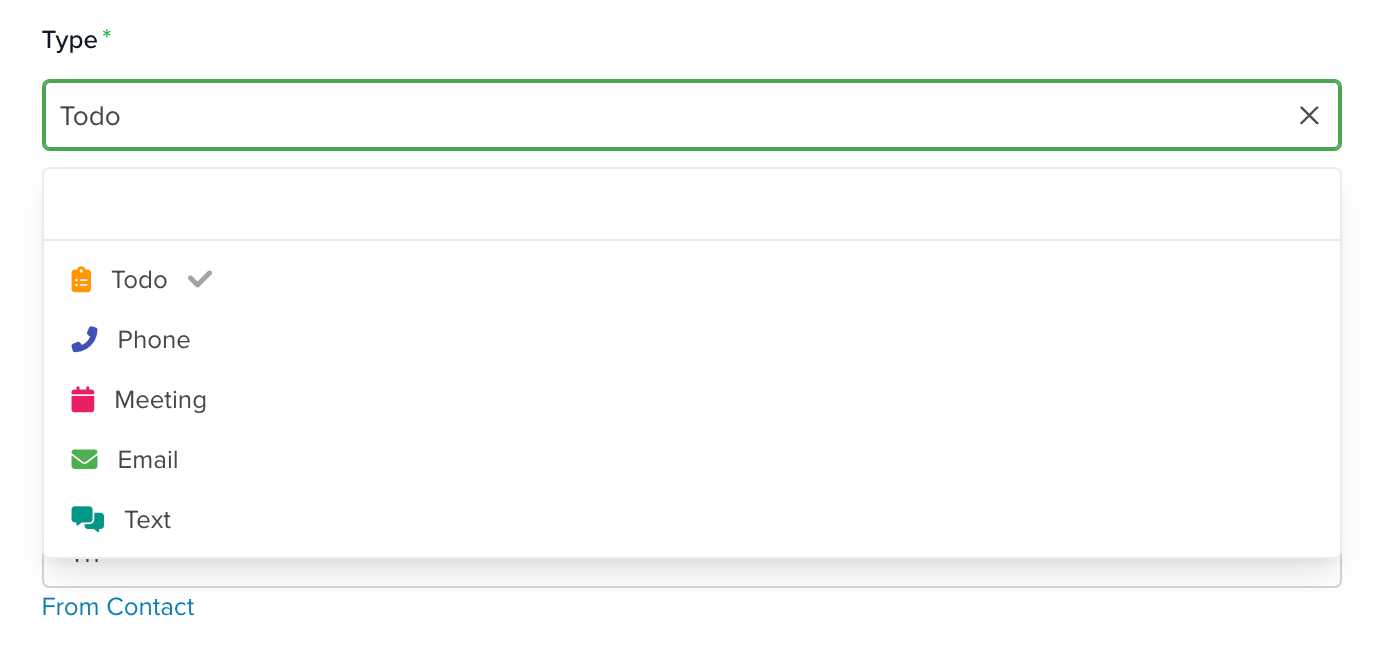
For more details on configuring task types, visit Tasks.
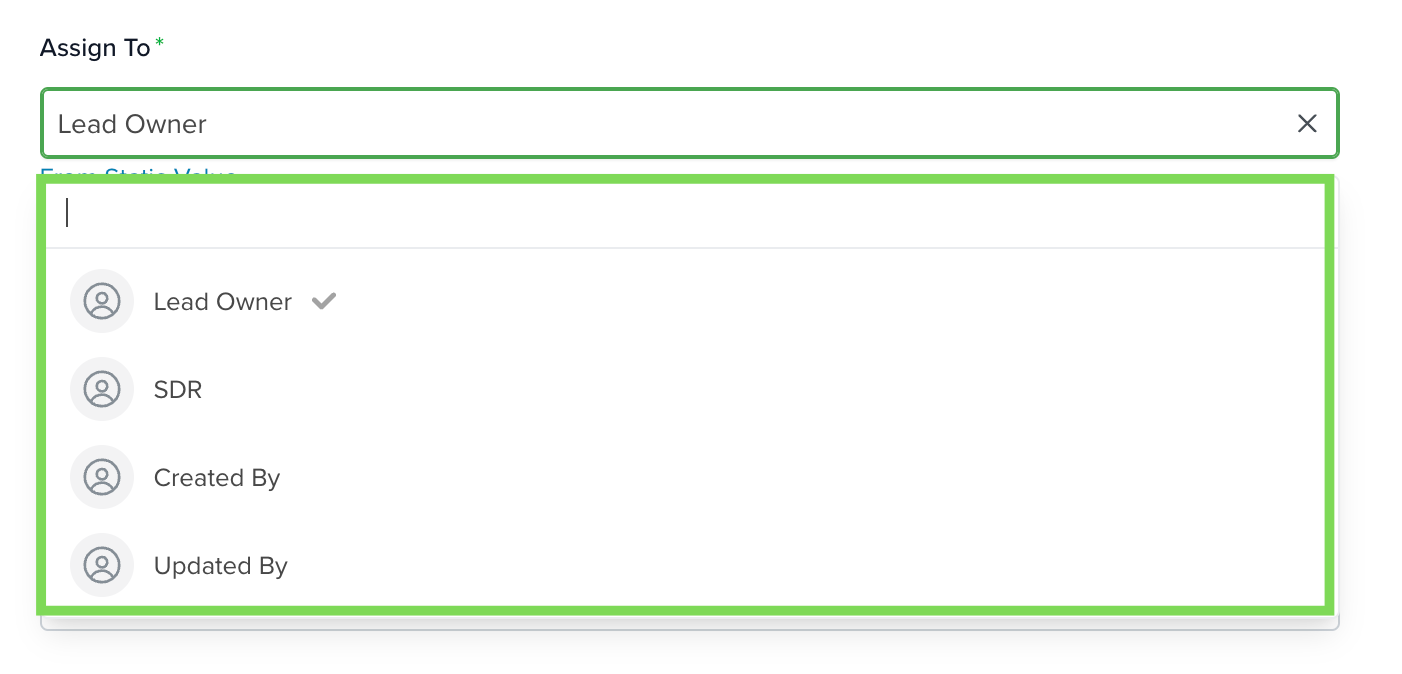
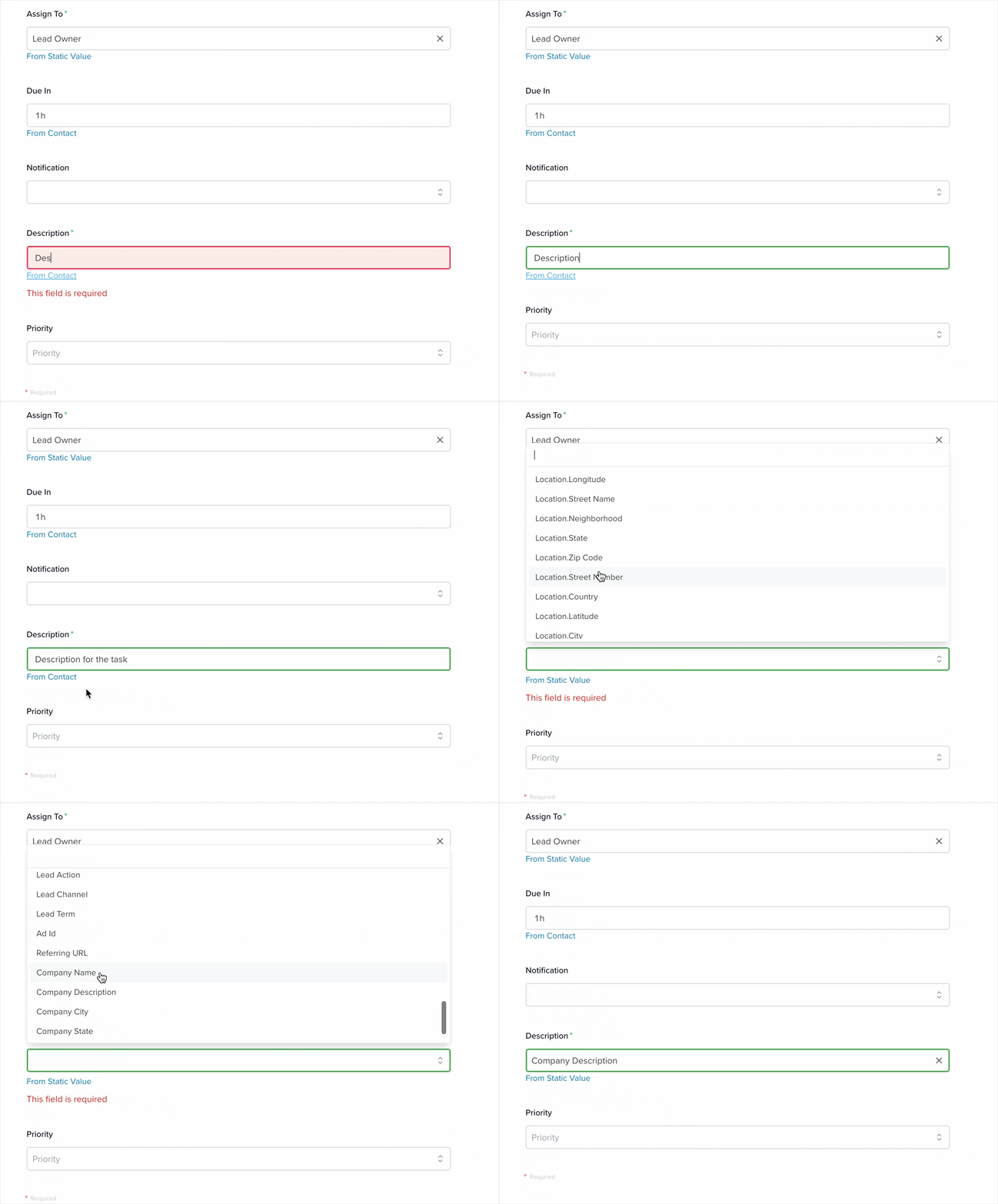
Assign To: Use this dropdown to assign the task to a specific user. You can also assign it to the Lead or Contact Owner, or dynamically assign it based on who created or last updated the record.
Due in:
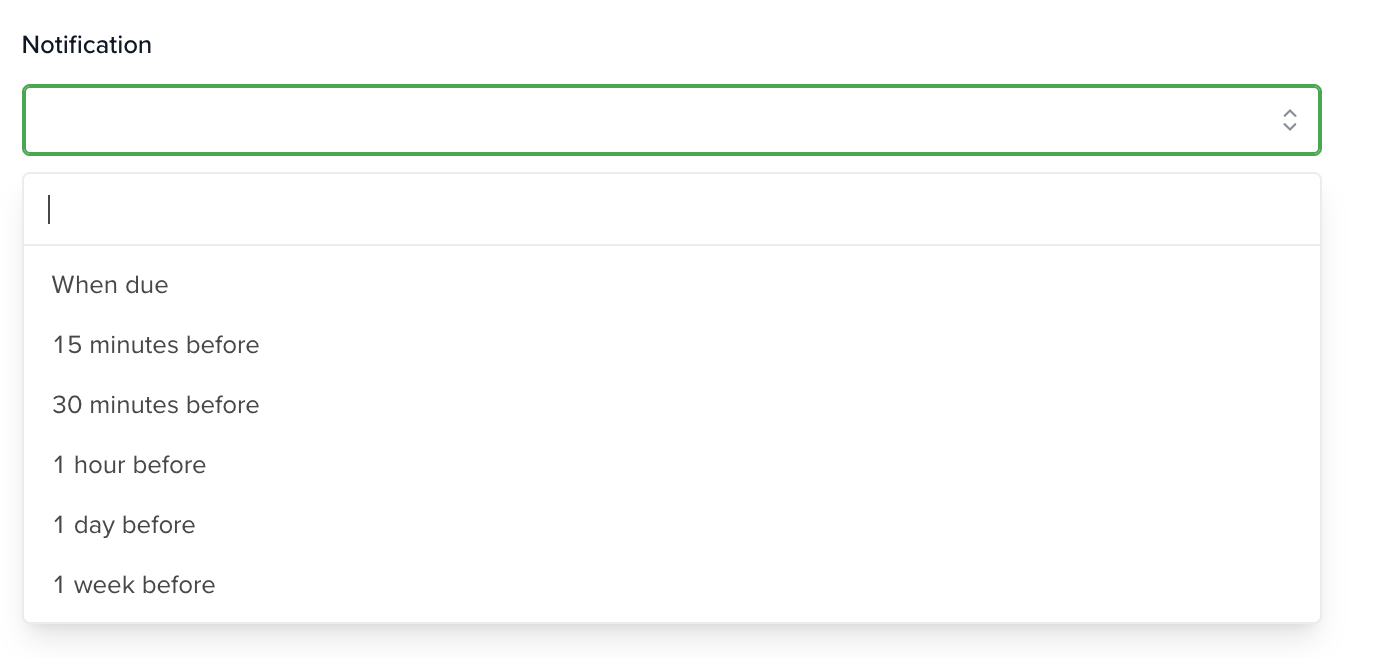
Notification: Choose when the assigned user should be notified. Options range from 15 minutes to one week before the due date, or exactly at the due time.
Description: Choose how the task description is defined:
- Static Value: Enter a custom description manually.
- From [Selected App]: Pull values from a field in the selected app (e.g., Contacts) to dynamically populate the task description.
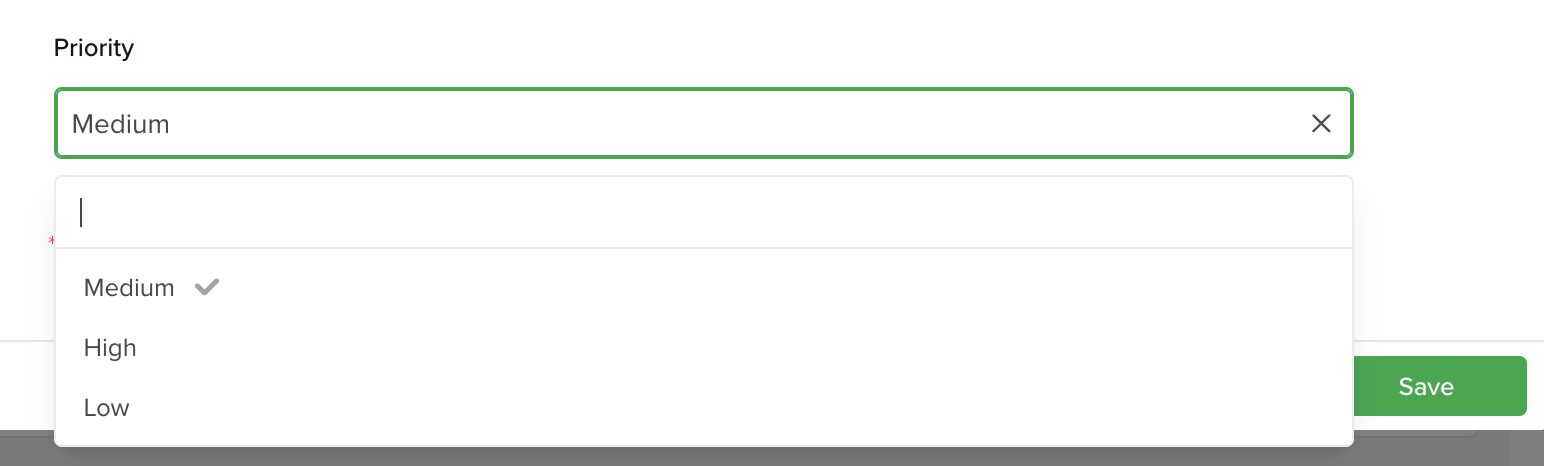
Priority: Choose between High, Medium, or Low. The selected priority will be shown on the created task.
Learn more about automation actions: Read this article.


