The Slack Alert action lets you automatically send messages to specific Slack channels as part of your automations.
It’s a powerful way to keep your team informed—whether you’re notifying sales about a new lead, alerting support about a ticket update, or sharing real-time system changes.
Messages can be customized using Slack’s Block Kit, allowing you to format content with headers, sections, and links for improved clarity and engagement.
Once configured, the action runs within your automation and posts directly to the selected channel, streamlining communication without switching tools.
User Permissions: Make sure the Slack integration is active before setting up this action. You can learn how to enable it here.

How to Set Up the Slack Alert Action
Name: Enter a clear and descriptive name to help identify this Slack Alert action.
Channel: Enter the Slack channel where the message should be sent. Use the exact channel name (e.g., #sales-updates).

Message Blocks: Define your message using Slack’s Block Kit syntax to create structured and interactive content.
Inside the input field, you’ll see an “i” icon in the top-right corner. Click it for guidance and access to Slack’s official documentation on formatting message blocks.
Example
Here’s an example based on Slack’s official Block Kit documentation:
[
  {
    "type": "header",
    "text": {
      "type": "plain_text",
      "text": "New request"
    }
  },
  {
    "type": "section",
    "fields": [
      {
        "type": "mrkdwn",
        "text": "*Type:*nPaid Time Off"
      },
      {
        "type": "mrkdwn",
        "text": "*Created by:*n<example.com|Fred Enriquez>"
      }
    ]
  },
  {
    "type": "section",
    "fields": [
      {
        "type": "mrkdwn",
        "text": "*When:*nAug 10 - Aug 13"
      }
    ]
  },
  {
    "type": "section",
    "text": {
      "type": "mrkdwn",
      "text": "<https://example.com|View request>"
    }
  }
]
You can copy and paste this example into your automation. As long as the structure is valid, it will run correctly.
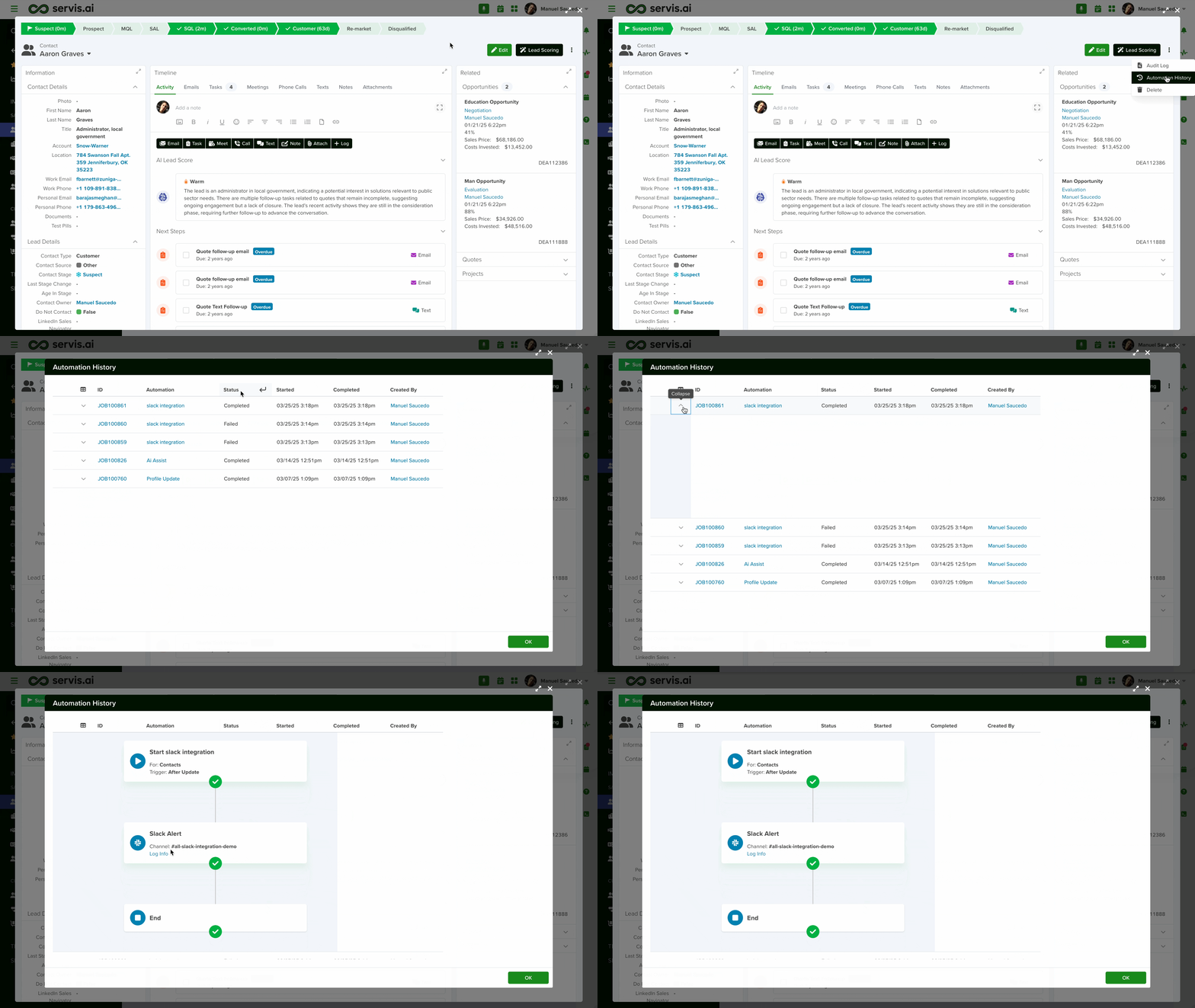
For example, if your automation is triggered by updating the Contact Stage field in the Contact app, you can verify execution using Automation History:
- Go to the Detail Page of the record that triggered the automation.
- Click the three-dot menu in the top-right corner.
- Select Automation History.

This opens a view showing all automations related to the record. Locate the automation with the Slack Alert action and expand it to verify that the message was sent.
You can also confirm delivery by checking the selected Slack channel. If configured correctly, the message will appear similar to the example above.

Learn more about automation actions: Read this article.


