Servis.ai’s Dynamic Calculated Fields simplify data tracking by automatically applying functions such as Count, Average, Max, Min, and Sum to Number, Date, and Date Time fields. This feature enhances reporting and decision-making by eliminating manual calculations and providing real-time insights.
Dynamic Calculated Fields can be used to:
- Track emails per contact for better engagement analysis.
- Measure time since the last customer interaction to improve follow-ups.
- Count total calls per agent in a call center for performance tracking.
- Monitor a nurse’s last visit to a patient using the Max function, ensuring timely follow-ups in healthcare.
Dynamic Calculated Fields transform raw data into actionable intelligence, improving workflows and supporting strategic planning for better business outcomes.
Note: The Dynamic Calculation Type can only be used with Number, Date, and Date Time field types.
Settings
When configuring a Dynamic Calculated Field, selecting the Dynamic Calculation Type introduces a new field labeled Functions. This dropdown menu includes the options Count, Average, Max, Min, and Sum, each tailored to specific data types.
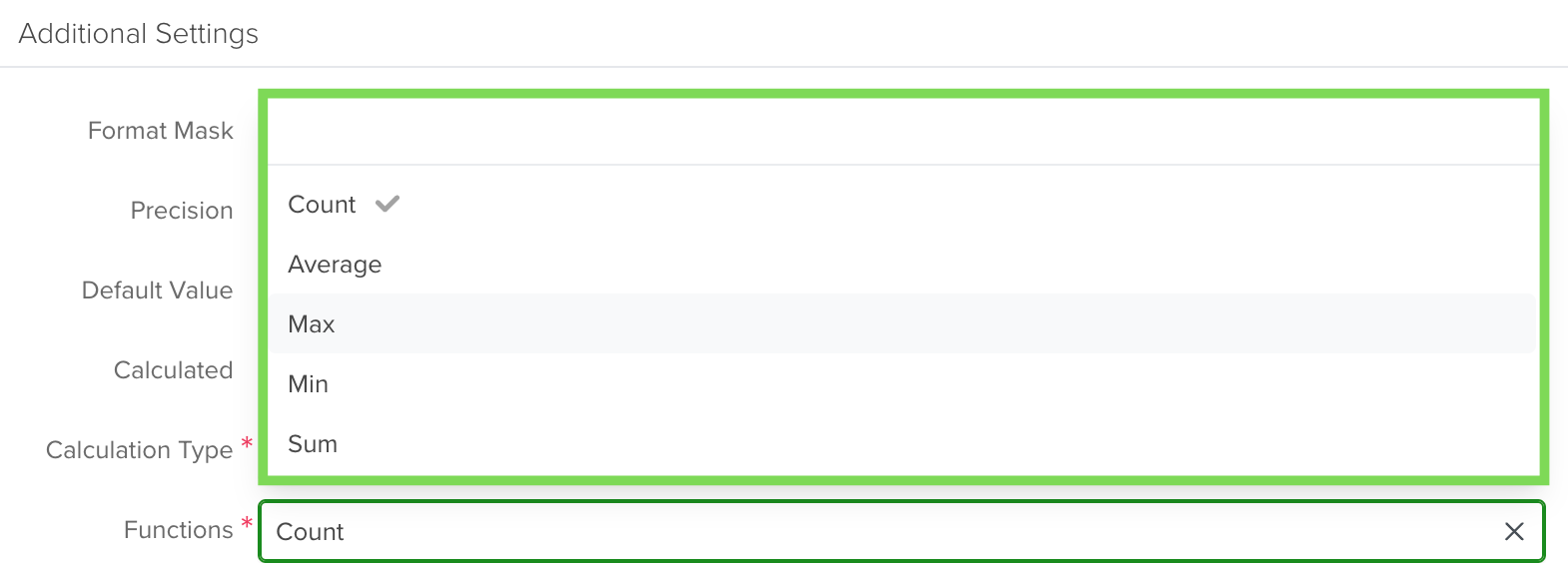
- Count: Applies to Number fields and tallies occurrences to provide a cumulative count.
- Average: Calculates the arithmetic mean of a Number field.
- Max and Min: Designed for Date and Date Timefields, these functions calculate time intervals.
- Max: Time since the most recent event.
- Min: Time since the earliest event.
- Sum: Adds all values within a Number field.
Practical Examples:
- Max: Track time since a customer’s last interaction.
- Min: Track time since a customer’s first interaction.
By selecting the appropriate function, Dynamic Calculated Fields automate sequential data tracking and enhance decision-making.
Calculate Dynamic Fields
The Calculate Dynamic Fields feature lets you create a Number-type field that dynamically counts records and applies a sum.
How to Use Calculate Dynamic Fields
You can access this feature in any app’s Settings. In the top-right corner, click Calculate Dynamic Fields. Let’s walk through an example.
Let’s see how it works with this use case:
Calculating how many emails each contact has. To do this, go to Settings > Apps > Contacts, then open the Form Fields tab and click ‘Add Field’.
Use Case: Counting Emails per Contact
Suppose we want to track how many emails each contact has received in the Contacts App.
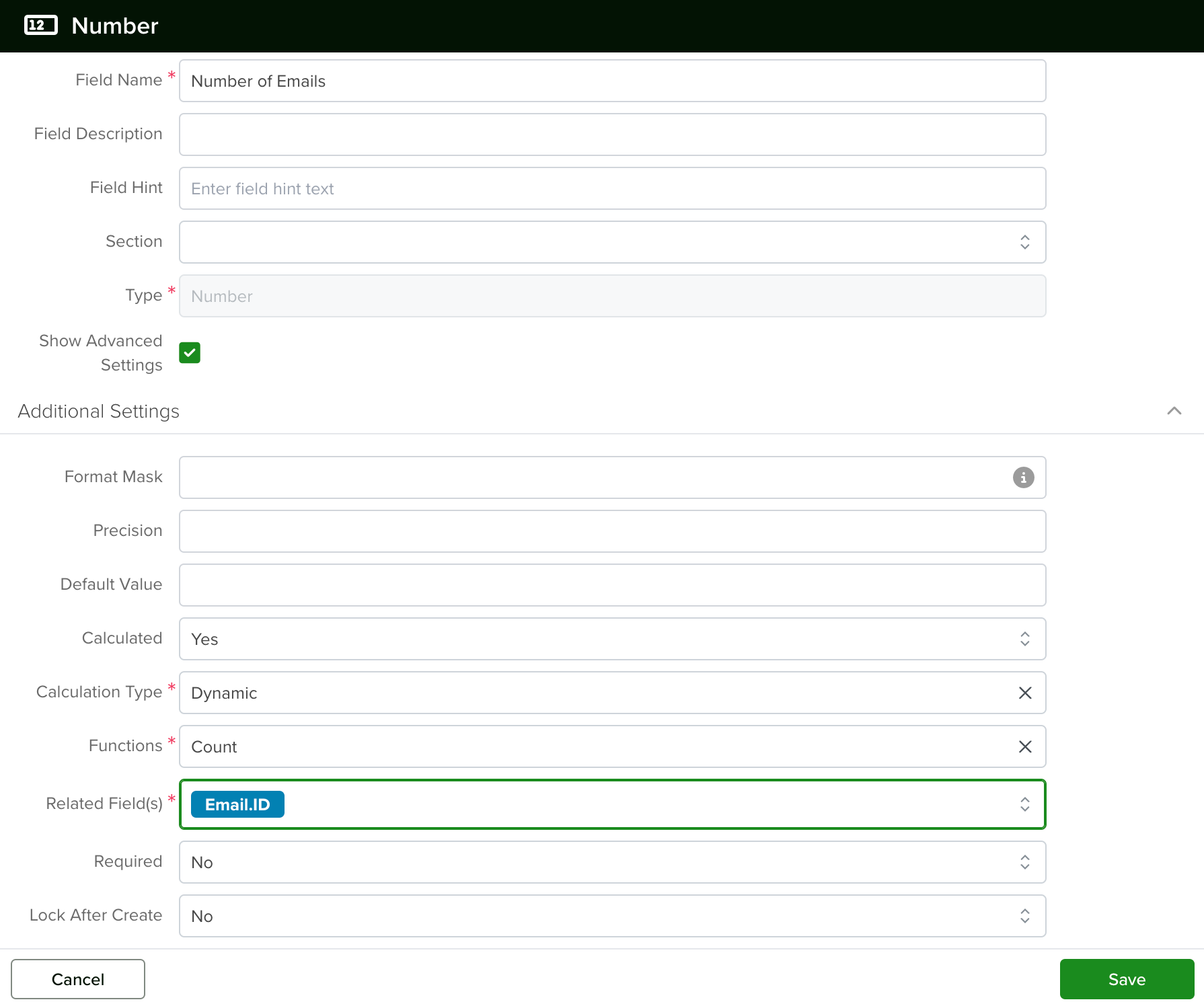
Step 1: Adding a New Field
- Go to Settings > Apps > Contacts.
- Open the Form Fields tab.
- Click Add Field.
- Select Number.
- Name it “Number of Emails”.
- Enable Show Advanced Settings.
- Under Calculated, select Yes.
- Choose Dynamic as the calculation type.
- Select Count under Functions.
- Select Email.ID as the related field.
Step 2: Displaying the Field
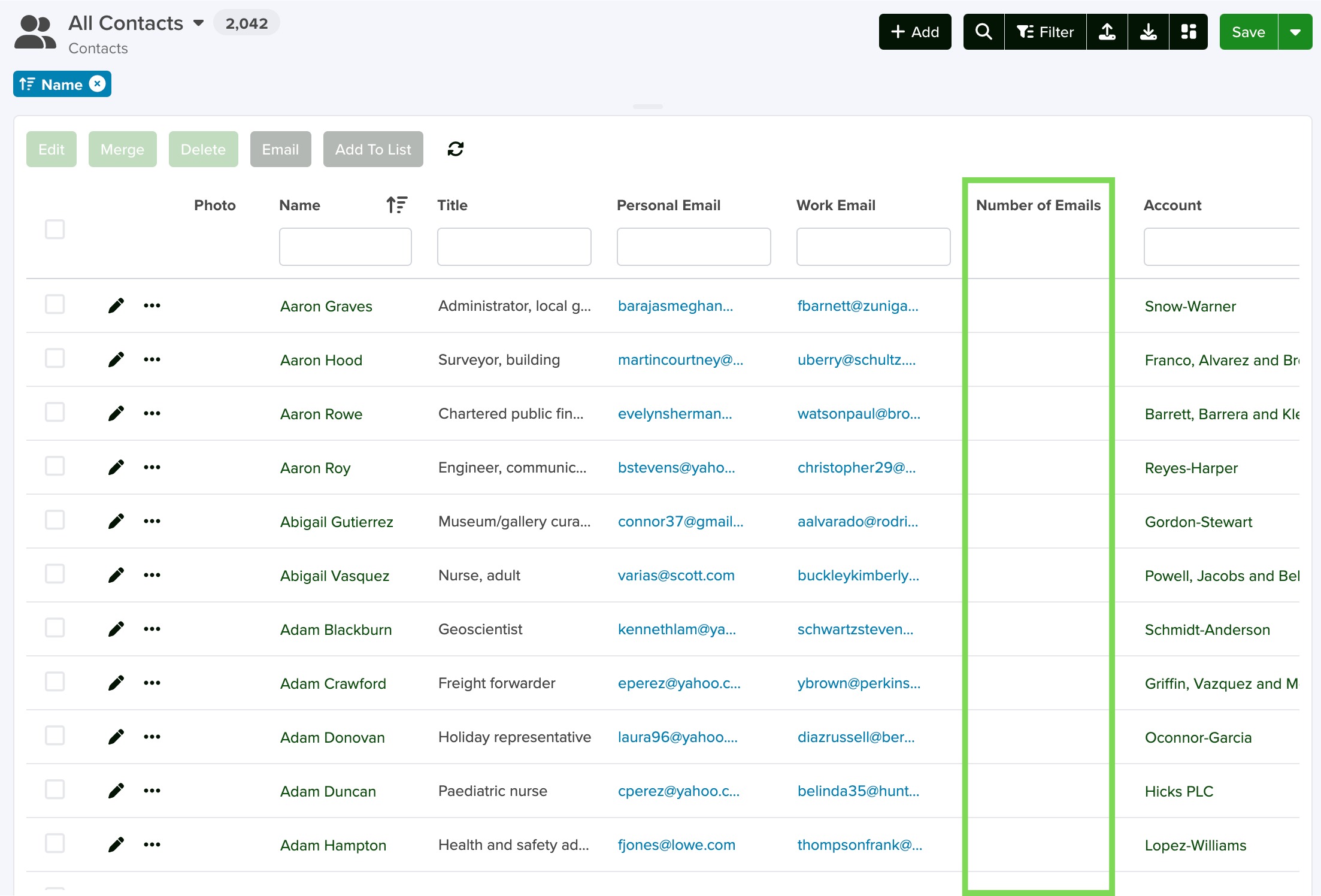
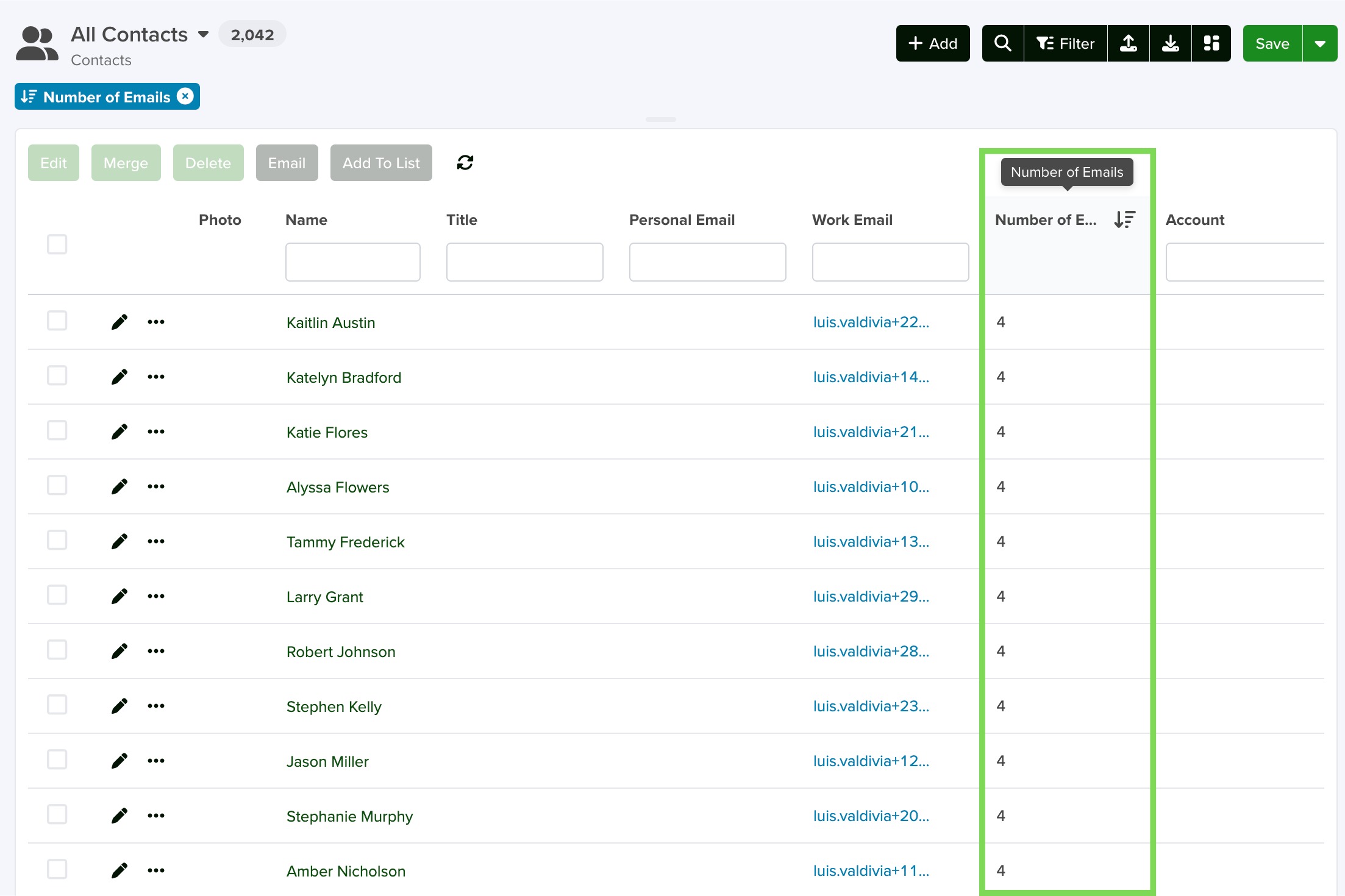
- Add Number of Emails to the List View.
- The field will initially appear empty.
Step 3: Activating the Calculation
- Go to Contacts Settings.
- Click Calculate Dynamic Fields.
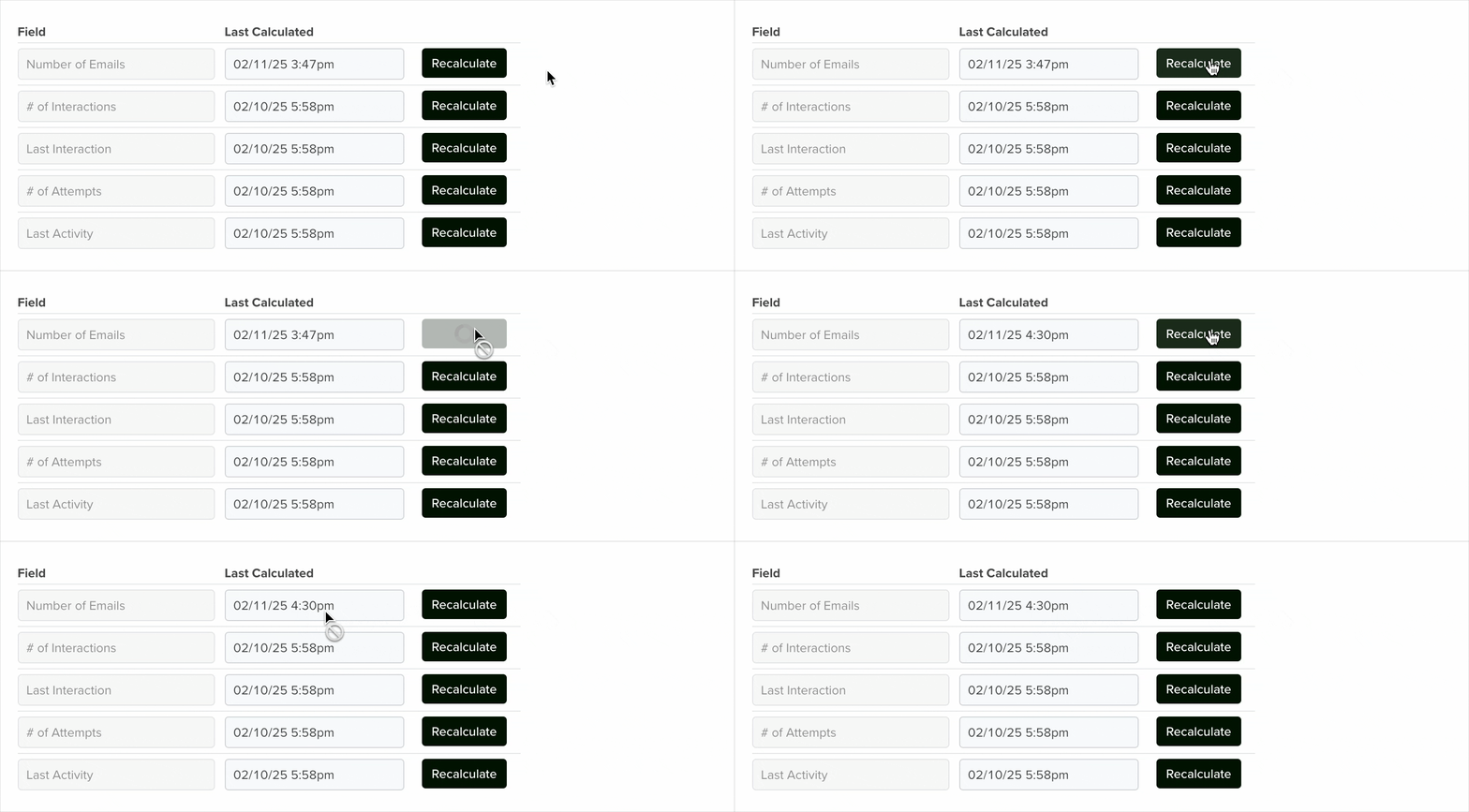
Note: The Last Calculated field will remain blank until you click Recalculate.
Click Recalculate to process the data, then return to the Contacts App to see updated values.
When to Use the Recalculate Button?
The system automatically updates new records, but you should manually Recalculate when:
- Importing new data.
- Creating new Dynamic Calculated Fields.
Otherwise, the field will continue to update automatically.
With this feature, tracking dynamic data is simple and efficient.
Referencing Dynamic Calculated Fields
When referencing a Dynamic Calculated Field, you must use the Dot.Walking field type. This is the only type that can display values from dynamic calculations.
Avoid using a Reference Field Type, as dynamic fields will not appear when using dot-walking through standard references.
Changing a Field’s Type
In Servis.ai, once a field is created, its type cannot be changed. This ensures data consistency.
To change a field type:
- Create a new field with the desired type.
- Deactivate or hide the old field to avoid confusion.


